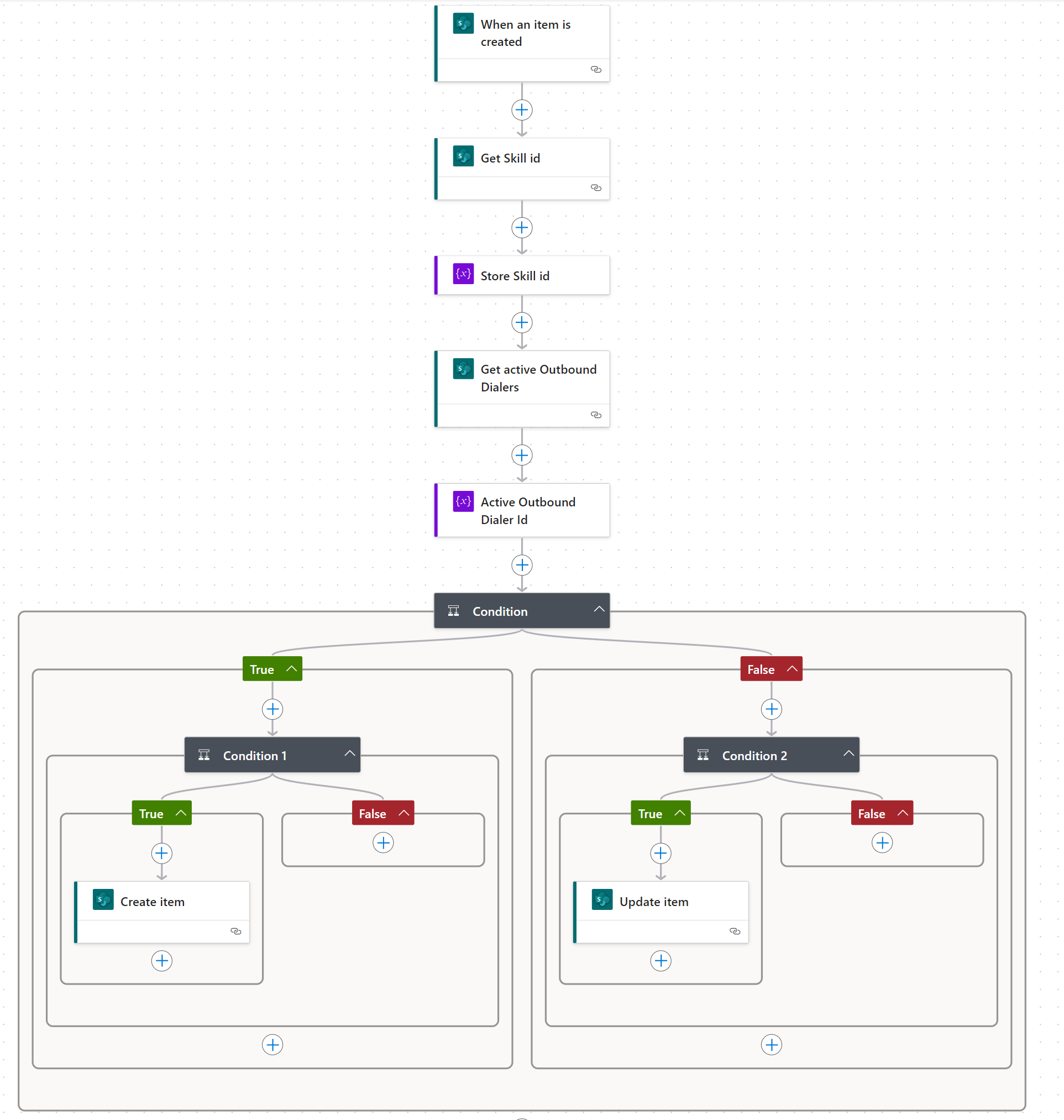
Example configuration Microsoft Power Automate to schedule callback when a dialogue is missed
Introduction
This example shows on how to automatically create a CallBack, an IVR menu feature for voice, enables the customer to confirm or leave an alternative phone number to be called back by an available agent during business hours. when a dialogue has been missed.
In addition it will also remove pending callback when the customer successfully
Configuration
-
Navigate to Microsoft Power Automate.
-
Click "My Flows"
-
Click "New" and "Create from Blank"
-
Use "When an item is created" (SharePoint) as Trigger:
-
Site = SharePoint A Unified Contact Center, or UCC, is a queue of interactions (voice, email, IM, etc.) that are handled by Agents. Each UCC has its own settings, IVR menus and Agents. Agents can belong to one or several UCCs and can have multiple skills (competencies). A UCC can be visualized as a contact center “micro service”. Customers can utilize one UCC (e.g. a global helpdesk), a few UCC’s (e.g. for each department or regional office) or hundreds of UCC’s (e.g. for each bed at a hospital). They are interconnected and can all be managed from one central location. url where the dialogues are handled
-
List Name = CallSummary
Explanation
This trigger will check for new entries in the Call Summary list every few minutes. If a new entry is found, Power Automate will trigger.
-
-
Add action "Get Items" (SharePoint) and rename to "Get Skill id":
-
Site = SharePoint UCC url where the dialogues are handled
-
List = Skills
-
Filter Query =
ExpressionTitle eq '@{triggerBody()?['wsp_ucc_SkillChosen']}'
Explanation
This action will attempt to retrieve the matching Skill ID from the SkillChosen field in the Call Summary list.
-
-
Add action "Initialize variable" and rename to "Store Skill id":
-
Name = SkillId
-
Type = Integer
-
Value =
Expression@first(body('Get_Skill_Id')?['value'])?['id']
Explanation
Because the previous action could potentially return multiple values, these need to be captured and stored in a variable for later use in the Power Automate flow.
-
-
Add action "Get Items" (SharePoint) and rename to "Get active Outbound Dialers":
-
Site = SharePoint UCC url where the callbacks are handled
-
List = OutboundDialerCalls
-
Filter Query =
ExpressionTitle eq '@{triggerBody()?['wsp_ucc_Customer']}' and wsp_ucc_odc_processed eq 'No'
Explanation
With this action, we want to retrieve any potential records to see if the customer already has a pending callback scheduled.
-
-
Add action "Initialize variable" and rename to "Active Outbound Dialer Id":
-
Name = Dialer
-
Type = String
-
Value =
Expressionif(equals(length(body('Get_active_Outbound_Dialers')?['value']), 0), '', string(first(body('Get_active_Outbound_Dialers')?['value'])?['id']))
Explanation
Because the previous action could potentially return multiple values, these need to be captured and stored in a variable for later use in the Power Automate flow.
-
-
Add action "Condition", with the following two checks (keep drop down on AND):
Explanation
This condition checks if the entry in the call summary was not accepted and contains a SkillChosen. If true, it’s a missed call. If false, it’s an accepted call or an Interactive Voice Response, or IVR, is a telephone application to take orders via telephone keypad or voice through a computer. By choosing menu options the caller receives information, without the intervention of a human operator, or will be forwarded to the appropriate Agent. drop.
-
Condition expression 1:
-
Value 1 =
Expression@triggerBody()?['wsp_ucc_Accepted']
-
Check = Is equal to
-
Value 2 =
Expression@false
-
-
Condition expression 2:
-
Value 1 =
Expression@triggerBody()?['wsp_ucc_SkillChosen']
-
Check = Is not equal to
-
Value 2 =
Expression@null
-
-
-
If True:
-
Add action "Condition", with the following check:
Explanation
This condition checks if the customer has a pending entry in the callback schedule. If true, the customer had a pending callback; if false, the customer did not.
-
Value 1 =
Expression@variables('Dialer') -
Check = Is equal to
-
Value 2 =
-
-
If True:
-
Add "Create Item" (SharePoint):
-
Site = SharePoint URL where the callback should be created on
-
List = OutboundDialerCalls
-
Invite =
Expression@{triggerBody()?['wsp_ucc_Customer']} -
Processed = No
-
Skill Id =
Note
First select "Enter custom value", which is the last option in the drop down.
Expression@variables('SkillId')
Explanation
This action creates an entry on the callback list, ensuring that the customer will be called by an agent with the same skill as the missed call.
-
-
-
If False, do nothing
Explanation
Because the customer already has a pending callback scheduled, no further actions are needed.
-
-
If False:
-
Add action "Condition", with the following two checks (keep drop down on AND):
Explanation
This condition checks if the customer has a pending entry in the callback schedule and if the call summary entry was accepted. If true, the customer had a pending callback but has already spoken to an agent.
-
Condition expression 1:
-
Value 1 =
Expression@variables('Dialer') -
Check = Is not equal to
-
Value 2 =
-
-
Condition expression 2:
-
Value 1 =
Expression@triggerBody()?['wsp_ucc_Accepted']
-
Check = is equal to
-
Value 2 =
Expression@true
-
-
-
If True:
-
Add action "Update Item" (SharePoint):
-
Site = SharePoint UCC Site, where callbacks are handled
-
List = OutboundDialerCalls
-
Id =
Expression@{variables('Dialer')} -
Invite =
Expression@{triggerBody()?['wsp_ucc_Customer']} -
Processed = Yes
Explanation
This action will update the scheduled callback to be processed, as the customer has already spoken to an agent in the call summary entry.
-
-
-
If False, no nothing.
-
Example: