Additional configuration CRM Service for SharePoint
Below the optional configuration you can do to the Customer Relationship Management, or CRM, is (usually) a software-based, data management method to deal with interactions with customers and potential customers. Service for SharePoint.
PluginAttributes
This list contains the items which are shown to the user in the WebAgent and ID’s used to identity unique entities. All items are grouped by the Category.
Note
Only modify this list if you want to deviate from the default PluginAttributes.
The PluginAttributes list contains the following columns:
| Column | Meaning |
|---|---|
|
DisplayName |
Name of the property shown in the WebAgent. |
|
SystemName |
Must be the SharePoint column name. |
|
ShowOnExtensionWindow |
Indicate that the property is visible in the WebAgent. The main reasons to set this to ‘No’ and still configure it as an item is when the property should not be shown, but is used in a Hyperlink or it’s an ID. |
|
Order |
The order in which the property is to be shown. Important: counting must restart for each Category. |
|
FieldType |
Zero or more field types, these are covered per Category later on. |
|
Hyperlink |
Make the property clickable with the Hyperlink specified. It is possible to include the value of a property in the Hyperlink. This is done by putting the value of a SystemName property in square brackets in the Hyperlink. For example if there is a property with the SystemName ‘Example’, then the URL becomes: http://www.example.com/?queryString=[Example] |
|
OpenAutomatically |
Ignored by the CrmService. |
|
Category |
The Category for this item. |
|
ShowOnToast |
Can be used to force the inclusion of the attribute in the query. |
It is possible to combine the values of several properties, for instance when a name is split up in multiple properties, e.g. a FirstName and LastName column. In this case both properties should have the same DisplayName and they should appear after each other in Order, e.g. 1 and 2.
Note
ContactSearch will fall back to Contact if no items are supplied for the ContactSearch category. The same rule applies to Lead, LeadSearch, Case and CaseSearch. Only Contact is mandatory to have items.
Contact
The items in this category are the properties shown of a single contact. It supports the following field types:
| Field type | Description |
|---|---|
|
Id |
This field type in combination with a value in the Hyperlink column, will be shown as CRM link. |
|
Name |
The name of the contact which will be shown as the contact’s title. |
|
PhoneNumber |
Column may contain a phone number. |
|
SipAddress |
Column may contain a The Session Initiation Protocol, or SIP, is a protocol for multimedia communication (audio, video and data communication). SIP is also used for Voice over IP (VoIP). SIP has interactions with other Internet protocols such as HTTP and SMTP.-address. |
|
|
Column may contain an e-mail address. |
|
Date |
Column contains a date (and time). |
|
Search |
Column is searchable. This type should be set for each column containing a PhoneNumber, Email or SipAddress to search for a contact match. This type will also mark a field as a search option if no ContactSearch items are configured. |
ContactSearch
This category is used to display a summary of the contact and used for searching contacts. All properties which should be searchable, must have the Search field type. The column containing the values to verify the identity of the caller, e.g. a zip code, must have the field type Verify.
Case
Note
Only contacts can have cases.
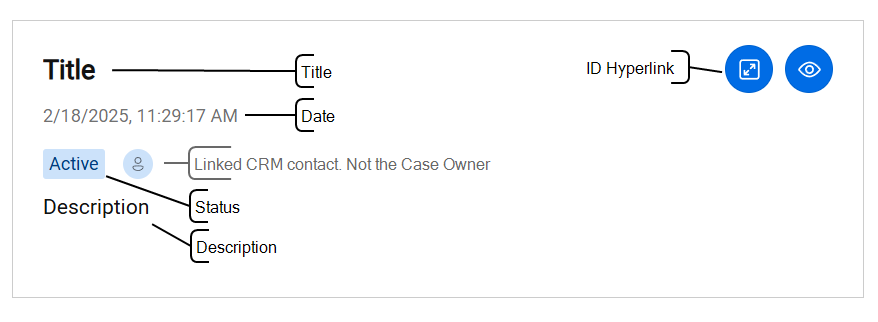
The DisplayNames in this category are fixed. The following items are supported:
| DisplayName | Description |
|---|---|
|
Title |
Multiple items can have this DisplayName. Must have the Name field type. |
|
Description |
Only a single item is allowed to have this DisplayName. |
|
Date |
Must have the Date field type to be used. |
|
Status |
The case status including the case
status colors. The values must match the |
It is also possible to add a ID field type to an ID item or any of the other items. The ID field type in combination with a URL in the hyperlink column will be shown as a CRM link for each case.
Case in WebAgent UI example
CaseSearch
These must have the same items as the Case category. The difference here is that items may have the Search field type.
PluginSettings
-
Open the A Unified Contact Center, or UCC, is a queue of interactions (voice, email, IM, etc.) that are handled by Agents. Each UCC has its own settings, IVR menus and Agents. Agents can belong to one or several UCCs and can have multiple skills (competencies). A UCC can be visualized as a contact center “micro service”. Customers can utilize one UCC (e.g. a global helpdesk), a few UCC’s (e.g. for each department or regional office) or hundreds of UCC’s (e.g. for each bed at a hospital). They are interconnected and can all be managed from one central location. Config page on SharePoint
-
Open the Plugin Settings list
-
You can add the following optional settings:
| Setting | Value |
Scope |
|---|---|---|
|
|
Show what kind of contact is calling. Can be a Contact, Lead or Unknown. Default True. |
CrmService |
|
Iso 3166 alpha-2 code . Default ZZ. |
CrmService |
|
|
|
The format used when searching the CRM when a call comes in. There are four values:
Important: change this setting if phone numbers are stored in any of the other formats to improve performance. |
CrmService |
|
|
Case list name. Ex: Cases Note Only one |
CrmService |
|
XML
<View>
   <Query>
      <Where />
   </Query>
   <ViewFields />
   <RowLimit>100</RowLimit>
</View>
Important
|
CrmService |
|
|
attribute and value must be valid SystemName's. By default: |
CrmService |
|
|
|
Mapping of a case (incident) status (statuscode) to a WebAgent status. Mapping
New=Open
Working=Open
Escalated=Open
Closed=Closed
Left side is the formatted value as configured in SharePoint, see also "MS CRM SharePoint Entity StateCodes and StatusCodes" , the right side is either New, Open or Closed. |
CrmService |
|
|
attribute and value must be valid SystemName's. By default: |
CrmService |
|
|
attribute and value must be valid SystemName's. By default: |
CrmService |
|
|
Set the value to true, if attribute names contains upper case letters. This is required for the queries to work properly. Be default system names (field names) are configured to convert to lower case and it will be handled if this is set to true. Default value for this is true and set it to false if you are certain that system names (field names) are always lower case |
CrmService |
For the mandatory Settings see Configure PluginSettings
It is possible to override a base default query and add a custom query instead. Check Custom queries for examples.
Main queries used in the service
Assuming the application use the default layout for queries, query:
<View>
   <Query>
      <Where />
   </Query>
   <ViewFields />
   <RowLimit>100</RowLimit>
</View>
The <ViewFields> will add all pluginattributes systemnames as columns in the statement if they are marked as show on extension window and are of type Contact.
The base default query used for contacts and cases can be categorized in 3 parts:
<Query><Where/></Query> : The query conditions. The query conditions will be added automatically based on the search values received in the Crm Service. For a phone number the LIKE operator will be used and for sip and email values the EQUALS (=) operator will be set.
<ViewFields> : Setting ViewFields specifies which SharePoint columns will be returned by the query. These fields are defined in the PluginAttributes table. Setting SystemName contains the internal name of the mapped SharePoint column. Setting ShowOnExtension indicates which fields will be used in the query. So if for instance only the pluginattribute Name and Email should be shown, the ViewFields setting in the query will be:
<ViewFields>
   <FieldRef Name="wsp_ucc_contacts_id" />
   <FieldRef Name="wsp_ucc_contacts_name" />
   <FieldRef Name="wsp_ucc_contacts_email" />
</ViewFields>
<RowLimit> : Upper limit on the number of records that can be retrieved from SharePoint. The <RowLimit> value is mandatory, queries without <RowLimit> will not be executed.
The base default query template is used to create the SharePoint CAML queries, which are used to retrieve data from the SharePoint environment. The next chapters will provide examples for some of the most common scenarios. Chapter Custom queries describes how the Crm Service can use custom queries instead of the base default queries.
Sample query to check an incoming phone numbers in contacts
Setting DefaultPhoneNumberRegion defines how a phone number value will be queried in a search request. So if for instance the plugin receives the phone number tel:+14155552671, depending on the chosen phone number format the phone number will be queried as:
-
E164 :
Query<FieldRef Name='wsp_ucc_contacts_workphone'/> <Value Type='Text'>+14155552671</Value>
-
Wildcard :
Query<FieldRef Name='wsp_ucc_contacts_workphone'/> <Value Type='Text'>55552671</Value>
-
International :
Query<FieldRef Name='wsp_ucc_contacts_workphone'/> <Value Type='Text'>+1 415-555-2671</Value>
-
Rfc3966 :
Query<FieldRef Name='wsp_ucc_contacts_workphone'/> <Value Type='Text'>tel:+1-415-555-2671</Value>
So in case of a wildcard search the final query will become query:
<View>
   <Query>
      <Where>
         <Contains>
            <FieldRef Name="wsp_ucc_contacts_workphone" />
            <Value Type="Text">55552671</Value>
         </Contains>
      </Where>
   </Query>
   <ViewFields>
      <FieldRef Name="wsp_ucc_contacts_id" />
      <FieldRef Name="wsp_ucc_contacts_name" />
      <FieldRef Name="wsp_ucc_contacts_email" />
   </ViewFields>
</View>
If multiple pluginattributes are marked as field type PhoneNumber, these fields will also be included in the query and added together via OR operators (the same applies to queries on field type SipAddress or Email). query:
<View>
   <Query>
      <Where>
         <Or>
            <Contains>
               <FieldRef Name="wsp_ucc_contacts_workphone" />
               <Value Type="Text">13123705</Value>
            </Contains>
            <Contains>
               <FieldRef Name="wsp_ucc_contacts_officephone" />
               <Value Type="Text">13123705</Value>
            </Contains>
         </Or>
      </Where>
   </Query>
   <ViewFields>
      <FieldRef Name="wsp_ucc_contacts_id" />
      <FieldRef Name="wsp_ucc_contacts_name" />
      <FieldRef Name="wsp_ucc_contacts_email" />
   </ViewFields>
</View>
Sample query to check a SIP address in contacts
In case of a search on a Sip address, all pluginattributes marked with field type SipAddress and Email will be included in the query. The difference is that fields marked with field type SipAddress will be queried on the full sip address, where fields marked with field type email will be queried on the sip address minus the 'sip:' prefix. So for example if the sip address is sip:test@anywhere.now, then fields marked with field type SipAddress will be queried against sip:test@anywhere.now and fields marked with field type email will be queried against test@anywhere.now.
For a sip address search the query will be, query:
<View>
   <Query>
      <Where>
         <Contains>
            <FieldRef Name="wsp_ucc_contacts_sip" />
            <Value Type="Text">sip:test@anywhere.now</Value>
         </Contains>
      </Where>
   </Query>
   <ViewFields>
      <FieldRef Name="wsp_ucc_contacts_id" />
      <FieldRef Name="wsp_ucc_contacts_name" />
      <FieldRef Name="wsp_ucc_contacts_email" />
   </ViewFields>
</View>
Sample query to check an email in contacts
For email, query:
<View>
   <Query>
      <Where>
         <Contains>
            <FieldRef Name="wsp_ucc_contacts_email" />
            <Value Type="Text">test@anywhere.now</Value>
         </Contains>
      </Where>
   </Query>
   <ViewFields>
      <FieldRef Name="wsp_ucc_contacts_id" />
      <FieldRef Name="wsp_ucc_contacts_name" />
      <FieldRef Name="wsp_ucc_contacts_email" />
   </ViewFields>
</View>
Sample query to search on free text in contacts
Another example of using multiple pluginattributes is the text search. Assume firstname, lastname, workphone, officephone and mobile as pluginattributes. All of them will be concatenated by using OR operators. If the search text is "test", the query will become query:
<View>
   <Query>
      <Where>
         <Or>
            <Contains>
               <FieldRef Name="wsp_ucc_contacts_firstname" />
               <Value Type="Text">test</Value>
            </Contains>
            <Or>
               <Contains>
                  <FieldRef Name="wsp_ucc_contacts_lastname" />
                  <Value Type="Text">test</Value>
               </Contains>
               <Or>
                  <Contains>
                     <FieldRef Name="wsp_ucc_contacts_workphone" />
                     <Value Type="Text">test</Value>
                  </Contains>
                  <Or>
                     <Contains>
                        <FieldRef Name="wsp_ucc_contacts_officephone" />
                        <Value Type="Text">test</Value>
                     </Contains>
                     <Contains>
                        <FieldRef Name="wsp_ucc_contacts_mobile" />
                        <Value Type="Text">test</Value>
                     </Contains>
                  </Or>
               </Or>
            </Or>
         </Or>
      </Where>
   </Query>
   <ViewFields>
      <FieldRef Name="wsp_ucc_contacts_firstname" />
      <FieldRef Name="wsp_ucc_contacts_lastname" />
      <FieldRef Name="wsp_ucc_contacts_workphone" />
      <FieldRef Name="wsp_ucc_contacts_officephone" />
      <FieldRef Name="wsp_ucc_contacts_mobile" />
      <FieldRef Name="ID" />
   </ViewFields>
</View>
Searching for contacts uses the query defined in the BaseContactQuery setting and the ContactSearch pluginattributes. If there are no ContactSearch pluginattributes available, then the Contact category pluginattributes will be used instead.
Sample query to search cases
The cases base query (setting BaseCaseQuery) is the same as the contacts base query, query:
<View>
   <Query>
      <Where />
   </Query>
   <ViewFields />
   <RowLimit>100</RowLimit>
</View>
The <Where/> clause uses the value of the ContactCaseFilter setting, due to cases needing a reference to the contact id. The contact id is necessary to link cases to a contact. If the ContactCaseFilter setting is empty, the Case plugin attribute marked with field type 'id' will be used by default and the value of this field will be compared to the contact id. So for instance if the plugin attributes settings contain a Case pluginattribute named CaseId marked with fieldtype 'id' and system name wsp_ucc_contacts_id, the query will become:
<View>
   <Query>
      <Where>
         <Eq>
            <FieldRef Name="wsp_ucc_contacts_id" />
            <Value Type="Text">538bfea0-5e18-48b9-a877-a5934286ada4</Value>
         </Eq>
      </Where>
   </Query>
   <ViewFields>
      <FieldRef Name="wsp_ucc_contacts_id" />
      <FieldRef Name="wsp_ucc_contacts_name" />
      <FieldRef Name="wsp_ucc_contacts_email" />
   </ViewFields>
   <RowLimit>100</RowLimit>
</View>
In case of a custom query, add [nameofcaseidattribute] and contactid in the statement.
The Crm Service uses the BaseContactQuery setting to search cases. All Case plugin attributes of field type 'name' will be used in the search. So if the plugin attributes settings are configured with a Case plugin attribute with name Description and system name 'wsp_ucc_cases_description' and field type 'name', then the query will be:
<View>
   <Query>
      <Where>
         <Contains>
            <FieldRef Name="wsp_ucc_cases_description" />
            <Value Type="Text">test</Value>
         </Contains>
      </Where>
   </Query>
   <ViewFields>
      <FieldRef Name="wsp_ucc_cases_id" />
      <FieldRef Name="Title" />
      <FieldRef Name="wsp_ucc_cases_description" />
   </ViewFields>
   <RowLimit>100</RowLimit>
</View>
Custom queries
It is possible to override the default base query described in the previous chapters. This can be done by changing the value of settings BaseContactQuery and BaseCaseQuery to a custom query. Example of a base custom query template:
<View>
   <Query>
      <Where>
         <Contains>
            <FieldRef Name="wsp_ucc_contacts_workphone" />
            <Value Type="Text" />
         </Contains>
      </Where>
   </Query>
   <ViewFields>
      <FieldRef Name="wsp_ucc_contacts_id" />
      <FieldRef Name="Title" />
      <FieldRef Name="wsp_ucc_contacts_firstname" />
   </ViewFields>
   <RowLimit>100</RowLimit>
</View>
In case of an incoming call with phone number +14155552671 the query will be:
<View>
   <Query>
      <Where>
         <Contains>
            <FieldRef Name="wsp_ucc_contacts_workphone" />
            <Value Type="Text">+14155552671</Value>
         </Contains>
      </Where>
   </Query>
   <ViewFields>
      <FieldRef Name="wsp_ucc_contacts_id" />
      <FieldRef Name="Title" />
      <FieldRef Name="wsp_ucc_contacts_firstname" />
   </ViewFields>
   <RowLimit>100</RowLimit>
</View>
SharePoint data is obtained using SharePoint CAML queries, see CAML Queries in SharePoint . Queries are created using base and filter queries and are completed using the attributes in the PluginAttributes list.
SharePoint authentication
CRM Service for SharePoint can use login credentials or app-only access, depending on the SharePoint environment and authentication requirements.
Important
For SharePoint Online, do not use username and password authentication for accounts that require multi-factor authentication (MFA), Conditional Access, or another interactive sign-in requirement. Use app-only access for service integrations where possible.
-
Using login credentials
-
For SharePoint Online, this option is only suitable when the configured account can sign in without MFA or Conditional Access policies that require interactive authentication.
-
If login credentials are used, only the
UserNameandPasswordfields are mandatory credentials. -
Encrypt the password value and store the encrypted value in the
Passwordfield in PluginSettings. -
AnywhereNow allows encryption using the A365.PWTool.exe.
-
The configured user account must have enough permissions to add and modify the Contacts and Cases lists. If the user account does not have enough permissions, this is logged in the CRM Service log.
-
The
ClientIdandClientSecretparameters are optional.
-
-
App-only access
-
If this option is selected, CRM Service needs a SharePoint app registration to access the SharePoint environment.
-
The
ClientIdandClientSecretsettings use the older SharePoint App-Only model based on Azure Access Control Services (ACS commonly known as the acronym for Azure Communication Services, Microsoft's multichannel communication API in Azure for voice, video, chat, text messaging/SMS, email, and more to applications. Not te be confused with Azure Access Control Services (AACS) a deprecating authentication service of Microsoft, also sometimes abbreviated to ACS.). For more information, see Grant access using SharePoint App-Only | Microsoft Learn. -
Microsoft has retired ACS for SharePoint Online, and states that it will stop working from April 2, 2026. For new SharePoint Online integrations, validate whether your CRM Service version supports Formerly known as Azure Active Directory (or Azure AD, or AAD) app-only authentication before relying on ACS-based
ClientIdandClientSecretauthentication. -
Encrypt both the
ClientIdandClientSecretvalues using the password tool (A365.PWTool.exe). -
The app must have enough permissions to access the SharePoint lists.
For more information, see Add-in permissions in SharePoint | Microsoft Learn.
XML<AppPermissionRequests AllowAppOnlyPolicy="true"> <AppPermissionRequest Scope="http://sharepoint/content/sitecollection/web/list" Right="FullControl"/> </AppPermissionRequests>
-
The
UserNameandPasswordparameters are optional.
-
Add SharePoint Lists and Modify Columns
It is possible to add and modify the "Contacts" and "Cases" lists. The plugin settings has two list name settings:
-
ContactListName: The name used for the Contacts list. -
CaseListName: The name used for the Cases list.
If the SharePoint environment does not have list(s) with the given name(s), the CRM service will create new list(s) during system initialization. CRM service can also add and modify SharePoint list columns. This can be achieved by modifying the default JSON string of ContactsListFieldDefinitions and CasesListFieldDefinitions. If the internal field name is modified in the template, the CRM Service will create a new column in the related SharePoint list. The existing column will remain as it is.
Note
It is not possible to delete existing list columns, by removing child nodes in the JSON list definition. If a column should be deleted, it should be a hard delete both in the SharePoint list as in the Json list definition. Apart from that the columns in the PluginSettings templates and PluginAttributes should match one on one.
In those json strings:
-
Root node name is "Fields"
-
Child node name is "Field". Each node should have one to one mapping with "PluginAttribute" list
-
Each child node has four main attributes. (Title, DisplayName, Type, Required)
- Title: Column header name
- DisplayName: system name for the column
- Type: data type ("Text", "DateTime", "Choice")
- Required: Is the field mandatory or not
-
Sample Text Field:
JSON{ '@Title': 'Description', '@DisplayName': 'wsp_ucc_cases_description', '@Type': 'Text', '@Required': 'FALSE' } -
Sample Choice Field
JSON{ '@Title': 'Status', '@DisplayName': 'wsp_ucc_cases_status', '@Type': 'Choice', '@Required': 'True', 'Default': 'New', 'CHOICES': { 'CHOICE': [ 'Assigned', 'Closed', 'Duplicate', 'New', 'Pending Input', 'Rejected' ] } } -
Sample Date Field
JSON{ '@Title': 'Created On', '@DisplayName': 'wsp_ucc_cases_creationdate', '@Type': 'DateTime', '@Required': 'FALSE', '@Format': 'DateOnly', 'Default': '[today]' } -
ContactsListFieldDefinitionsDefault JSONJSON@" { "Fields": { "Field": [ { "@DisplayName": "wsp_ucc_contacts_id", "@Title": "Contact ID", "@Type": "Text", "@Required": "TRUE", "@Min": "35", "@AllowDuplicateValues": "FALSE" }, { "@DisplayName": "Title", "@Title": "Full Name", "@Type": "Text", "@Required": "TRUE" }, { "@DisplayName": "wsp_ucc_contacts_firstname", "@Title": "First Name", "@Type": "Text", "@Required": "FALSE" }, { "@DisplayName": "wsp_ucc_contacts_lastname", "@Title": "Last Name", "@Type": "Text", "@Required": "FALSE" }, { "@DisplayName": "wsp_ucc_contacts_sipuri", "@Title": "Sip Uri", "@Type": "Text", "@Required": "FALSE" }, { "@DisplayName": "wsp_ucc_contacts_email", "@Title": "Email", "@Type": "Text", "@Required": "FALSE" }, { "@DisplayName": "wsp_ucc_contacts_workphone", "@Title": "Work Phone", "@Type": "Text", "@Required": "FALSE" }, { "@DisplayName": "wsp_ucc_contacts_officephone", "@Title": "Office Phone", "@Type": "Text", "@Required": "FALSE" }, { "@DisplayName": "wsp_ucc_contacts_mobile", "@Title": "Mobile", "@Type": "Text", "@Required": "FALSE" }, { "@DisplayName": "wsp_ucc_contacts_companyid", "@Title": "Company ID", "@Type": "Text", "@Required": "FALSE" }, { "@DisplayName": "wsp_ucc_contacts_companyname", "@Title": "Company Name", "@Type": "Text", "@Required": "FALSE" }, { "@DisplayName": "wsp_ucc_contacts_remarks", "@Title": "Remarks", "@Type": "Text", "@Required": "FALSE" }, { "@DisplayName": "wsp_ucc_contacts_url", "@Title": "URL", "@Type": "Text", "@Required": "FALSE" }, { "@DisplayName": "wsp_ucc_contacts_dob", "@Title": "Date of birth", "@Type": "DateTime", "@Required": "FALSE", "@Format": "DateOnly", "Default": "[today]" } ] } }" -
CasesListFieldDefinitionsDefault JSONJSON@" { "Fields": { "Field": [ { "@Title": "Title", "@DisplayName": "Title", "@Type": "Text", "@Required": "TRUE" }, { "@Title": "Case ID", "@DisplayName": "wsp_ucc_cases_id", "@Type": "Text", "@Required": "TRUE", "@Min": "35", "@AllowDuplicateValues": "FALSE" }, { "@Title": "Description", "@DisplayName": "wsp_ucc_cases_description", "@Type": "Text", "@Required": "FALSE" }, { "@Title": "Created On", "@DisplayName": "wsp_ucc_cases_creationdate", "@Type": "DateTime", "@Required": "FALSE", "@Format": "DateOnly", "Default": "[today]" }, { "@Title": "Status", "@DisplayName": "wsp_ucc_cases_status", "@Type": "Choice", "@Required": "True", "Default": "New", "CHOICES": { "CHOICE": [ "Assigned", "Closed", "Duplicate", "New", "Pending Input", "Rejected" ] } }, { "@Title": "Contact ID", "@DisplayName": "wsp_ucc_cases_contactid", "@Type": "Text", "@Required": "TRUE", "@Min": "35" } ] } }"