Install Dialogue Manager
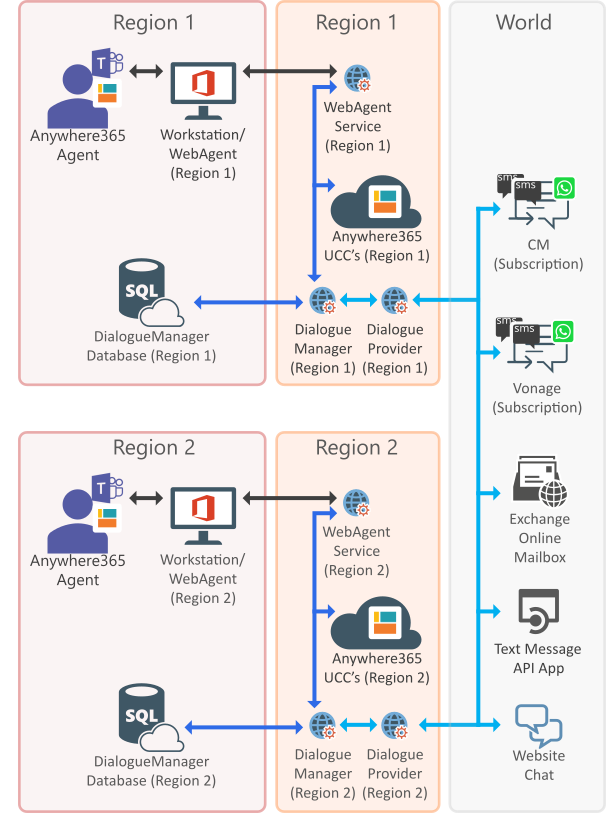
Component overview
Prerequisites
Licensing prerequisites
A valid WebAgent license for Omnichannel Communication is required. This entitlement may be included in your subscription or provided through PUL11, WebAgent for Omnichannel Communication.
An Enterprise license or higher is required to access these features.
Your subscription may already include the required entitlements. Contact your AnywhereNow representative if you are unsure whether your subscription includes these features.
Configuration prerequisites
-
WebAgentService deployed and configured per region, Install WebAgent Service
-
DC2023.03 or lower: CustomSessions plugin deployed and configured per region, Install Custom Sessions plugin
Important
Please note that as of DC2023.04 or higher, the CustomSession plugin is no longer needed and has been removed. You may safely remove any associated settings or configurations related to this plugin.
- An Azure SQL database per region: recommended at least S1 20DTU during project initiation (and is typically sufficient for Golive to production, but exceptions may apply, see warning below)
- Azure SQL DB is remotely accessible
- SQL user account (for SQL authentication): which is database owner
- For access to the Call Detail Records (CDR) are the meta data of a converstation: who talked to whom, at which time, for how long and with which identity among other things (skill, optional classification, etc) which gets stored in your SQL (analytical) database. database a Microsoft Entra account (for Microsoft Entra authentication) is also supported.
- Connection string to the database(s): Only the formats provided below are supported (i.e. only connections directly to <server>.database.windows.net and the other parameters are required).
- Firewall allowance for regional Dialogue Cloud IP address: will be provided by your AnywhereNow contact.
Note
After Go-live, maintenance and regular monitoring of the database(s) is the customer's responsibility.
Read more
Your database(s) will accrue data for every conversation and will grow with use over time, or your final A Unified Contact Center, or UCC, is a queue of interactions (voice, email, IM, etc.) that are handled by Agents. Each UCC has its own settings, IVR menus and Agents. Agents can belong to one or several UCCs and can have multiple skills (competencies). A UCC can be visualized as a contact center “micro service”. Customers can utilize one UCC (e.g. a global helpdesk), a few UCC’s (e.g. for each department or regional office) or hundreds of UCC’s (e.g. for each bed at a hospital). They are interconnected and can all be managed from one central location. count and configuration may be heavy on DB processing (many simultaneous dialogues in queue, frequent queries from PowerBI or e-mails with large attachments for example), so your maintenance (like monitoring size, adding additional archiving databases, deleting old data, reclaiming unused space or maybe even upgrade to a higher tier or storage) may be required. For more information on Azure SQL limits, pricing and maintenance tips a good starting point is https://learn.microsoft.com/en-us/azure/azure-sql/database/resource-limits-dtu-single-databases, or consult your SQL DB Administrator.
Also reference this anticipated growth article for AnywhereNow SQL databases, Learn More
Warning
DialogueManager Deployment Rules:
- Only one DialogueManager is allowed per WebAgentService. Having multiple DialogueManagers in one WebAgentService, will result in missing messages and not receiving updates (see component overview above when and how more regions and AnywhereNow Dialogue Manager (DM) is the internal service which processes text based messages from various Dialogue Providers to and from WebAgent. It is a transactional database used to swiftly process messages rather than generate reports used by analytical databases.'s can be used).
- Each DialogueManager needs its own database. Having multiple DialogueManagers using one shared database will result in invalid states and missing messages. (see component overview above when and how more regions and DM's can be used).
-
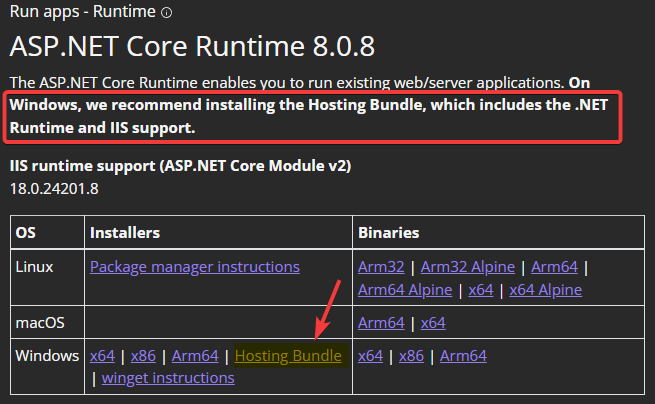
A bundle is a fixed combination of our software platform elements of very specific versions. These are designed and tested to optimally work together to assure their intended function and interoperability. 2024.02 and later: Microsoft ASP.NET Core 8.0.0 (or a later 8.0 series) Hosting Bundle installed (may already be installed).
Installation
Create DialogueManager Database
-
Create a new database (in SQL Server Management Studio, Learn More - Microsoft).
Note
The Dialogue Manager service will perform the creation queries. Please ensure the account connecting to the database is owner of the database.
Configure PluginSettings
Note
Required settings fields will be automatically added in your SharePoint lists after requesting this feature through Formerly known as Partner Portal. A redesigned web portal for managing Dialogue Cloud deployments.. Some of these settings, like ConnectionString, will need to be completed ASAP with your valid credentials.
-
Open the UCC Config page on SharePoint
-
Open the Plugin Settings list
-
Configure the following settings:
Note
Upon startup of the service the database is checked for the correct db schema, if not it will be created (or updated in case a schema update is required for a new version of the software). The provided access rights have the proper permissions to perform these actions.
Warning
This Dialogue Manager service depends on consistent-primary settings shared across multiple UCCs, meaning the value should remain consistent across all UCC configurations using it. A consistent-primary setting is initiated only during startup of the UCC. The first UCC to publish its settings (which may not aways be the same UCC) defines the primary setting for all UCCs sharing this service. If values vary or are not entered (correctly) across multiple UCCs, this will lead to unpredictable behavior after a restart. It is extremely important to keep the values consistent and valid if multiple UCCs are configured.
Configure Settings list
-
Open the UCC Config page on SharePoint
-
Open the Settings list
-
Add the following setting:
| Key | Value | Scope |
|---|---|---|
DashboardServiceUrl |
http(s)://fqdn/dashboardservice Warning Make sure to leave the fqdn to this service configured as a ".local" URL, especially when using multiple UCC services in the same region. If this is not done, the UCC cannot reach the right webserver internally leading to undesired or non-functional WebAgent behavior. Note URL needs to be accessible from the UCC service to the Dashboard Service. |
Config |
Validate ListsEndpoints
Note
Required settings fields will be automatically added in your SharePoint lists after requesting this feature through OnePortal. Some of these settings, like ConnectionString, will need to be completed ASAP with your valid credentials.
-
Open the UCC Config page on SharePoint
-
Open the Plugin Settings list
-
Validate DialogueManager settings endpoint for ListsPlugin ->
ListsEndpointsNote
Add to the existing item and separate with "Enter".
Setting Value Scope ListsEndpointshttp://FQDN/webagentservice/api/v1/settings (should already exist)
http://FQDN/DialogueManager/api/v1/settings
Note
URL needs to be accessible from the UCC Service to the Dialogue Manager.
ListsPlugin
Validate ForwardUri
Note
Required settings fields will be automatically added in your SharePoint lists after requesting this feature through OnePortal. Some of these settings, like ConnectionString, will need to be completed ASAP with your valid credentials.
-
Open the UCC Config page on SharePoint
-
Open the Plugin Settings list
-
Validate DialogueManager settings endpoint for EventForwarderPlugin ->
ForwardUriNote
Add to the existing item and separate with "Enter".
Setting Value Scope ForwardUrihttp://FQDN/webagentservice/api/v1/EventsHook (should already exist)
http://FQDN/DialogueManager/api/v1/EventsHook
Note
URL needs to be accessible from the UCC Service to the Dialogue Manager.
EventForwarderPlugin