Update Snapper
Introduction
Below the steps to update the Snapper.
For more information about changes see Release Notes, Learn More
Prerequisites
Note
The Snapper install executable(s) can be requested from your Partner or via your regular AnywhereNow contact.
-
Latest .NET Framework 4.x (minimum 4.6.2) is required
Current Windows 10 and Windows 11 already comes with .NET framework 4.8.x pre-installed)
-
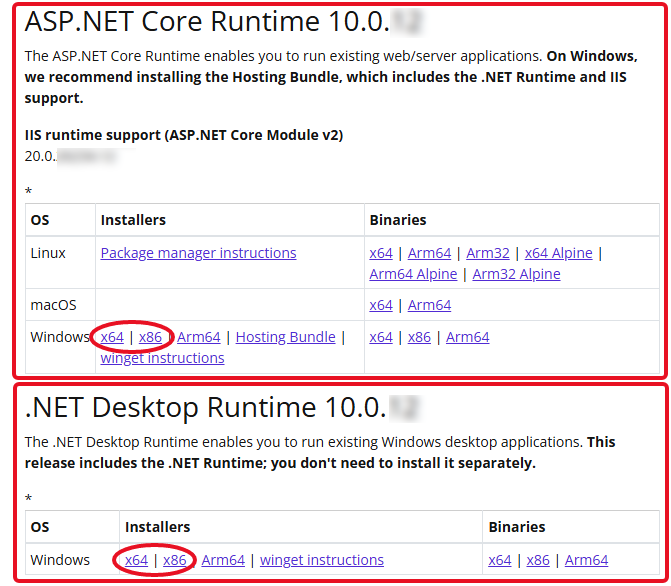
Latest Microsoft ASP.NET Core Runtime and .NET Desktop Runtime are required and installed.
Microsoft .NET 8.0 is nearing End-Of-Life. See: https://dotnet.microsoft.com/en-us/download/dotnet. Any Snapper running on the .NET 8.0 library will subsequently impact support.
As Snapper is currently in maintenance mode we strongly encourage our remaining customers to replace Snapper with our modern client applications WebAgent and Workspace. For guidance and feature comparisons please reference Dialogue Cloud Client Experience Comparison
A Snapper running on a .NET 10.0 is available upon request via AnywhereNow Support (https://support.anywhere.now/csm).
To download the two .NET 10.0 runtimes from Microsoft, see: https://dotnet.microsoft.com/en-us/download/dotnet/10.0
These runtimes are required, their bit-level should match the version of Snapper installer (x64 or x86) which is dependant on your desktop architecture preference.
Step by step
-
Run the Setup.msi file to start the setup program.
-
Click “Next”
-
Read and accept the License Agreement by checking the “I accept the terms in the License Agreement” box, and click “Next”.
-
The following screen will display the available features (The only option is "Anywhere365 Snapper", and click “Next”.
-
Click “Install”
-
The Snapper will now be installed
-
Select “Finish” to close the setup
-
Run the shortcut to start the Application
-
Change the client type to New Teams or New Teams Direct Routing when using the New Teams client. (New Teams Client is the current official Microsoft version of Teams client)