AutonomousDialer Calls
Purpose
AutonomousDialerCalls is the list of numbers which are needed to be called in the Autonomous Dialer
Note
Autonomous Dialer must be installed and configured, see: Installing the Autonomous Dialer
Explanation per field
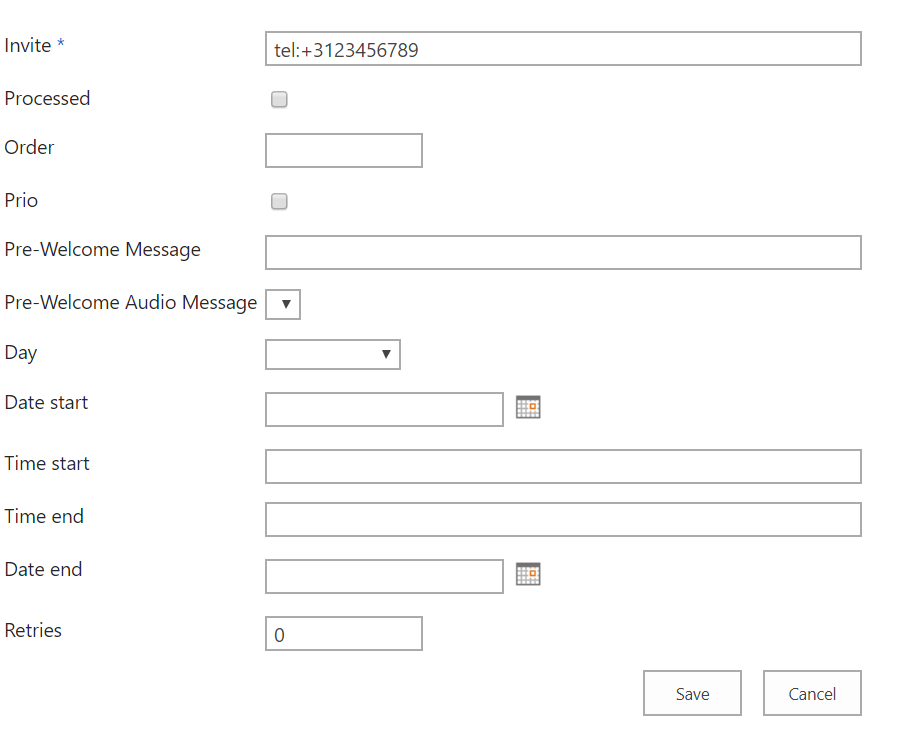
In order to manage AutonomousDialerCalls, the following fields should be filled in:
| Item | Description |
|---|---|
| Invite |
Number/Sip of the person whom needs to be called. |
| Processed |
Indicated that the person is called Note Will be entered by the Autonomous Dialer, should left untouched or can be emptied if the person needs to be called again. |
| Order |
The order in which the numbers needs to be called |
| Prio |
If checked these number are called first. |
| Pre-Welcome Message |
This field contains the message that will be played, using text-to-speech. If the field Pre-Welcome Audio Message is filled in, this audio file will be used instead of the contents of this field. |
| Pre-Welcome Audio Message |
This field might contain an Audio file, which overrule the contents of the field Question. |
| Day |
The day on which the person should be called Note If empty, all days will be used. |
| Date start |
The date after the person can be called Note If empty, no before date restriction will be used |
| Time start |
Time after the person will be called. Note If empty, no before time restriction will be used. |
| Time end |
Time before the person will be called. Note If empty no after time restriction will be used. |
| Date end |
The date before the person can be called Note If empty no after date restriction will be used. |
Create/Edit/Remove item
Item can be created, edited or removed.
Warning
Updates to the system take place in real-time. Entering the incorrect information here may cause issues with your software. Proceed with caution.
Create Item
- Open the list.
- Select the Add new item button.
- Enter the correct data in the window that appears.
- Select the Save button.
Edit Item
- Open the list.
- Tick the respective item.
- Select the “Edit Properties” button.
- Enter the correct data in the window that appears.
- Select the “Save” button.
Remove Item
- Open the list.
- Tick the respective item
- Select the “Delete Item” button.