UCC General Settings
The UCC A Unified Contact Center, or UCC, is a queue of interactions (voice, email, IM, etc.) that are handled by Agents. Each UCC has its own settings, IVR menus and Agents. Agents can belong to one or several UCCs and can have multiple skills (competencies). A UCC can be visualized as a contact center “micro service”. Customers can utilize one UCC (e.g. a global helpdesk), a few UCC’s (e.g. for each department or regional office) or hundreds of UCC’s (e.g. for each bed at a hospital). They are interconnected and can all be managed from one central location. settings are used for configuring a single UCC A Unified Contact Center, or UCC, is a queue of interactions (voice, email, IM, etc.) that are handled by Agents. Each UCC has its own settings, IVR menus and Agents. Agents can belong to one or several UCCs and can have multiple skills (competencies). A UCC can be visualized as a contact center “micro service”. Customers can utilize one UCC (e.g. a global helpdesk), a few UCC’s (e.g. for each department or regional office) or hundreds of UCC’s (e.g. for each bed at a hospital). They are interconnected and can all be managed from one central location..
With the AnywhereNow platform it is possible to configure the settings for a single UCC. Each setting will be listed below.
Note
Some features are only available with specific licenses. These are indicated by the following icons. If no icon is shown, the feature applies to all mentioned licenses below. (Not applicable for legacy licenses "basic queue" or "reception ucc")
 Workgroup
 Small Business
 Corporate
 Enterprise
 Enterprise Plus
CDR
 CDRConnectionString
The connection to the SQL Server database where the data is stored for the reports.
Note
When creating a login or a password make sure it does NOT contain the following characters:
# $ [] () , ; ? * ! @ = . % &
Tip
You can also connect to servers outside the domain, for example Azure. See: How to connect to Azure SQL
Example: Server=tcp:server.database.windows.net;Initial Catalog=UCC;User ID=username;Password=password
Note
When changing the value, a restart of the UCC is required to take effect.
EnablePresenceRecording
Enable the writing of Agent Presence in the Database:
TRUE = Write Agent Presence in the Database.
FALSE = Don't write Agent Presence in the Database.
Default: TRUE
WriteSummaryToSharepoint
Enable the writing of records to the Call Summary list on SharePoint, see: Call Summary
TRUE = Call details will be written to SharePoint in "Call Summary" and "Missed Calls Today".
FALSE = Call details will not be written to SharePoint.
Useful when using Power Automate, for more information see: Using Microsoft Power Automate with AnywhereNow
Default: FALSE
Config
CultureInfo
The language in which the IVR Interactive Voice Response, or IVR, is a telephone application to take orders via telephone keypad or voice through a computer. By choosing menu options the caller receives information, without the intervention of a human operator, or will be forwarded to the appropriate Agent. Questions are spoken when using Text-To-Speech.
Possible languages: CultureInfo Class (System.Globalization) | Microsoft Learn
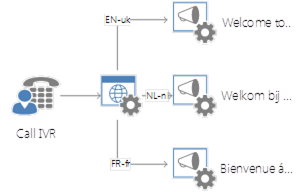
Default: en-US
EnableDtmfInDirectDialerSession
Enables or disables the option to send DTMF tones to the callee with a Direct Dialer conversation. Useful when the agent calls a system which used DTMF for navigation.
TRUE = Send Agent DTMF to Customer in Direct Dialer Session.
FALSE = Don’t send Agent DTMF to Customer.
Default: FALSE
EnableDTMFToInitiator
Enables or disables the option to send DTMF tones to the caller. Useful when operating a remote gate.
TRUE = Send Agent DTMF to Customer.
FALSE = Don’t send Agent DTMF to Customer.
Default: FALSE
ForceClosed
Toggle to force a UCC to close. Useful to be used in Power Automate scenarios, see: Using Microsoft Power Automate with AnywhereNow
TRUE = UCC is closed (overwrites AlwaysOpen Endpoints).
FALSE = UCC opens and closed based on the Business Hours and Holidays.
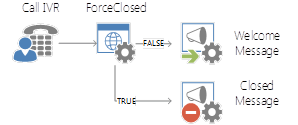
Default: FALSE
MaxReservations
The number of Agent that are reserved for a Call. This setting is also used for parallel hunting.
Note
Agents will be released when the Call is accepted / canceled
Default: 2
Maximum: 4
TeamsAnonymousImpersonateUri
Using this setting the identity is overwritten with the contents of TeamsAnonymousImpersonateUri if the remote participant is anonymous, a Microsoft Teams client is then able to transfer the call, see: How to configure Teams Hunter
UpdateSettingsTimeout
The time (in seconds) after which AnywhereNow updates the UCC settings (if one or more settings are changed).
Note
This setting is fixed in Dialogue Cloud.
Default: 60
UseImpersonation
TRUE = The Calling Line Id (CLID) of the Caller is used in this UCC during hunt, transfers and forwards to the Teams client toast A toast is a pop-up instant message or audio call notification the user receives on his desktop. or phone pop-up. Contact information of the Caller will also be shown in the Contact Card of an Anywhere365 client application (e.g. WebAgent).
FALSE = The Calling Line Id (CLID) of a UCC is used in this UCC during hunt, transfers and forwards to the Teams client toast or phone pop-up. Contact information of the original Caller will still be shown to any agent, in the Contact Card, using an Anywhere365 client application (e.g. WebAgent). During subsequent transfers and forwards the CLID of the UCC will be used to other applications or clients not able to interpret this setting. However, if a transfer is done to another one of your UCC's which has this setting to TRUE the CLID of the original caller may be used again.
Note
The variations of transfer scenario's combined with this setting, across multiple UCC's, the client applications used, the clients used (like hard or mobile phones) and possibly your operators settings, are countless, so test the desired behavior and display of data thoroughly.
Default: FALSE
UseTranscripting
Enable or disable the older built-in Azure Speech transcription path. For current plugin-based transcription configuration, see How to configure UCC speech to text transcription.
TRUE = Enable the built-in Azure Speech transcription path. This also requires TranscriptingKey, TranscriptingLocale, and TranscriptingServiceRegion.
FALSE = Don't use the built-in Azure Speech transcription path.
Default: FALSE
Flow
AudioDuringForward
DialTone = Play a dial tone during Forward.
Playlist = Play the queue playlist during Forward.
Queue = Play the queue messages during Forward.
Silent = Remain silent during Forward.
None = Use UseDialToneDuringForward as the fallback setting.
Default: None. Effective default: DialTone, because UseDialToneDuringForward defaults to TRUE.
BlockAgentTriggers
The setting 'BlockAgentTriggers' is a comma-separated setting on SharePoint that will be validated with a regex. It will indicate in what scenarios the Agent will be added to the block-list.
The options for this setting are:
- None = default value
- HuntTimeout = Agents will be added to the blockList if hunt is canceled due to a timeout
- Agent can be removed from blocklist by presence change or timeout
- Decline = Agents will be added to the blockList if hunt is canceled due to agent declining the hunt
- Agent can be removed from blocklist by presence change or timeout
- UmVoicemail UMvoicemail refers to Unified Messaging Voicemail. The Microsoft provisioned voicemail service tied to a Teams user account in Microsoft 365. Not to be confused with the AnywhereNow voicemail routing as a skill or escape in an IVR flow. = Agents will be added to the blockList if hunt is canceled due to forwarding to UM Voicemail
- Agent can be removed from blocklist by presence change or timeout
- DoNotDisturb = Agents will be added to the blockList if hunt is canceler due presence is set to DoNotDisturb
- Agent can be removed from blocklist only by presence change
- TempUnavailable Agents will be added to the blockList if hunt is canceler due to TempUnavailable (480)
- Agent can be removed from blocklist only by presence change
-
Other Agents will be added to the blockList if hunt is canceler because they don't exist.
Note
Introduced in DC2023.04e and DC2024.01c
Default: None
CallbackDefaultRegion
Add the country code in front of the entered number during callback CallBack, an IVR menu feature for voice, enables the customer to confirm or leave an alternative phone number to be called back by an available agent during business hours..
Available values:
AC, AD, AE, AF, AG, AI, AL, AM, AO, AR, AS, AT, AU, AW, AX, AZ, BA, BB, BD, BE, BF, BG, BH, BI, BJ, BL, BM, BN, BO, BQ, BR, BS, BT, BW, BY, BZ, CA, CC, CD, CF, CG, CH, CI, CK, CL, CM, CN, CO, CR, CU, CV, CW, CX, CY, CZ, DE, DJ, DK, DM AnywhereNow Dialogue Manager (DM) is the internal service which processes text based messages from various Dialogue Providers to and from WebAgent. It is a transactional database used to swiftly process messages rather than generate reports used by analytical databases., DO, DZ, EC, EE, EG, EH, ER, ES, ET, FI, FJ, FK, FM, FO, FR, GA, GB, GD, GE, GF, GG, GH, GI, GL, GM, GN, GP, GQ, GR, GT, GU, GW, GY, HK, HN, HR, HT, HU, ID, IE, IL, IM, IN, IO, IQ, IR, IS, IT, JE, JM, JO, JP, KE, KG, KH, KI, KM, KN, KP, KR, KW, KY, KZ, LA, LB, LC, LI, LK, LR, LS, LT, LU, LV, LY, MA, MC, MD, ME, MF, MG, MH, MK, ML, MM, MN, MO, MP, MQ, MR, MS, MT, MU, MV, MW, MX, MY, MZ, NA, NC, NE, NF, NG, NI, NL, NO, NP, NR, NU, NZ, OM, PA, PE, PF, PG, PH, PK, PL, PM, PR, PS, PT, PW, PY, QA, RE, RO, RS, RU, RW, SA, SB, SC, SD, SE, SG, SH, SI, SJ, SK, SL, SM, SN, SO, SR, SS, ST, SV, SX, SY, SZ, TA, TC, TD, TG, TH, TJ, TK, TL, TM, TN, TO, TR, TT, TV, TW, TZ, UA, UG, US, UY, UZ, VA, VC, VE, VG, VI, VN, VU, WF, WS, YE, YT, ZA, ZM, ZW
CombinedAudioFilePause
Add # milliseconds to the end of the audio files.
Default: 0
DisablePreviousPlayListPositionQueue
TRUE = Always start on playlist first order
FALSE = Continue in the playlist the next time you call
Default: FALSE
DisconnectAfterUnsuccessfulTransfer
TRUE = Disconnect if the transfer fails
FALSE = Remain connected if the transfer fails
Default: FALSE
DtmfSortingOrder
Order in which the Questions are played.
Default: 1234567890*#
EnableCallbackPhoneNumberNormalization
If enabled (TRUE) the provided Callback PhoneNumber will be normalized using the normalization rules in the Microsoft Dial Plan.
If disabled (FALSE) the Callback PhoneNumber will be dialed as shown in the OutboundDialerCalls list.
Default: FALSE
WARNING
For Dialogue Cloud V3 this setting needs to be set and remain to false. Setting this to true is only valid for On-Premise SfB deployments of AnywhereNow where the SfB Dial Plan can be directly accessed.
EnableCallbackPhoneNumberValidation
If enabled (TRUE) the number returned by the caller is validated for correctness. It is tested for E.164 The E.164 phone number format is an international (ITU) standard for dialing telephone numbers on the Public Switched Telephony Network (PSTN). Loosely formulated, only "+" and upto 15 digits (0-9) are allowed For example: +4433221100 (For number notation/display and storage see the E.123 standard) compatibility and for the region which is set by the CallbackDefaultRegion. If this option is set to true, the CallbackDefaultRegion is mandatory and must be set to one of the allowed values.
If disabled (FALSE) the number is not validated at all. This means that any number is allowed. The number will be written "as is" to the OutboundDialerCalls list. This can be used for example with abbreviated or internal phone numbers. Note that it is possible to enter any number and that this may result in invalid entries in the OutboundDialerCalls list.
Default: TRUE
EnableMusicOnHold
TRUE = Play music on hold when customer is put on hold.
FALSE = Silence when customer is put on hold
Default: TRUE
EnableRoutingOutsideBusinessHours
TRUE= Use Routing Rules during and outside business hours.
FALSE= Use Routing Rules during business hours.
Default: TRUE
EnableTransferSuccessfulNotification
TRUE = Play an audio notification to transferee after successful completion of transfer.
FALSE = Do not play audio notification to transferee after successful completion of transfer.
If enabled (TRUE) the default audio beep will be used as notification sound. Optionally a Text-To-Speech (TTS) prompt may be entered with the setting TransferSuccessfulNotificationTts, see: TransferSuccessfulNotificationTts
Default: FALSE
HuntingMethod
This setting indicates the method order to hunt Agents.
- LongestIdle =Selects the Agent who ended a UCC call the longest time ago.
- LongestAvailable =Selects the Agent who has been available for the longest period.
- RoundRobin =Selects the Agent based on order, will continue order in next UCC call and wrap back around at order end.
- Serial =Selects the Agent based on order, restart order on next UCC call.
- LeastCalls =Selects the Agent based on least number of calls today.
- LeastOccupied =Selects the Agent based on least total handle time today.
- Parallel = Call all Agents (up to 4 Agents at the same time)
Note
Only for audio-calls directly to
Note
With the setting Maxreservations the number of agents that will be hunted can be adapted (Max 4).
Note
When hunting 4 agents parallel, make sure you have 4 system endpoints.
When Skill scores are used, then the Agent will be selected first based on the score and after that on the hunting method (Except for Round Robin).
Default: LongestIdle
HuntingPresenceOrder
The order of presence in which to hunt agents.
Default order: Available > Busy > Away > Offline
HuntTimeout
The time (in seconds) that AnywhereNow waits for an Agent to accept the call. If the time is elapsed and the Agent has not accepted the call, the next Agent in line will be hunted.
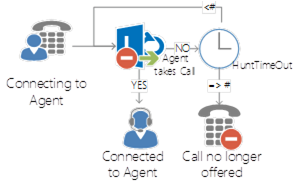
Default: 20
IgnoreSkillValues
TRUE = Don't sort Skill scores during hunt.
FALSE= Sort Skill scores during hunt.
Default: FALSE
LastQuestionSpeechWaitTimeout
The time (in seconds) AnywhereNow waits before the IVR Questions are repeated.
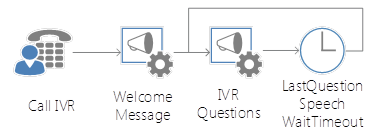
Default: 5
LowestHuntPresence
LowestHuntPresence defines the minimum presence state an agent must have to be eligible for hunting.
-
Available = Hunt Agents whose presence is Available.
-
Away = Hunt Agents whose presence is Available or Away.
-
Busy* = Hunt Agents whose presence is Available, Away, or Busy.
-
Offline = Hunt Agents whose presence is Available, Away, Busy, or Offline (behavior can depend on routing and forwarding configuration).
Note
*Busy only affects presence eligibility. It does not override the Reservation Point System .
- An agent who is Busy because they are in a Teams call can still be offered a UCC call when LowestHuntPresence is set to Busy.
- An agent who is already handling a UCC call is not offered another UCC call, even when LowestHuntPresence is set to Busy, unless the Reservation Point System for that UCC is configured to allow the agent to handle an additional Audio dialogue.
- With multiple UCC services, the Reservation Point System can still allow another service to hunt the same agent, depending on the configuration.
Note
Offline hunting is only available when all of the following conditions are met:
- The UCC can register the agent.
- The UCC receives routing information for the agent.
- The agent has call forwarding configured.
Default: Available
Important
When using the Availability and CountDownAvailability skills, LowestHuntPresence determines which agent states are treated as available for the skill. For example, if LowestHuntPresence is set to Busy, agents with the states Available, Away, and Busy are counted as available.
OverflowThreshold
The maximum number of Callers that are in the queue. If the queue is full new callers will hear the Overflow Message after which the call is disconnected. Read more about Overflow Threshold Algorithms
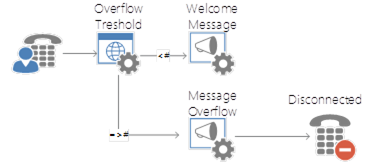
Default: 999
PinCode
Note
This setting is not functional when your IVR is handled via Dialogue Studio.
In Dialogue Studio the functionality can be easily created with an 'Ask & wait' or 'Dtmf' node.
The numerical code which must be entered after the Welcome Message to continue.
Setting requirements:
- Must be a number
- Must be higher or equal to 0
- Can't be more than 9 digits.
- The entry must end with a pound sign (#)
QueueBusySpeechWaitTimeout
The time (in seconds) between the two messages (Queue position en Queue 3) that will be played in the queue.
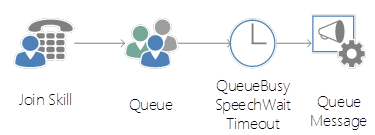
Default: 5
QueueBusyTimeOut
The time (in seconds) after which the extra message (Message Busy) will be played in the queue.
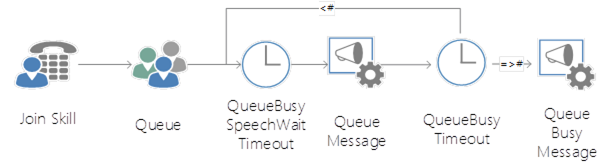
Default: 60
QueueNoChoiceTimeout
The time (in seconds) after the Call will be disconnected when no choice is made in the IVR.
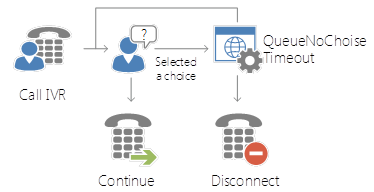
Default: 360
SuppressUpdateInQueueSinceForUserAction
TRUE = the InQueueSince time will not be updated if the skill change is by user action
FALSE = the InQueueSince time will be updated if the skill change is by user action
Default: FALSE
TransferSuccessfulNotificationTts
The Text-To-Speech (TTS) Text to be played to transferee after successful completion of transfer instead of the default beep.
Only if EnableTransferSuccessfulNotification is also enabled. See: TransferSuccessfulNotificationTts
Default: EMPTY
Note
Available since Bundle DC2025.01
TransferTimeout
The time (in seconds) after the transfer will be stopped when there is no accept.
Default: 30
UnblockAgentTimeout
The setting 'UnblockAgentTimeout' indicates how long the Agent will be on the blocklist for option 'HuntTimeout', 'Decline', and 'UmVoicemail'.
If the value is 0 seconds, the Agent will only be removed from the blocklist when a presence change is detected (similar to DoNotDisturb and TempUnavailable). If the value is greater than 0 seconds, the Agent will be removed from the blocklist with a presence change or when the timeout is counted down, whatever happens first.
Default: 0
UpdateInQueueSinceOnAutomaticSkillChange
TRUE = The InQueueSince time will be updated in case of an automatic skill change
FALSE = The InQueueSince time will not be updated in case of an automatic skill change
Default: FALSE
UseDialToneDuringForward
Legacy fallback setting for the audio that is played during dial out when using a Forward Skill. This setting is only used when AudioDuringForward is not configured or is set to None. For new configurations, use AudioDuringForward.
TRUE = Play a dial tone.
FALSE = Play the configured queue playlist during forward if it is available; otherwise play queue audio.
Default: TRUE
WaitForAgentBusyTimeout
Number of seconds the UCC waits until the Agent turns busy
Default: 90
Dialer
CallbackAllowAgentToMarkCallAsFailedBeforeCustomerAnswered
Toggle to allow the agent to mark the call as failed, if the dialing takes to long.
TRUE= Agent can mark (* key) the Outbound Dialer session as failed, while dialing the customer.
FALSE= Agent cannot mark the Outbound Dialer session as failed, while dialing the customer.
Default: FALSE
CallbackPressKeyOnVoicemailTextToSpeech
The message the agent will hear before the UCC contacts the customer.
Default: Press the STAR key to schedule the callback for a retry if the call goes to voicemail.
CallbackRetryScheduledTextToSpeech
The message the agent will hear when the agent reschedules a callback with the * key.
Default: Scheduled a retry.
CallbackWaitUntilAgentReady
This setting determines if the Dialer waits with calling the Customer until the Agent has signaled she / he is ready by pressing the Pound [#] key
Default: false
CallbackWaitUntilAgentReadyTextToSpeech
This setting determines what text is spoken to an Agent to explain how they should signal they are ready to start calling the Customer (default: "Press the POUND key to start calling the customer."). This text is spoken only when the setting CallbackWaitUntilAgentReady is enabled.
EnableOutboundDialer
Enable or disable the Outbound Dialer
TRUE = Enable the Outbound Dialer
FALSE= Disable the Outbound Dialer
Default: FALSE
MaxDialerSessions
Sets the maximum number of sessions (Autonomous Dialer) at the same time. Zero means no limit
Default: 0
OutboundDialerDeclineRetry
Number of retries for OutboundDialerCall when callee declines the Call
Default: 3
OutboundDialerDeclineRetryTime
Number of minutes when OutboundDialer should retry a declined call
Default: 15
StartAutonomousDialerOnStartup
If true, start the Autonomous Dialer at startup without requiring the start command from a Supervisor
Default: False
StartOutboundDialerOnStartup
If true, start the Outbound Dialer at startup without requiring the start command from a Supervisor
Default: False
UseOutboundCalling
Introduced in DC2023.03
TRUE = Enable the Direct Call Interceptor The Interceptor is a service installed on AnywhereNow. It monitors all calls during set-up on endpoints of active Agents. By intercepting that call set-up and redirecting it to an UCC it lets you manage the direct inbound and outbound dialogues of the contact center agents. for the WebAgent.
FALSE= Disable the Direct Call Interceptor for the WebAgent.
Default: False
Playlists
AgentAcceptDTMFPlayListName
The Play List that the Agent will hear when the call is waiting for the DTMF tone of the Agent.
OnHoldPlayList
The Play List that the Customer will hear when the Agent puts the Call on hold.
QueuePlayList
The Play List that the Customer will hear during the Queue
QM
QualityMonitorNoChoiceTimeOut
The # of seconds when the UCC disconnect if the Customer makes no choice in the Quality Monitoring.
Default: 60
UseQualityMonitor
Enable or disable the Quality Monitoring.
TRUE = Caller will be forwarded to the Agent Rating after a Call.
Note
Question should be created in the Quality Monitoring list
FALSE = Caller will be disconnected after a Call.
Default: FALSE
UseQualityMonitorWithOutboundDefault
Enable or disable Quality Monitoring (QM) questions to the customer after an Intercepted Outbound Conversation.
TRUE = Offer QM to the Customer after the OutboundCall is ended.
FALSE = Disconnect after the OutboundCall is ended (Inbound calls by customers to the UCC will still receive QM if configured).
Note
This setting is for Outbound Intercepted calls only. Not for any Dialer calls (like Campaign or DCI calls)
Interceptor should be configured, see Install Interceptor.
Default: FALSE
Recording
AudioRecordingFormat
Change the format of the exports of the recordings (Audio Recording and Voice Mail)
Available Option:
- Wma16Kbps
- Wma48Kbps
- Pcm8Khz
- Pcm16Khz
Default: Wma16Kbps
AutoStartDirectInboundAudioRecording
TRUE = Automatically start the recorder for Inbound Intercepted calls to an agent.
FALSE = Do not automatically start the recorder, but the Inbound Intercepted agent can start it manually.
Note
Setting UseInboundAudioRecording must also be true
For Bundle DC2024.01 and higher both EnableInboundInterception and
UseInboundAudioRecording must also be true.
Default: TRUE
AutoStartOutboundAudioRecording
TRUE = Automatically start the recorder for Outbound Intercepted calls to an agent.
FALSE = Do not automatically start the recorder, but the Outbound Intercepted agent can start it manually.
Note
Setting UseOutboundAudioRecording must also be true
For Bundle DC2024.01 and higher both EnableOutboundInterception and
UseOutboundAudioRecording must also be true.
Default: TRUE
CopyRecordingToSharePointLibrarySubFolderFirstLast
FIRST = Use the sip-address of the first agent for the Sub Folder
LAST = Use the sip-address of the last agent for the Sub Folder
Default: LAST
CopyRecordingToSharePointLibrarySubFolder
Save the recordings to a sub folder in the Library, the name of the sub folder is based on the Agent address.
TRUE = Save recordings in sub folder off of the root of the Recording library.
FALSE = Save all recordings in the root of the Recording library
Note
Setting "UseAudioRecording" must be true for UCC calls to be recorded.
On Bundle DC2024.01 and higher EnableInboundInterception, UseInboundAudioRecording, EnableOutboundInterception and UseOutboundAudioRecording may also need to be true if Agent Interception is configured and audio needs to be recorded.
Default: FALSE
EnableInboundInterception
Introduced in DC2024.01
TRUE = Will enable Inbound Interception of Calls to the direct number of the agent
FALSE = Will not enable Inbound Interception of Calls to the direct number of the agent
Default: FALSE
EnableOutboundInterception
Introduced in DC2024.01
TRUE = Will enable Outbound Interception of Calls from the native Teams client (contact list or dialpad) of the agent
FALSE = Will not enable Outbound Interception of Calls from the native Teams client (contact list or dialpad) of the agent
Default: FALSE
SaveRecordingByDefault
Enable or disable if the recording should be saved. Should only be considered when combined with the Attendant REST API used by a 3rd party application to trigger this event.
TRUE = Save recording at the end of the conversation.
FALSE = Delete recording at the end of the conversation.
Note
Setting UseAudioRecording should be turned on
Default: TRUE
StopRecordingAfterForward
TRUE = Stop the recording after a forwardskill forward
FALSE = Continue the recording after a forwardskill forward
Default: FALSE
StopRecordingAfterTransfer
When a call is transferred, this setting determines whether to stop the recording or continue it.
-
If a blind or consultative transfer is made, the recording will be stopped when the call is transferred to another person.
Note
In the event of a consultation, the transfer occurs when the agent hands over to the consultee.
-
However, if a skill transfer, delight transfer, or leaving a group call is performed, the recording will continue regardless of this setting.
To enable or disable this feature, set the value to TRUE or FALSE, respectively. The default value is FALSE, which means that the recording will not stop after a transfer.
UseAudioRecording
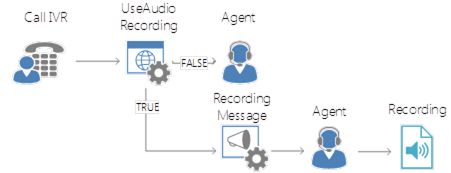
TRUE = All Calls will be recorded and an additional announcement message (Welcome Recording) will be played.
From Bundle DC2024.01 and higher: All Inbound calls to a UCC will be recorded. For inbound calls an additional message (Welcome Recording) will be inserted after the Welcome Message.
FALSE = Call will not be recorded.
Default: FALSE
UseInboundAudioRecording
Enable or disable Direct Inbound Recording of agents with the Interceptor.
TRUE = Enable Interception of Direct Calls to the Agent. .
On Bundle DC2024.01 and higher will just enable recording of Intercepted Direct Calls to the Agent.
FALSE = Disable Interception of Direct Calls to the Agent. .
On Bundle DC2024.01 and higher will not enable recording of Intercepted Direct Calls to the Agent.
Note
Interceptor must be installed and enabled.
- Before Bundle DC2024.01 Setting UseAudioRecording should be true if audio of intercepted calls needs to be recorded.
- On Bundle DC2024.01 and higher the setting EnableInboundInterception must specifically be set to true for agents to be intercepted for inbound calls.
Default: FALSE
UseTranscriptRecording
TRUE = All Transcipts will be recorded.
Note
Transcription must be configured, see: How to configure UCC speech to text transcription
FALSE = Transcripts will not be recorded.
Default: FALSE
UseTranslationRecording
TRUE = All Translations will be recorded.
Note
Transcription must be configured, see: Configure UCC translation
FALSE = Translations will not be recorded.
Default: FALSE
UseOriginalIdentityWithInbound
Enable or disable the identity of the Customer of intercepted Direct Inbound conversations.
TRUE = Show Caller sip or number with Inbound dialogue
FALSE = Show UCC sip or number with Inbound dialogue
Default: FALSE
UseOriginalIdentityWithOutbound
Enable or disable the identity of the Agent of intercepted Outbound conversations.
TRUE = Show Agent sip or number with Outbound dialogue
FALSE = Show UCC sip or number with Outbound dialogue
Default: FALSE
UseOutboundAudioRecording
Enable or disable Direct Outbound Recording of agents with the Interceptor service.
TRUE = Enable Interception of Direct Calls from the Agent.
On Bundle DC2024.01 and higher will enable "recording" of outbound calls:
-
When using the WebAgent or Snapper Dialpad (which requires the setting UseOutboundCalling to be enabled separately).
-
When using the native dialpad of Teams (which requires EnableOutboundInterception to be enabled separately), and also
-
When outbound call made by a dialer (i.e. campaigndialer and autonomousdialer).
FALSE = Disable Interception of Direct Calls from the Agent. .
On Bundle DC2024.01 and higher will not enable recording of Intercepted Direct Calls from the Agent, outbound calls using Dialpad in WebAgent or Snapper, or any dialer type
Note
Interceptor must be installed and enabled.
- Before Bundle DC2024.01 Setting UseAudioRecording should be true if audio of intercepted calls needs to be recorded.
- On Bundle DC2024.01 and higher the setting EnableOutboundInterception must specifically be set to true for agents to be intercepted for outbound calls.
Default: FALSE
Scheduling
ReservationSystem
LEGACY = Base reservations on the following rules:
- If the Agent is currently handling an Audio Dialogue, he can not accept any other Dialogues.
- If the Agent is currently handling >= MaxChatCount Chat Dialogues, he can not accept any other Dialogues.
POINTSYSTEM = Base reservations on the points configured in the Reservation Point System.
If no value is entered the LEGACY value will be assumed.
Default: LEGACY
SchedulingAlgorithm
The Scheduling Algorithm used by the UCC. This determines the order in which Dialogues are offered to Agents. Possible values:
FirstInFirstOut = Dialogues are offered in the order by which they enter the Queue.
ServiceLevelAgreement = Dialogues are offered based on time left to meet the Service Level Agreement (less time left will be offered first), see: Scheduling Algorithms
If no value is entered the FirstInFirstOut value will be assumed.
Default: FirstInFirstOut
ServiceLevelAgreementGoalInSecondsDefault
Note
Only used when SchedulingAlgorithm is set to ServiceLevelAgreement.
The default value for calculating the Service Level Agreement goal (less time left will be offered first), see: Scheduling Algorithms
SLA
ServiceLevelThreshold1InSeconds
If a Dialogue is answered in less than ServiceLevelThreshold1InSeconds the call is considered to be handled according to the first ServiceLevelAgreement segment, see: Statistics Plugin
Default: 20
ServiceLevelThreshold2InSeconds
If a Dialogue is answered in less than ServiceLevelThreshold2InSeconds but more or equal than ServiceLevelThreshold1InSeconds the call is considered to be handled according to the second ServiceLevelAgreement segment, see: Statistics Plugin
For the best results, the following relationship should hold: ServiceLevelThreshold1InSeconds < ServiceLevelThreshold2InSeconds
Default: 120
ServiceLevelFormula
The Formula used to calculate the ServiceLevelPercentage, see: Statistics Plugin
Default: AcceptedSla1 / (Accepted + (Missed - QuickDropped))
Speech
SpeechMicrosoftCognitiveApiAuthorizationEndpoint
The authorization endpoint for Microsoft Cognitive services.
SpeechMicrosoftCognitiveApiEndpoint
The api endpoint for Microsoft Cognitive services.
SpeechMicrosoftCognitiveApiKey
The api key for Microsoft Cognitive services.
SpeechPreferredVoiceName
The preferred voice for your SpeechProvider. If not available a fallback will be used. Consult the documentation of your Speech Provider for the (currently) possible values.
SpeechProvider
Sets the speech provider you want to use:
- MicrosoftSpeechSynthesizer = On-premises text to speech solution.
- MicrosoftCognitiveServices = Azure cloud service to generate text to speech audio files.
- GoogleCloudTextToSpeechV1 = Google cloud service to generate text to speech audio files.
Transcription and Translator
AzureKeyTextTranslationService
Azure Translator resource key, used when TextTranslationService is set to Microsoft. See: Configure UCC translation
GoogleKeyTextTranslationService
Google Translate api key if TextTranslationService is set to Google, used for Text Translation, see: Configure UCC translation
TextTranslationService
Sets the desired text translation service, see: Configure UCC translation. Possible values are Microsoft and Google.
Default: Microsoft
TranscriptingKey
Azure Speech resource key for the older built-in Azure Speech transcription path. This setting is used when UseTranscripting is set to TRUE. For current plugin-based transcription configuration, see How to configure UCC speech to text transcription.
TranscriptingLocale
Language used for transcription with the older built-in Azure Speech transcription path.
TranscriptingServiceRegion
The Azure Speech resource region for the older built-in Azure Speech transcription path.
If left empty, the built-in Azure Speech transcription path will be disabled.
Can be one of:
- eastasia
- southeastasia
- australiaeast
- northeurope
- eastus
- eastus2
- southcentralus
- westcentralus
- westus
- westus2
- brazilsouth
User
AgentAcceptWithDTMFChoice
The number the Agent needs to press after accepting a Call.
Note
Only works when AgentAcceptWithDTMFEnabled is set to True.
Default: 1
AgentAcceptWithDTMFEnabled
Enable of disable if the Agent enter a DTMF tone (example press 1) after accepting the Call.
TRUE = Agent needs to enter a DTMF tone.
Note
Use setting "AgentAcceptWithDTMFChoice" to define the DTMF tone.
FALSE = Agent is connected to the customer after accepting the Call.
Warning
Not supported with Paralell hunting.
Default: FALSE
AgentAcceptWithDTMFTimeOut
The number of seconds the Agent has to press the DTMF tone.
Default: 10
AgentCanEditAudioRecording
TRUE = Agent can Stop, Pause and Start recordings using the Inflight Snapper or WebAgent.
Note
Setting UseAudioRecording must be true
FALSE = Agent can’t influence the recording.
Default: FALSE
DisableCallForwarding
Note
When enabled, missed call notifications will also be disabled.
Will adhere-to or discard the Call Forwarding Settings of the Microsoft Client user settings (e.g. when ignoring Call Forwarding Settings a call will ring on the callee's client regardless of forward to voicemail or other number being set)
- All = When hunting an Agent and/or calling a Customer (outbound), ignore their Call Forwarding Settings (may not work on all outbound external destinations depending on their equipment and platform used)
- Agent = Only when hunting an Agent, ignore the agent's Call Forwarding Settings
- Customer = Only when calling a Customer (outbound), discard the customer's Call Forwarding Settings (may not work on all external destinations depending on their equipment and platform used)
- None = When hunting an Agent and/or outbound calling a Customer, adhere to their Call Forwarding Settings
Default: None
DischargeDuration
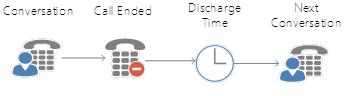
The time (in seconds) before a new Call will be offered to an Agent after the previous Call is finished.
Default: 1
Note
Discharge (wrap-up) is assigned to the agent who accepted the hunt. If the call is transferred to a user who is also part of that UCC or another UCC, they are counted as a transferee, not an agent, and will not receive discharge.
Note
As of Bundle DC2024.01 the discharge (wrap-up) state will set Teams Presence to Busy. When discharge (wrap-up) state ends Teams Presence will reset back to the Agent's Native Teams Presence state.
Native meaning, Teams will automatically reset your status based on your activity, your calendar, and the state of your computer (just as pressing the reset button on your Teams client).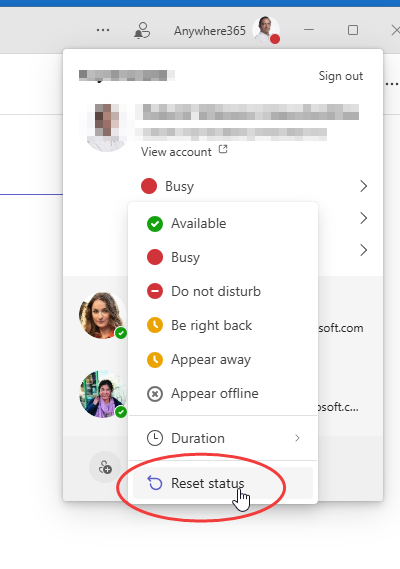
DischargeDurationInterval
Introduced in DC2024.01
The time increment (in seconds) that an agent can increase their wrap-up (Discharge) time with the buttons in Webagent.
Setting the interval to 0 will effectively prevent agents from increasing the wrap-up time (DischargeDuration).
Default: 10
DisconnectAfterUnsuccessfulTransfer
TRUE = Disconnect if a transfer fails.
FALSE = Return if a transfer fails.
Default: FALSE
FeedbackAgentsLeftInSkill
Provide Feedback when Formal agent A Formal Agent is able to sign in and sign out of the UCC. This can be achieved when the Agent sends a start or stop command to the Skype for Business client of the UCC. stops while last in skill
NoFeedback = Sign out
Warning = Send a warning message to the agent and sign out the agent
Confirmation = Mention he is the last active agent, and ask the Agent to confirm whether he would like to sign out
Error = Send an error message, and don't sign out the agent
Default: NoFeedback
PresenceBusyOnWrapUp
Introduced in DC2025.01a
Determines whether an agent’s Presence Status is actively kept on Busy during wrap-up (a.k.a. discharge) time, after which it resets to Teams' native presence status. Disabling this feature (i.e. when set to FALSE) will allow more manual control over the Presence Status during and after the Wrap-up stage of an Agent.
Feature Behavior Table
| Setting Value | Behavior During Wrap-Up | Behavior When Wrap-Up Ends |
|---|---|---|
| TRUE | Presence remains Busy during wrap-up. No change from current behavior. | Teams presence resets to its native state (e.g., Available, Busy: In-a-Meeting) after wrap-up ends.If a Reason Code was set it will also be reset. |
| FALSE | Presence status does not remain Busy during wrap-up if no Reason Code was set during the call; it reverts to what it was before the call. If a Reason Code was set during the call, presence remains in that status (e.g., Away, Busy). | If a Reason Code was set, presence remains in that prior status (e.g., Away, Busy). If no Reason Code was set, Teams presence resets to its native state. |
Default: TRUE
QuickDropThresholdSeconds
If a Dialogue is dropped by the Customer in less than QuickDropThresholdSeconds the call is considered to be QuickDropped. QuickDropped calls can be ignored in the calculation of the ServiceLevelAgreement, see: Statistics Plugin
Default: 5
UseOutboundWrapUp
Enable or disable wrap-up (discharge) duration after outbound conversations.
TRUE = Agent receives Discharge Duration after an outbound conversation.
FALSE = Agent won't receive Discharge Duration after an outbound conversation.
Note
This setting applies to both types of outbound conversations:
- Outbound intercepted calls — calls placed via Microsoft Teams (see EnableOutboundInterception).
- Direct Call Interceptor (DCI) via the WebAgent — calls dialled out directly from the WebAgent interface (see Configure Direct Call Interceptor / Outbound Calling for WebAgent).
EnableOutboundInterception is only required to enable outbound intercepted calls; wrap-up for WebAgent outbound calls works regardless of that setting.
Default: FALSE
Voicemail
EnableVoicemailDialogueDialer
TRUE = Enables the VoicemailDialogueDialer
FALSE = Disable the VoicemailDialogueDialer
Default: FALSE
EnableVoiceMailDialerOutsideBusinessHours
Enables the Dialer outside Business Hours
TRUE = Enables the VoicemailDialogueDialer outside Business Hours
FALSE = Disable the VoicemailDialogueDialer outside Business Hours
Default: FALSE
VoiceMailDialerDeclineRetry
Number of retries per voicemail per voicemailAgent
Default: 3
VoicemailDialerVersion
Determines the version of the Dialer to be used.
- V1
- V2
Default: V1
VoicemailFailedToRetrieve
When the voicemaildialogueprovider is not capable to the download the voicemail this message will be played to the voicemailagent
Default: Failed to retrieve the voice mail.
VoicemailMaximumActiveSessions
The total number of Voicemail Sessions that can be active in the UCC. Once this number has been reached the VoicemailDialer will postpone creating new Sessions until currently active Sessions
Default: 1
VoicemailReplayTextToSpeech
The message that plays after the Voicemail Dialer has played the voicemail audio file.
Default: Press 9 to replay the voicemail.
VoicemailTextToSpeech
Text to speech when VoicemailAgent answers the hunt from the VoicemailDialogueDialer
Default: Welcome. Press one to receive a voicemail
VoicemailQueueStrategy
Determines how the Voicemail Session are placed in the Queue
- ProcessTime
- ProcessTimeLowPriority
Default: ProcessTimeLowPriority