Unattended Install Snapper
Introduction
It is possible to install the Snapper with an unattended installation script. You can use every possible setting that you can find in the GUI (incl some hidden settings). But you can only configure 1 A Unified Contact Center, or UCC, is a queue of interactions (voice, email, IM, etc.) that are handled by Agents. Each UCC has its own settings, IVR menus and Agents. Agents can belong to one or several UCCs and can have multiple skills (competencies). A UCC can be visualized as a contact center “micro service”. Customers can utilize one UCC (e.g. a global helpdesk), a few UCC’s (e.g. for each department or regional office) or hundreds of UCC’s (e.g. for each bed at a hospital). They are interconnected and can all be managed from one central location..
Tip
UCC Autodiscover can be used to have more UCC's added automatically after an Unattended Install.
Command example, simple install:
msiexec /i c:\Install\Setup.msi /qn /norestart /log c:\Install\SnapperInstall.log ENABLEAUTOMATICANSWER="true" AUTOMATICANSWERINTERVAL="99" ENABLEOUTGOINGRECORDING="true" UCCNAME="ucc-name" UCCHOST="app.domain.com" SECURE="true" CLIENTTYPE="NewTeamsDirectRouting"
Command example, more complex install (with passive view):
msiexec /i "Setup.msi" /passive /norestart /log .\SnapperInstall.log ENABLEAUTOMATICANSWER="true" AUTOMATICANSWERINTERVAL="03" UCCNAME="ucc-name" UCCHOST="url.domain.com" SECURE="true" CLIENTTYPE="NewTeamsDirectRouting" DISABLETEAMSAUTHENTICATIONCACHE="true" DIALCOUNTRYCODE="31" SNAPPERLAYOUT="Modern" ISAUTODISCOVER="true" ATTACHEDTORIGHTSIDE="false"
Command example, complex install with AnywhereNow Authentication URL:
msiexec /i "Setup.msi" /passive /norestart /log .\SnapperInstall.log ENABLEAUTOMATICANSWER="true" AUTOMATICANSWERINTERVAL="03" UCCNAME="ucc-name" UCCHOST="url.domain.com" SECURE="true" CLIENTTYPE="NewTeamsDirectRouting" STAYSOPEN="true" DISABLETEAMSAUTHENTICATIONCACHE="true" DIALCOUNTRYCODE="31" SNAPPERLAYOUT="Classic" FEATURETOGGLEACCESSCONTROL="true" FEATURETOGGLEACCESSCONTROLURL="https://auth.anywhere365.cloud/auth/realms/<customerGUIDnumber>" FEATURETOGGLEACCESSCONTROLWEBBROWSER="false" ISAUTODISCOVER="true" ATTACHEDTORIGHTSIDE="false"
Command example, Uninstall with Removal of local cache folder:
msiexec /x "Setup.msi" /passive /norestart /log .\SnapperInstall.log
Remove-Item -Path $env:userprofile\appdata\Roaming\Workstreampeople\Snapper -Recurse
Command example, more complex install and New Teams Client:
Introduced in DC2024.01
msiexec /i "Setup.msi" /passive /norestart /log .\SnapperInstall.log ENABLEAUTOMATICANSWER="true" AUTOMATICANSWERINTERVAL="03" UCCNAME="ucc-name" UCCHOST="url.domain.com" SECURE="true" CLIENTTYPE="NewTeamsDirectRouting" DISABLETEAMSAUTHENTICATIONCACHE="true" DIALCOUNTRYCODE="31" SNAPPERLAYOUT="Classic" ISAUTODISCOVER="true" ATTACHEDTORIGHTSIDE="false"
Tip
Use the Snapper's local config.xml after an initial manual installation (located in %appdata%\workstreampeople\snapper\ directory to see which parameters are available for your unattended installation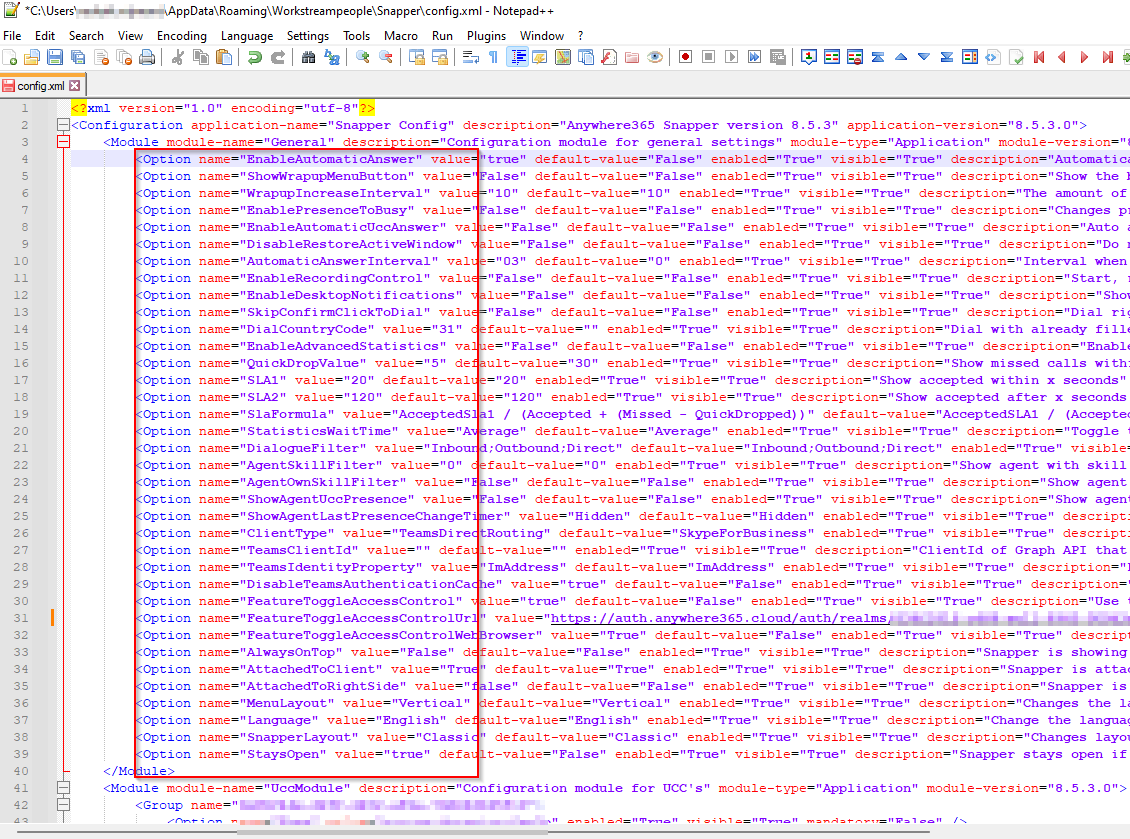
Note
To learn how to combine Unattended installation with disable changing or even hide settings from the User interface for end-users, see: Configure options to hide or disable settings
Setting - User:
-
ENABLEAUTOMATICANSWER
-
Description: Activate automatic answer when available
-
Values: true/false
-
Example code:
ENABLEAUTOMATICANSWER="true"
-
-
ENABLEAUTOMATICUCCANSWER
-
true/false
-
-
AUTOMATICANSWERINTERVAL
-
number
-
-
ENABLEPRESENCETOBUSY
-
true/false
-
-
SHOWWRAPUPMENUBUTTON
-
true/false
-
-
WRAPUPINCREASEINTERVAL
-
number
-
-
ENABLEAUDIORECORDINGCONTROL
-
true/false
-
-
SELECTEDUCC
-
text
-
Settings - Dashboard Statistics
-
QUICKDROPVALUE
-
number
-
-
SLA1
-
number
-
-
SLA2
-
number
-
-
SLAFORMULA
-
STATISTICSWAITTIME
-
average/longest
-
-
DIALOGUEFILTER
Settings - Dashboard Agents
-
AGENTSKILLFILTER
-
number
-
-
AGENTOWNSKILLFILTER
-
true/false
-
-
SHOWAGENTUCCPRESENCE
-
true/false
-
-
SHOWAGENTLASTPRESENCECHANGETIMER
Settings - GUI
-
CLIENTTYPE
-
Teams
-
TeamsDirectRouting
Introduced in DC2024.01
-
NewTeams
-
NewTeamsDirectRouting
-
-
TEAMSCLIENTID
-
ATTACHEDTOCLIENT
-
true/false
-
-
ATTACHEDTORIGHTSIDE
-
true/false
-
-
ALWAYSONTOP
-
true/false
-
-
MENULAYOUT
-
Vertical/Horizontal
-
-
LANGUAGE
-
TEAMSIDENTITYPROPERTY
-
SNAPPERLAYOUT
-
Classic
-
Modern
-
-
STAYSOPEN
-
true/false
-
UCC Config:
-
UCCNAME
-
text
-
-
UCCHOST
-
text
-
-
SECURE
-
true/false
-
-
DASHBOARDSERVICE
-
text
-
-
DASHBOARDSERVICEUSERNAME
-
text
-
-
DASHBOARDSERVICEPASSWORD
-
text
-
-
ATTENDANTSERVICE
-
text
-
-
ATTENDANTSERVICEUSERNAME
-
text
-
-
ATTENDANTSERVICEPASSWORD
-
text
-
-
REMOTEPRESENCEHUB
-
text
-
-
CALLPROPERTYSERVICE
-
text
-
-
DCISKILL
-
text
-
-
ISADVANCED
-
true/false
-
-
ISAUTODISCOVER
-
true/false
-
-
ISUPDATEAGENTPRESENCE
-
true/false
-
Screen Recording:
Warning
Snapper is End of Support Maintenance (EoSM). Snapper Screen Recording does not support Formerly known as Azure Active Directory (or Azure AD, or AAD) App + Certificate authentication for SharePoint connections. With Microsoft's retirement of legacy Client ID/Secret authentication, affected SharePoint upload scenarios are not supported in Snapper.
Note: Screen recording timeline integration depends on Call Property Service. Review the lifecycle status of Call Property Service when assessing long-term platform design.
-
SHOWINCOMINGRECORDINGBUTTON
-
SHOWOUTGOINGRECORDINGBUTTON
-
ENABLEINCOMINGRECORDING
-
true/false
-
-
ENABLEOUTGOINGRECORDING
-
true/false
-
-
SCREENRECORDINGLOCATION
-
text
-
-
LOCALSAVEPATH
-
text
-
-
SHAREPOINTLOCATION
-
Onpremises/Online
-
-
SHAREPOINTURL
-
text
-
-
SHAREPOINTUSERNAME
-
text
-
-
SHAREPOINTPASSWORD
-
text
-
-
ENABLEPREFIXFILTER
-
true/false
-
-
PREFIX
-
text
-
-
ENABLECALLPROPERTYSERVICE
-
true/false
-