Configure WebAgent for DaVinci
Introduced in DC2024.02
Before continuing, complete the prerequisites in Prerequisites.
Configure DaVinci
Access / Environment Management
To load the WebAgent through DaVinci, go to Contact Canvas Studio.
Credentials for signing in will be provided by AMC Technology.
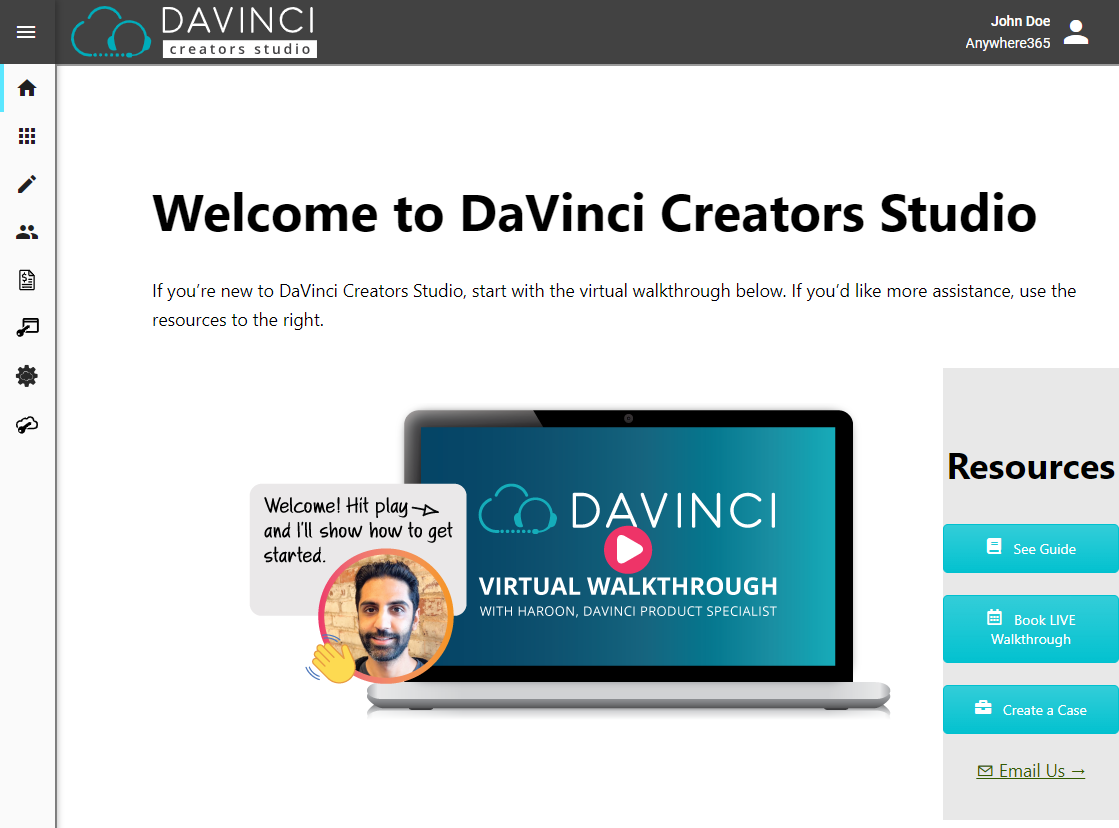
Once signed in, you will see a Welcome page:
Create App
-
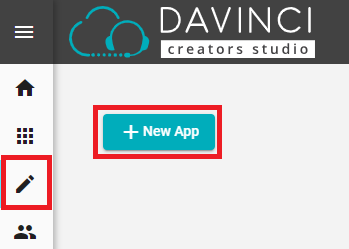
Navigate to Edit Apps and click on New App.
-
Name the app WebAgent.
-
After the modal closes, click on the app to open its details.
-
(Optional) Click on Change Image to select an image for the app. You can use the following image:

-
Go to Config and click on WebAgent Configuration.
-
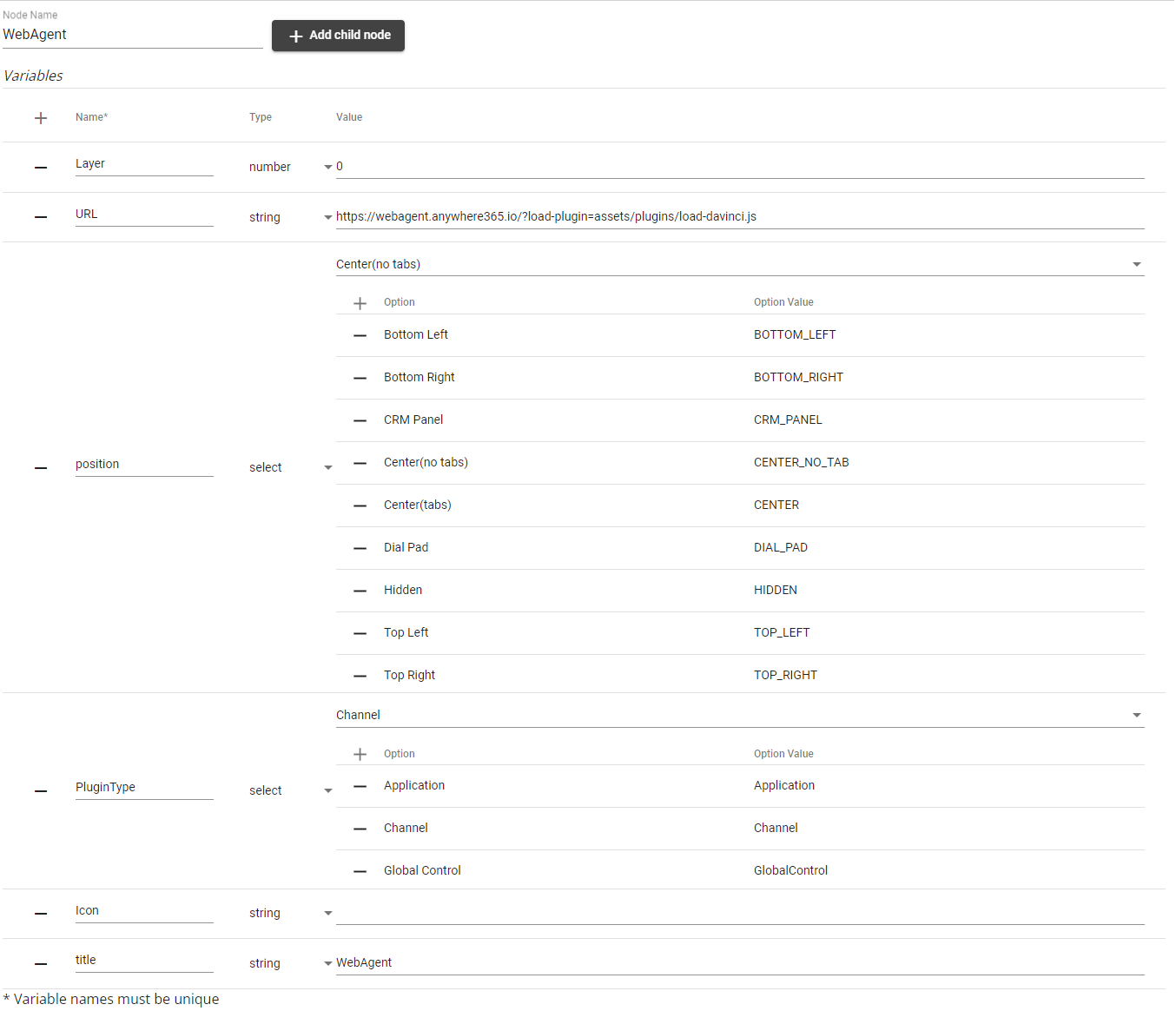
Fill in the following details:
-
URL: https://webagent.anywhere365.io/?load-plugin=assets/plugins/load-davinci.js
* Use the WebAgent URL for your connect model.
Dialogue Cloud Neo (Connect)
https://webagent.anywhere365.io/?load-plugin=assets/plugins/load-davinci.jsDialogue Cloud Neo (Unify)
EMEA
https://app.emea.anywhere.now/login?load-plugin=assets/plugins/load-davinci.jsAPAC
https://app.apac.anywhere.now/login?load-plugin=assets/plugins/load-davinci.jsNORA
https://app.nora.anywhere.now/login?load-plugin=assets/plugins/load-davinci.js -
Position: Center (no tabs)
-
PluginType: Channel
-
Icon:
-
Title: Dialogue Cloud WebAgent
-
-
Save the app by clicking the Save App button.
Edit Default Profile / Create New Profile
-
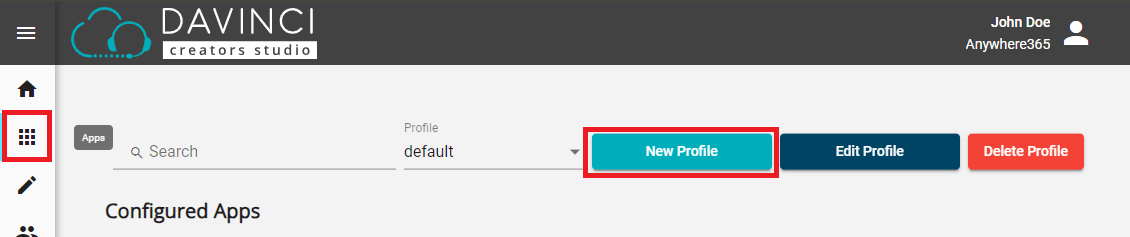
Go to Apps.
-
(Optional) If you want a separate profile, create a new profile and give it a logical name for the Customer Relationship Management, or CRM, is (usually) a software-based, data management method to deal with interactions with customers and potential customers. system you want to use. You can also continue using the default profile.
-
If you create a new profile, it will open automatically after creation (i.e., selected in the dropdown menu).
-
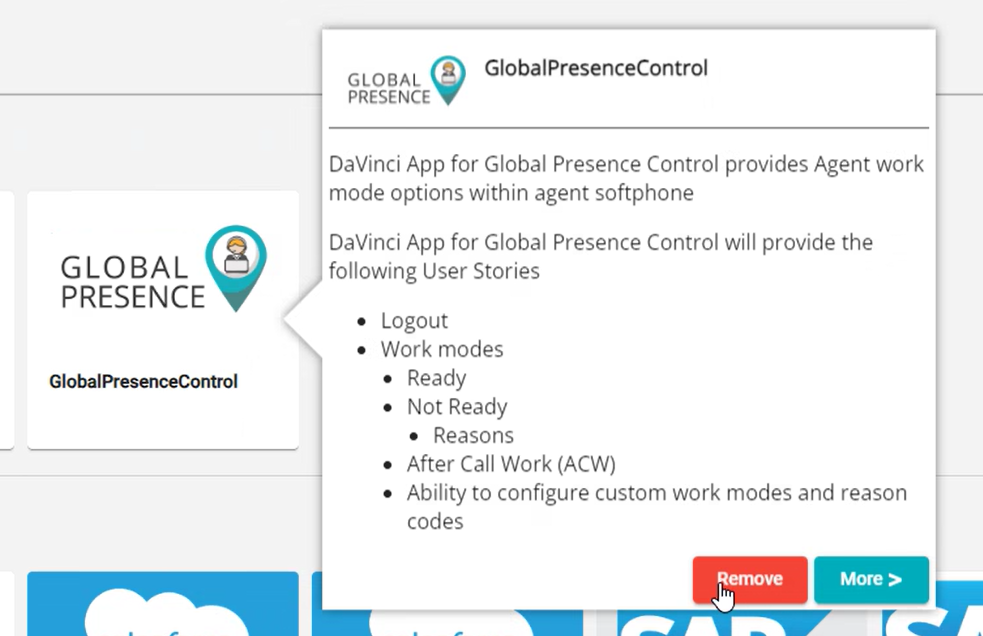
Remove both DAVINCI APP FOR CALL SIMULATOR and GlobalPresenceControl from the Configured Apps by clicking on the tile and then on Remove.
-
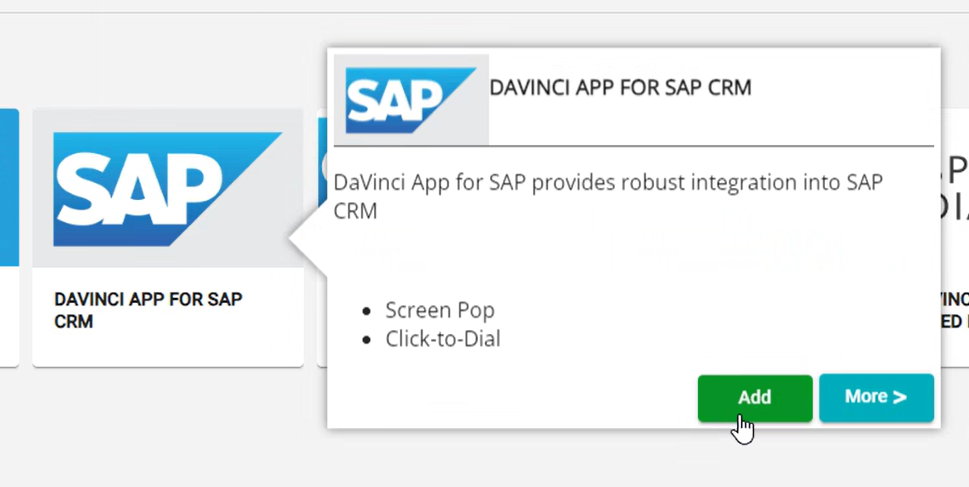
Add the preferred CRM connector by clicking on the tile in the Available Apps and then on Add.
In this example we add the DAVINCI APP FOR SAP:
Note
If the app is not visible under Available Apps, find it under Get more apps.
-
Add WebAgent by clicking on the tile in the Available Apps and then on Add.
-
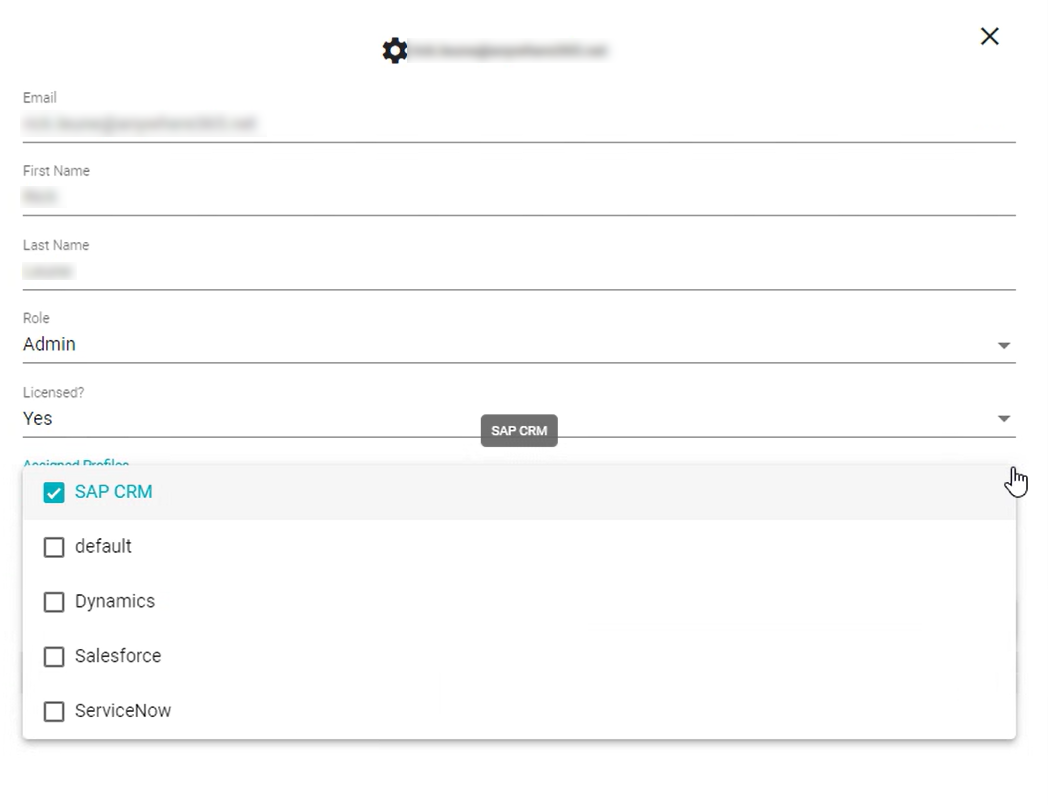
Under Users, users can be created. These users should have the correct profile assigned to use the WebAgent.
-
If a new profile was created, assign the new profile. Otherwise, ensure the default profile is assigned.
-
Based on needs, assign the role of Admin (full control and able to change configuration) or Agent (user of the app).
-
Validate WebAgent in DaVinci
To validate if the WebAgent can be loaded, navigate to https://agent.contactcanvas.com.
-
Log in with a user created in the DaVinci Contact Canvas Studio.
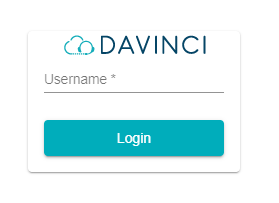
-
If you have multiple profiles, select a profile from the list.
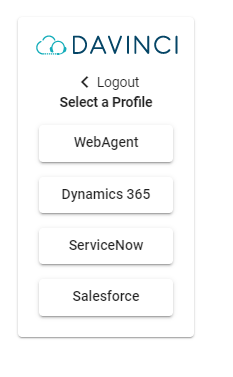
-
You should now see the WebAgent login screen and the DaVinci bar at the bottom.
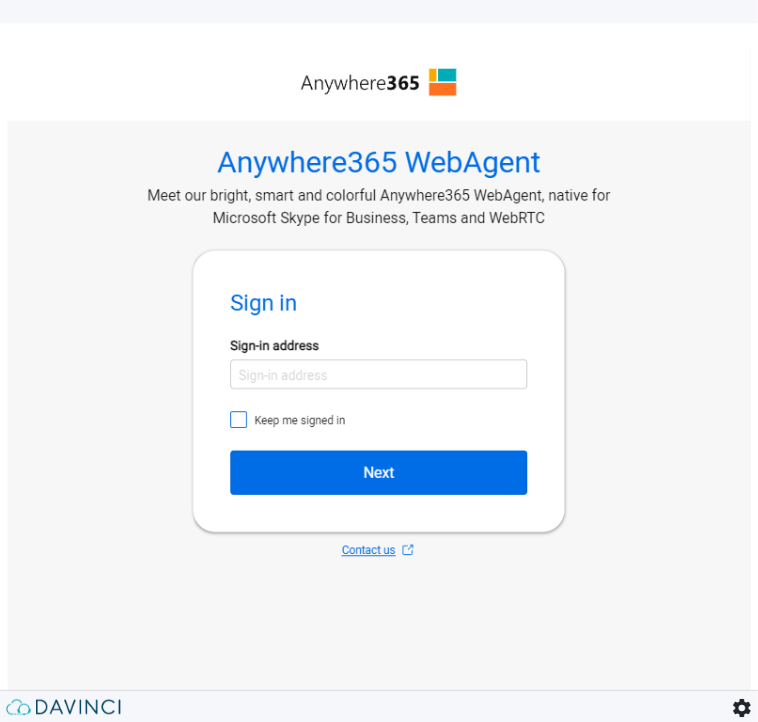
CRM Configuration
DaVinci provides various integrations. Instructions on how to configure them can be found within the app on Contact Canvas Studio.
-
Go to Apps.
-
Click on the CRM app you have added and select More. In this example, we use the DAVINCI APP FOR SAP CRM.
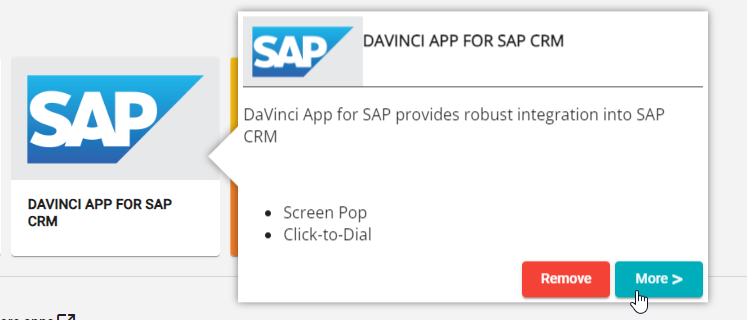
-
Switch to the Setup tab. Here, you will find step-by-step instructions.