Configure Wallboard View 2 - Skill
Introduction
This view is also known as Grid View.
Preview
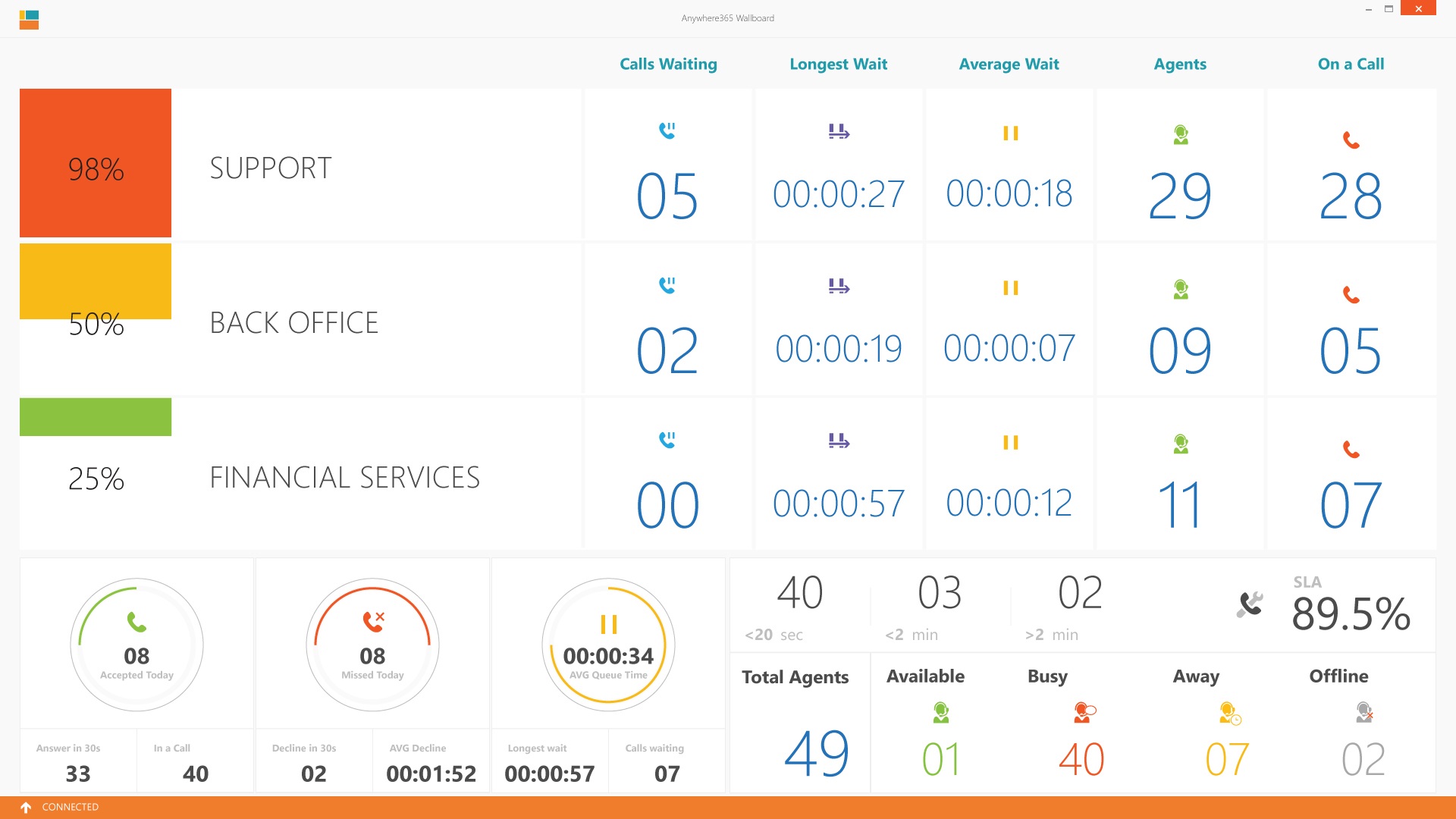
Configure
-
Open the config.xml file, which is located in the “InFlight WallBoard\I01” folder
-
The right value for the
DefaultView= 2 -
Make sure the General Settings are as in the example below
XML<!-- General Settings --> <DefaultView value="2" enabled="true"></DefaultView> <!-- 1 Normal, 2 Custom (Grid), 3 Multiple, 4 InboundOnly, 5 StatisticsView, 6 Reason Code --> <MultipleUCCGroup value="-1" enabled="true" /> <!-- -1 == GroupView, 0 == group 0, 1 == group 1, 2 == group 2, 12 == group 12, etc--> <LogLevel value="All" enabled="true" /> <!-- All, Critical, Error, Warning, Information, Verbose --> <LowestSkillValue value="1" enabled="true" /> <Language value="en" enabled="true"></Language> <!-- End General Settings -->
-
Next make sure the "Normal View Settings" are correct. (Entered during installation)
XML<!-- Normal View Settings --> <DashboardServer version="1.5" name="ucc_" value="http(s)://<FQDN>/DashboardService" SLA1Label="20 sec" SLA2Label="2 min" SLA1="20" SLA2="120"></DashboardServer> <DashboardPresenceIndicatorsView>PerAvailability</DashboardPresenceIndicatorsView> <ShowQueueAlert enabled="true" delay="10" /> <QueueAnimation enabled="true" delay="5" /> <Privacy enabled="false" /> <Credentials username="" password="" /> <!-- End Normal View Settings -->
-
name = Name of the A Unified Contact Center, or UCC, is a queue of interactions (voice, email, IM, etc.) that are handled by Agents. Each UCC has its own settings, IVR menus and Agents. Agents can belong to one or several UCCs and can have multiple skills (competencies). A UCC can be visualized as a contact center “micro service”. Customers can utilize one UCC (e.g. a global helpdesk), a few UCC’s (e.g. for each department or regional office) or hundreds of UCC’s (e.g. for each bed at a hospital). They are interconnected and can all be managed from one central location. (e.g. ucc-main-number or ucc-support-ab123)
-
value = URL to dashboardservice of the UCC (e.g. https://service.domain.com/dashboardservice)
-
SLA1Label = Text value which is shown in the SLA bar's first item.
-
SLA2Label = Text value which is shown in the SLA bar's second and third item.
-
SLA1 = Number of seconds which is used in the SLA bar's first item and SLA percentage.
-
SLA2 = Number of seconds which is used in the SLA bar's second and third item.
-
DashboardPresenceIndicatorsView:
- PerAvailability = Only show available agents in Departments bar
- All = Show all agents in Departments bar
-
ShowQueueAlert = If true, blink red when there are no agents or a customer waits for x seconds
-
QueueAnimation = If true, circle through the different views every x seconds.
-
Privacy = Only show the last 3 digits of the caller
-
Credentials = Automatically entered when connection to a secure dashboard.
-
-
Save the file
-
Now the Grid View is applied for the Wallboard.
(Optional) Filter on Skills
-
Open the config.xml file, which is located in the “InFlight WallBoard\I01” folder
-
Edit the following line
XML<SkillFilter enabled="false" value="" />-
Enabled = true
-
Value = Skill titles semicolon separated (Enter Skillnames as entered in the SharePoint site, Learn More)
Example<SkillFilter enabled="true" value="Support;BackOffice;Finance" />
-