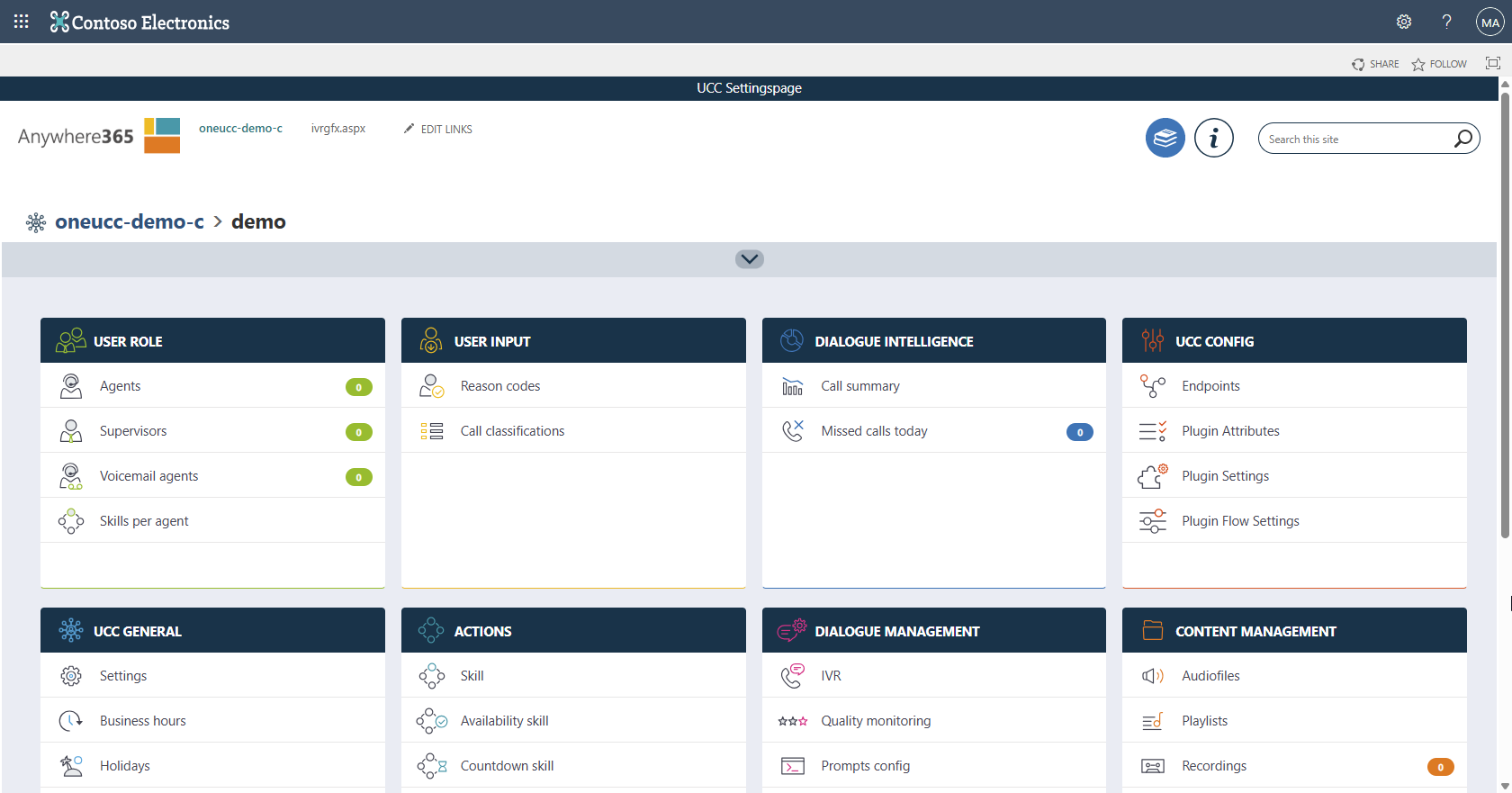
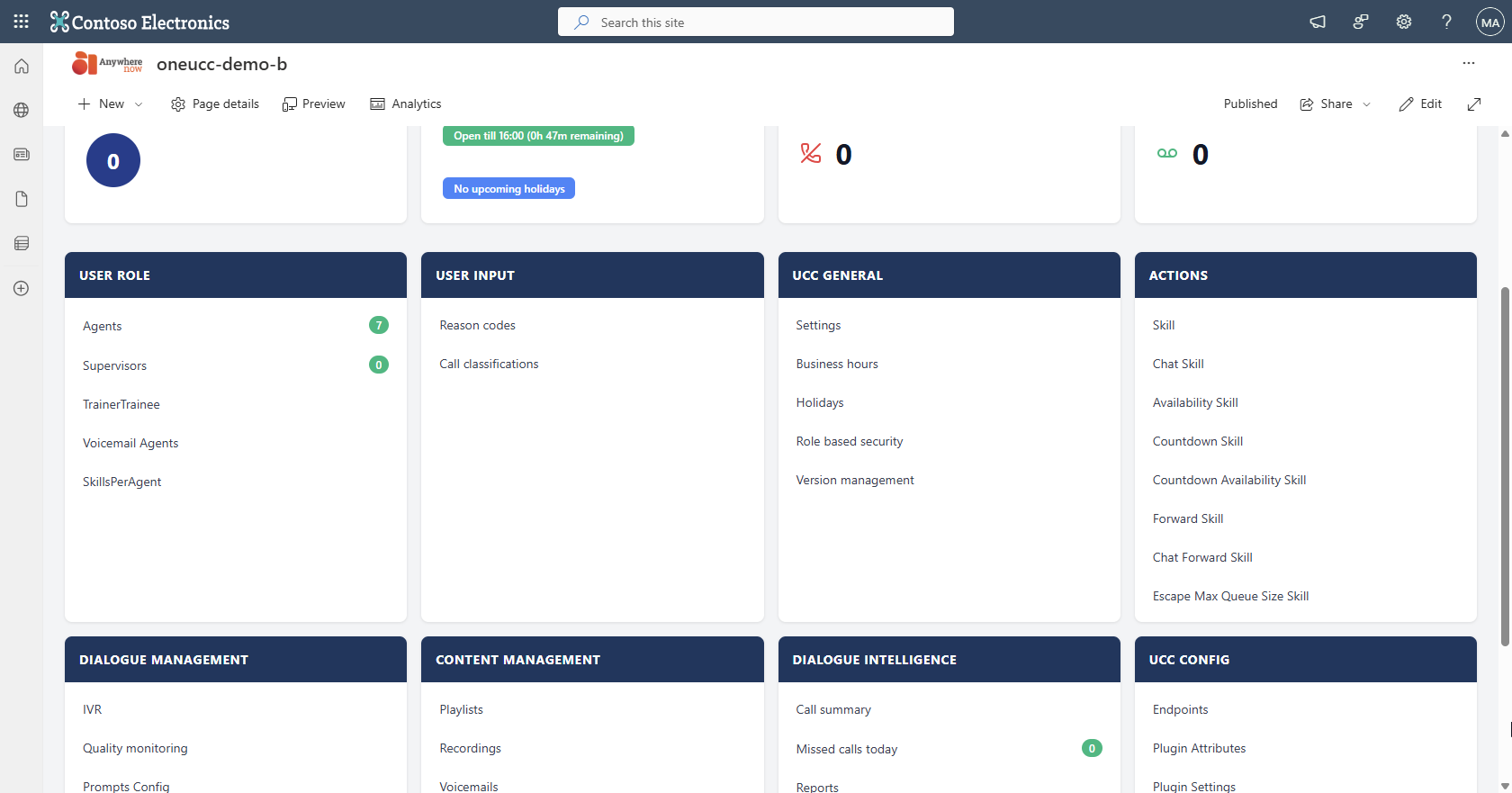
Deploy UCC Dashboard
The Deploy-UccDashboard.ps1 script deploys the UCC A Unified Contact Center, or UCC, is a queue of interactions (voice, email, IM, etc.) that are handled by Agents. Each UCC has its own settings, IVR menus and Agents. Agents can belong to one or several UCCs and can have multiple skills (competencies). A UCC can be visualized as a contact center “micro service”. Customers can utilize one UCC (e.g. a global helpdesk), a few UCC’s (e.g. for each department or regional office) or hundreds of UCC’s (e.g. for each bed at a hospital). They are interconnected and can all be managed from one central location. Dashboard SPFx package to your tenant's App Catalog. This is a one-time setup that makes the UCC Dashboard web part available to all SharePoint sites in your tenant.
When to Run This Script
- Once per tenant - Run this before modernizing or creating your first UCC site
- After package updates - Run with
-Forcewhen upgrading to a new version of UCC Site Creator
Prerequisites
Before running this script, ensure you have:
- Completed the Prerequisites
- PowerShell 7.4.6+ installed
- Entra ID Formerly known as Azure Active Directory (or Azure AD, or AAD) app with
Sites.FullControl.Allpermission - Certificate file (.pfx) and password
Basic Usage
With Certificate Authentication (Recommended)
# Store password securely in temporary memory
$certPassword = Read-Host -AsSecureString -Prompt "Enter certificate password"

# Deploy the dashboard
.\Deploy-UccDashboard.ps1 `
    -TenantUrl "https://contoso.sharepoint.com" `
    -ClientId "your-client-id" `
    -CertificatePath "C:\Certs\cert.pfx" `
    -CertificatePassword $certPassword
With Interactive Authentication
.\Deploy-UccDashboard.ps1 `
    -TenantUrl "https://contoso.sharepoint.com" `
    -Interactive `
    -ClientId "your-client-id"
Parameters
*Either -Interactive OR certificate parameters are required.
What the Script Does
- Connects to Tenant Admin - Establishes connection to your SharePoint admin center
- Locates App Catalog - Finds your tenant's App Catalog site
- Enables Scripting - Temporarily enables scripting on the App Catalog (required for deployment)
- Uploads SPFx Package - Uploads
ucc-dashboard-spfx.sppkgto the App Catalog - Deploys Tenant-Wide - Makes the web part available to all sites without per-site installation
- Alternatively deploys to a Site Collection App Catalog per site collection if parameter is used.
- Alternatively deploys to a Site Collection App Catalog per site collection if parameter is used.
- Creates Marker File - Creates
.tenant-setup-completeto track deployment status
Expected Output
A successful deployment looks like this:
============================================================
  AnywhereNow UCC - Tenant Setup v8.3.0.6
============================================================

Info : Found SPFx package: ...\SPFx\sharepoint\solution\ucc-dashboard-spfx.sppkg
Info : Derived tenant admin URL: https://contoso-admin.sharepoint.com
Info : Loading bundled PnP.PowerShell module...
Info : Connecting to tenant admin: https://contoso-admin.sharepoint.com
Success : Connected to tenant admin
Info : Getting tenant App Catalog URL...
Info : Tenant App Catalog: https://contoso.sharepoint.com/sites/appcatalog
Info : Connecting to App Catalog...
Success : Connected to App Catalog
Info : Deploying SPFx package to tenant App Catalog...
Info :   Package: ...\ucc-dashboard-spfx.sppkg
Info :   Tenant-wide: True
Success : Package uploaded successfully
Info :   App ID: b6a6a24f-a81a-4d75-89be-3db0dc7464c0
Info : Verifying deployment...
Success : Package deployed and available!
Info :   Tenant-wide: Yes (available to all sites automatically)

============================================================
  Tenant Setup Complete!
============================================================

The SPFx package has been deployed to your tenant App Catalog.

The solution is available TENANT-WIDE, which means:
  - No need to install the app on each site
  - The UCC Dashboard web part is automatically available
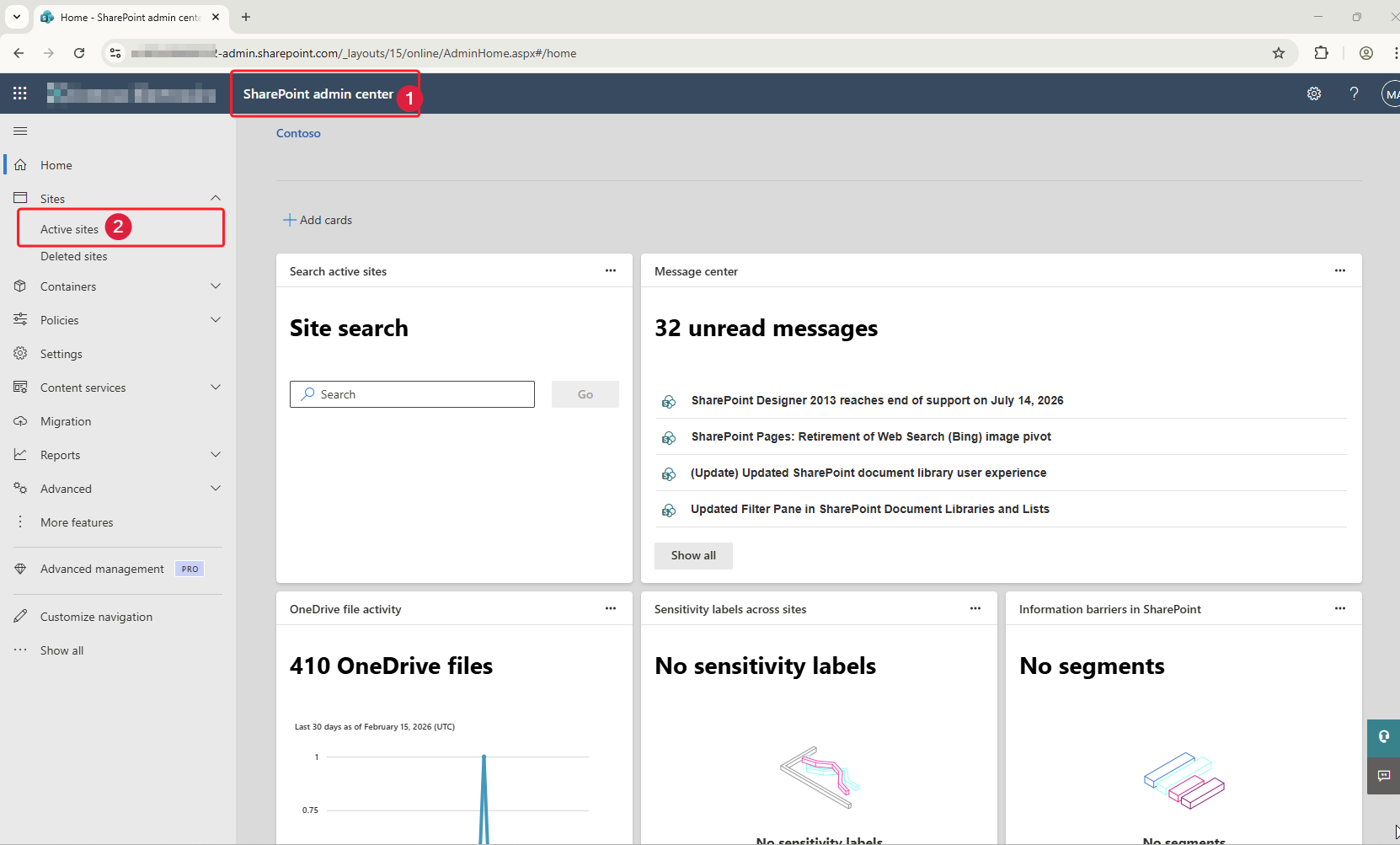
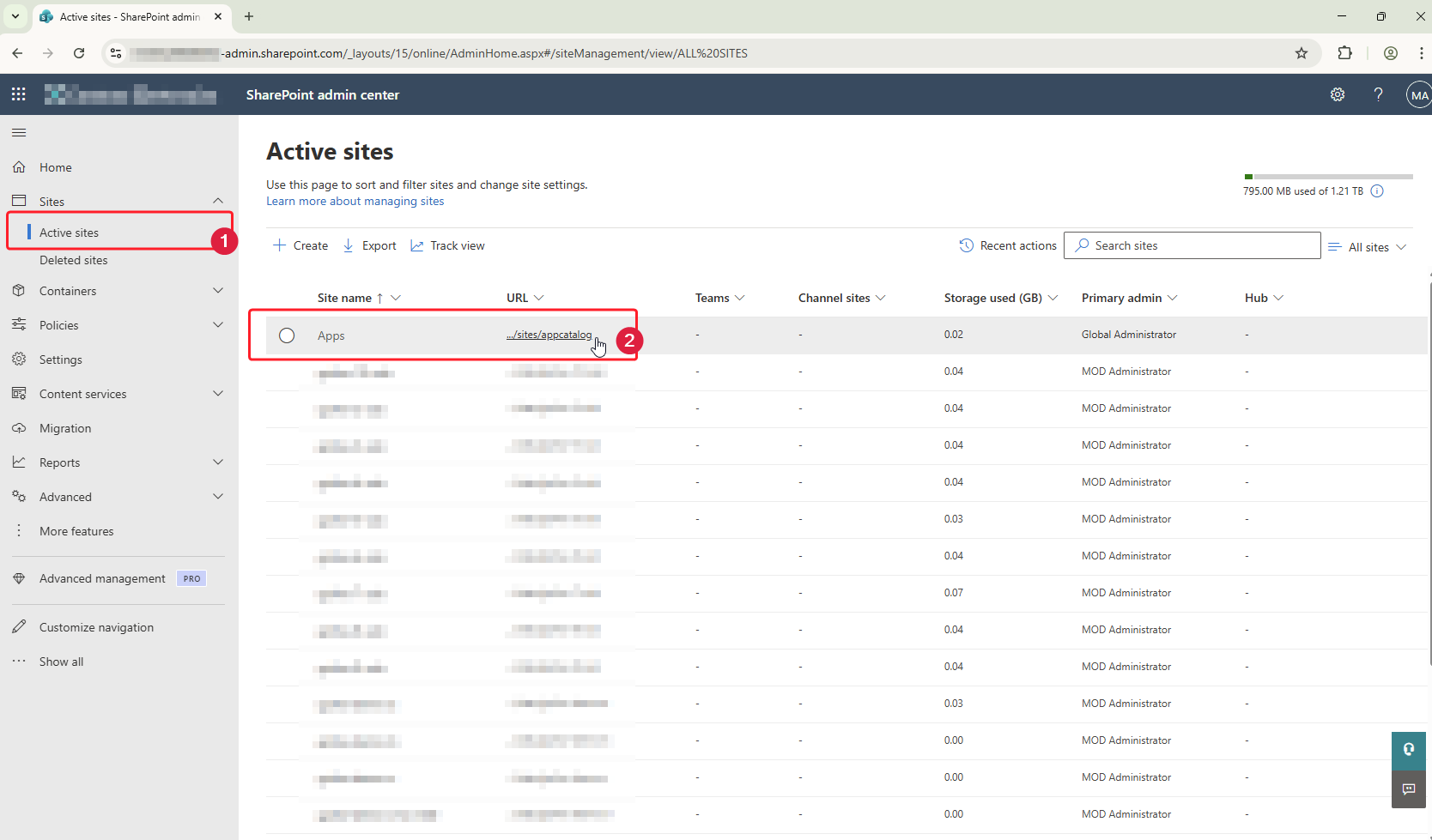
Or go to the App Catalog in your Tenants SharePoint site.
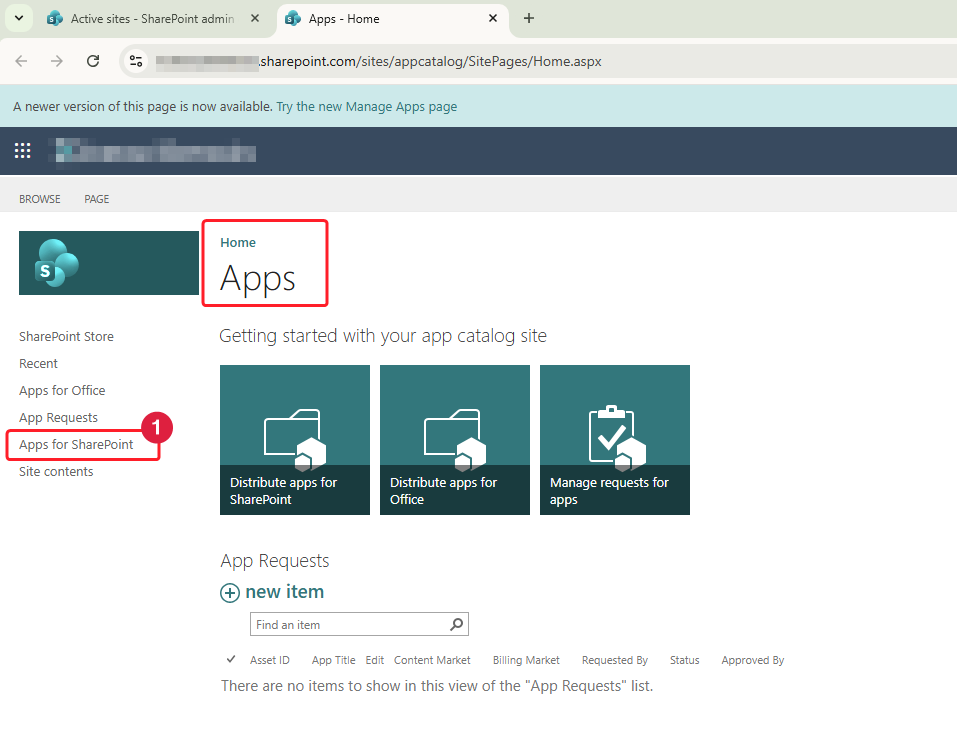
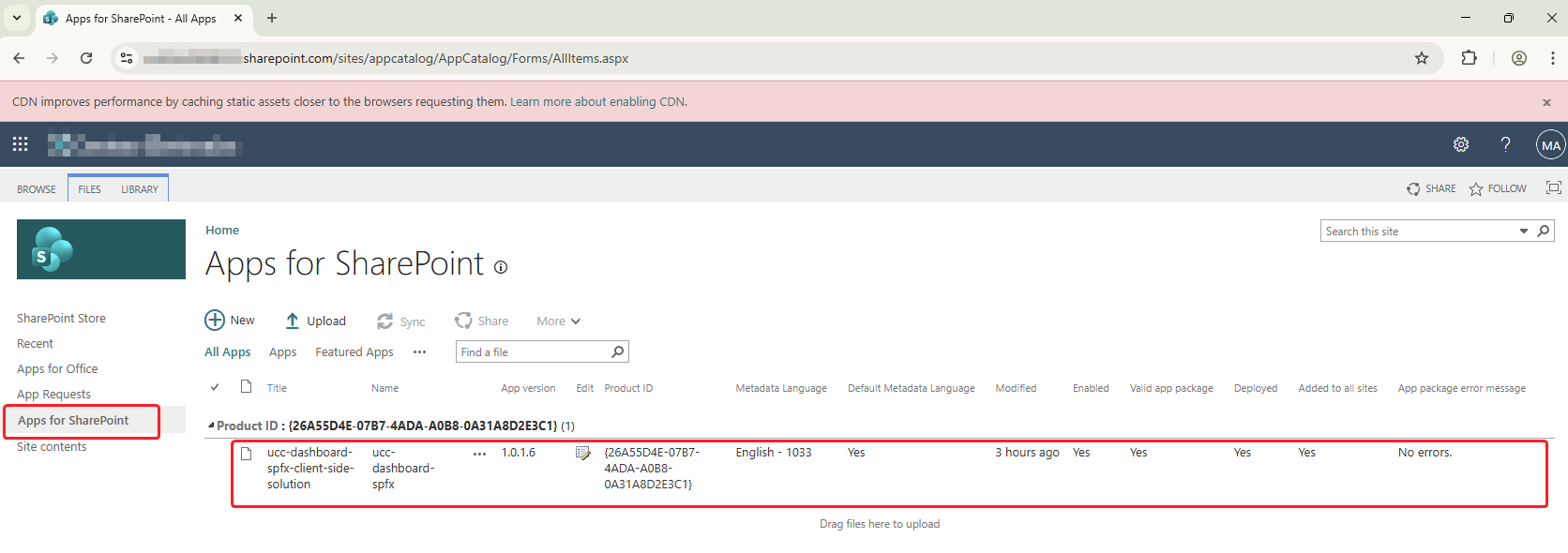
Re-deploying (Upgrades)
When upgrading to a new version of UCC Dashboard, use the -Force flag to re-deploy the SPFx package:
.\Deploy-UccDashboard.ps1 `
    -TenantUrl "https://contoso.sharepoint.com" `
    -ClientId "your-client-id" `
    -CertificatePath "C:\Certs\cert.pfx" `
    -CertificatePassword $certPassword `
    -Force
Troubleshooting
 No App Catalog Found
Error: "Could not get tenant App Catalog URL"
Solution: Create an App Catalog site in your tenant:
- Go to SharePoint Admin Center
- Navigate to More features → Apps
- Click App Catalog
- Create a new App Catalog site if prompted
Permission Denied
Error: "Access denied" or "Insufficient privileges"
Solution: Ensure your Entra ID app has:
Sites.FullControl.Allapplication permission- Admin consent granted
Certificate Error
Error: "The specified certificate could not be read"
Solution:
- Verify the certificate path is correct
- Ensure the password is correct
- Check that the certificate hasn't expired
- Verify the certificate is uploaded to the Entra Id App.
- Make sure your are referencing the .pfx file in your PowerShell commands, not the .cer file.
Next Steps
After deploying the UCC Dashboard:
- Existing UCC sites:Modernize Existing Sites
- New UCC sites:Create UCC Sites
Media Gallery
Videos
Deploy-UccDashboard, interactive authentication
Dashboard already deployed
Dashboard re-deployed (with '-Force' parameter)
Deploy-UccDashboard, certificate authentication.
Dashboard re-deployed (with '-Force' parameter)
Screenshots
Deploy-UccDashboard, interactive.
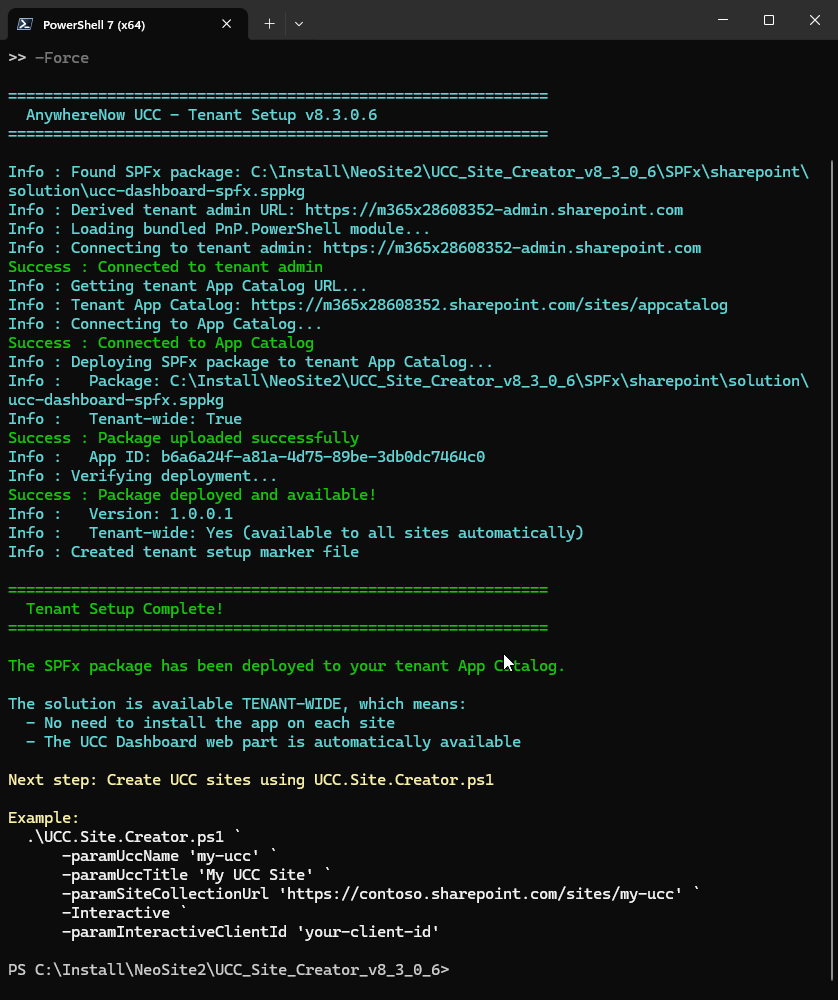
Preview Dashboard Before & After