Update (or Modernize) Existing UCC Sites
The modernization scripts serve two purposes:
-
For already-modernized sites, the same scripts act as update tools: applying new list columns, content type changes, and SPFx package updates with minimal disruption and without rebuilding the homepage.
-
For sites still running the classic portal.aspx homepage, they upgrade the site to the modern SPFx-based UCC A Unified Contact Center, or UCC, is a queue of interactions (voice, email, IM, etc.) that are handled by Agents. Each UCC has its own settings, IVR menus and Agents. Agents can belong to one or several UCCs and can have multiple skills (competencies). A UCC can be visualized as a contact center “micro service”. Customers can utilize one UCC (e.g. a global helpdesk), a few UCC’s (e.g. for each department or regional office) or hundreds of UCC’s (e.g. for each bed at a hospital). They are interconnected and can all be managed from one central location. Dashboard — required for compliance with Microsoft's MC1117115 Linking the Microsoft 365 Message Center Archive on Merrill.net (maintained by a Principal Product Manager at Microsoft) for easier public reference of the Microsoft announcement. The official Message Center is accessible only to Microsoft 365 administrator accounts. announcement, which deprecates classic SharePoint publishing features.
This script can be run during normal operation of a UCC, without technical downtime of the UCC. Only an end user who needs access to the UCC configuration page will need to adjust to the new interface exposed after modernization.
When to Use These Scripts
Use the modernization scripts when you have:
- Existing UCC sites created with older versions of UCC Site Creator
- Sites still using the classic portal.aspx homepage (first-time modernization)
- Already-modernized sites that need a new version of the UCC Dashboard SPFx package deployed
- Already-modernized sites that need new list columns or content types applied (schema update only)
Note
When testing modernization on a single classic portal.aspx subsite before modernizing the entire Site Collection read this first!: Preserving Legacy Scripts (for testing single subsite modernization)
Before You Begin
Ensure you have:
- Completed the Prerequisites
- Deployed the UCC Dashboard (Deploy UCC Dashboard)
- PowerShell 7.4.6+ installed
- A list of site URLs to modernize
Available Scripts
| Script | Use Case |
|---|---|
Modernize-UccSite.ps1
|
Modernize a single site |
Batch-ModernizeUccSites.ps1
|
Modernize multiple sites from a CSV file |
Single Site Modernization
Basic Usage Example
# Store password securely in temporary memory
                $certPassword = Read-Host -AsSecureString -Prompt "Enter certificate password"

                # Modernize a single site
                .\Modernize-UccSite.ps1 `
                -SiteUrl "https://contoso.sharepoint.com/sites/ucc-sales" `
                -Mode Modernize `
                -ClientId "your-client-id" `
                -CertificatePath "C:\Certs\cert.pfx" `
                -CertificatePassword $certPassword `
                -Tenant "contoso.onmicrosoft.com" `
                -PreserveLegacyScripts
With Interactive Authentication
.\Modernize-UccSite.ps1 `
                -SiteUrl "https://contoso.sharepoint.com/sites/ucc-sales" `
                -Mode Modernize `
                -Interactive `
                -ClientId "your-client-id"
Parameters
| Parameter | Required | Description |
|---|---|---|
-SiteUrl
|
Yes | Full URL of the site to modernize |
-ClientId
|
Yes |
Entra ID Formerly known as Azure Active Directory (or Azure AD, or AAD) application (client) ID |
-Mode
|
Yes |
|
-CertificatePath
|
No* |
Path to the .pfx certificate file |
-CertificatePassword
|
No* |
Certificate password as SecureString |
-Tenant
|
No* |
Tenant domain name (e.g.,  Read More Read More
|
-Interactive
|
No* |
Use browser-based authentication |
-Force
|
No |
Re-modernize even if already modernized |
-Analyze
|
No |
Analyze only, don't make changes |
-PreserveLegacyScripts
|
No |
Keep legacy JavaScript/CSS and files in Style Library (for testing a single subsite) Read more
Preserve legacy Script Link custom actions during modernization. Use this when testing modernization on a few subsites while other subsites still run on v8.3.0.1 or earlier. The legacy scripts and files are needed for older UCC dashboards to function properly. Once all sites are modernized, re-run without this parameter to complete the cleanup. |
-UseSiteCollectionAppCatalog
|
No | Installs the UCC Dashboard app from the site collection app catalog Available since v8.4.1.8 |
-SchemaOnly
|
No |
Skip page recreation and SPFx app update. Applies list schema changes only (new columns, content types). Typical run time: ~10 seconds per site. Available since v8.4.2.1.
Use with -Force on already-modernized sites. |
-UpdateAppOnly
|
No |
Skip page recreation. Updates the SPFx app installation and applies schema changes. The existing Home.aspx and its web part are left in place. Typical run time: ~20–30 seconds per site. Available since v8.4.2.1.
Use with -Force on already-modernized sites. |
*Either -Interactive OR certificate parameters (including -Tenant) are required.
Preserving Legacy Scripts (for testing single subsite modernization)
By default, the modernization process removes legacy JavaScript and CSS files from the Style Library that were used by the classic portal.aspx page. These files are no longer needed when using the modern SPFx UCC Dashboard for the entire Site Collection (i.e. parent site and all subsites).
However, in some scenarios you may want to keep these files:
- Gradual migration where you're modernizing sites in phases
- Troubleshooting to compare classic vs modern behavior
Beware
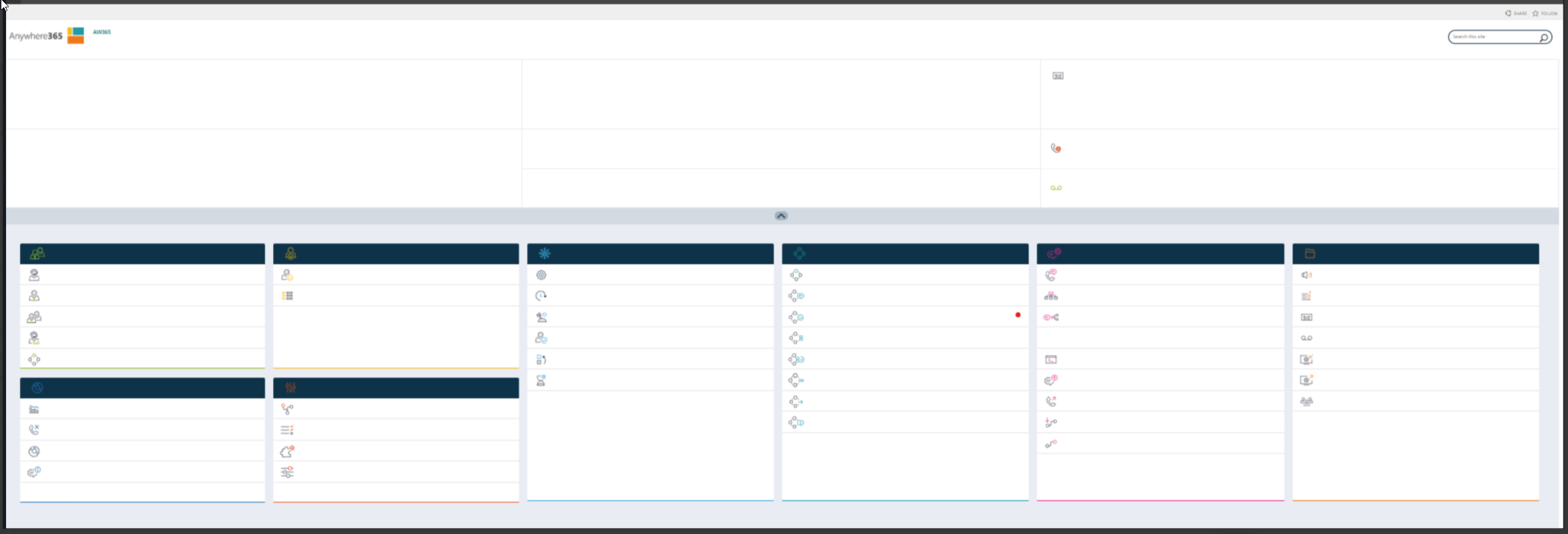
Not adding this parameter while modernizing a single subsite in a site collection of UCC sites will break the visibility of legacy menu's of all other subsites in that site collection. In other words, use this parameter when testing a single (or a few) subsite modernization.
Read more
The below screenshot illustrates the effect if omitted. This is non-reversible as the files (mentioned below) get deleted.
Using PreserveLegacyScripts
Add the -PreserveLegacyScripts switch to retain the Style Library files:
# Single site - preserve legacy scripts
                .\Modernize-UccSite.ps1 `
                -SiteUrl "https://contoso.sharepoint.com/sites/ucc-sales" `
                -Mode Modernize `
                -PreserveLegacyScripts `
                -ClientId "your-client-id" `
                -CertificatePath "C:\Certs\cert.pfx" `
                -CertificatePassword $certPassword `
                -Tenant "contoso.onmicrosoft.com"
# Batch modernization - preserve legacy scripts
                .\Batch-ModernizeUccSites.ps1 `
                -InputCsv ".\UccSites.csv" `
                -Mode Modernize `
                -PreserveLegacyScripts `
                -ClientId "your-client-id" `
                -CertificatePath "C:\Certs\cert.pfx" `
                -CertificatePassword $certPassword `
                -Tenant "contoso.onmicrosoft.com"
What Gets Preserved
When using -PreserveLegacyScripts, the following files are retained in the Style Library:
| Location | Contents |
|---|---|
Style Library/Anywhere365/
|
A365.js, A365.css |
Style Library/Anywhere365/Content/js/
|
Custom JavaScript files |
Style Library/Anywhere365/Content/css/
|
Stylesheets |
Style Library/Anywhere365/Content/resources/
|
Language resource files |
Style Library/Anywhere365/Images/
|
Portal images and icons |
Output Difference
Without -PreserveLegacyScripts (default):
Info : Cleaning up legacy portal pages...
                Info : Removed portal.aspx from Pages
                Info : Cleaning up Style Library files...
                Info : Removed Style Library/Anywhere365 folder
With -PreserveLegacyScripts:
Info : Cleaning up legacy portal pages...
                Info : Removed portal.aspx from Pages
                Info : Preserving legacy scripts in Style Library (PreserveLegacyScripts specified)
Note: The portal.aspx page is always removed regardless of this setting, as it will not render correctly after Microsoft's classic experience deprecation on March 15, 2026.
Navigation and Page Comments Inheritance
When modernizing a single UCC subsite, two visual elements cannot be removed at the subsite level: the left-side navigation menu and the page comments section. Both of these are inherited from the parent site collection and are controlled at that level, not at the individual subsite. This means that even after a successful modernization — including the removal of legacy branding, the creation of the modern Home.aspx page, and the deployment of the UCC Dashboard web part — the side navigation and comments section will remain visible until the parent site collection itself is modernized. Once the full site collection is modernized using the same process, these inherited settings are updated at the root level and will no longer appear on any of the subsites beneath it. This is expected behaviour and is not an indication that the subsite modernization was incomplete.
Limited UCC Dashboard Layout on Modernized Classic Subsites
When a classic UCC subsite is modernized, the UCC Dashboard SPFx web part is hosted on a modern SharePoint page (Home.aspx) that runs inside a classic subsite. While SharePoint allows modern pages to be created inside classic subsites, full-width page sections are not available in this context. This is a platform-level restriction documented by Microsoft: full-width column layouts are exclusively available on pages that are part of Communication Sites and are not supported on Team Sites or subsites of any kind, regardless of whether those subsites host modern pages. As Microsoft's own SharePoint Framework documentation states, the full-width column layout — which spans the entire width of the page without any horizontal margin or padding — is a feature of the Communication Site architecture and cannot be made available through scripting, web part configuration, or any other supported customisation method. See: Add sections and columns on a SharePoint modern page
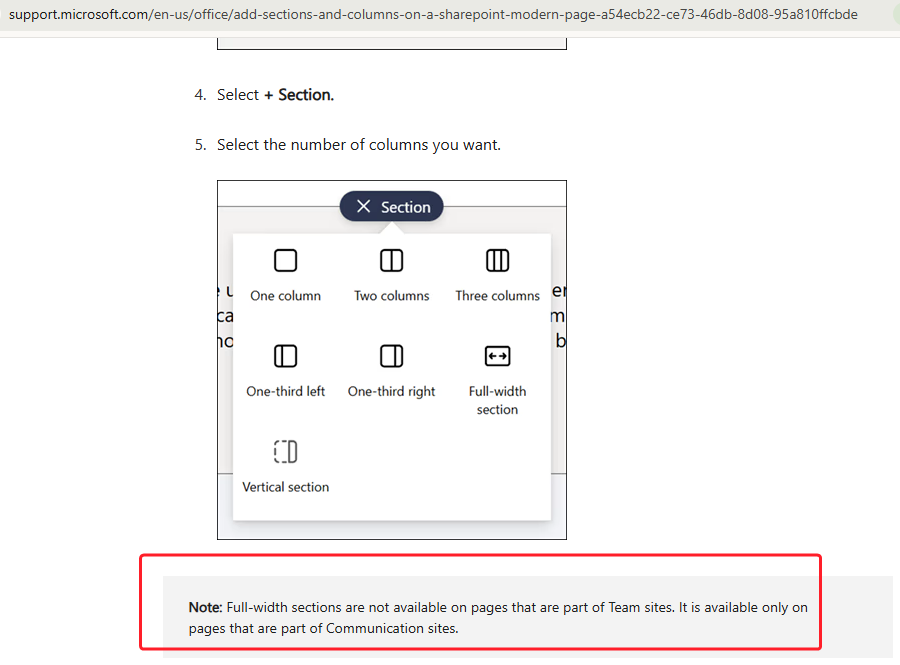
and Use web parts with the full-width column.
The UCC Dashboard web part itself fully supports full-width rendering — it has the required supports FullBleed property enabled in its manifest — but the host site must be a Communication Site for this to take effect. The UCC Dashboard remains completely functional within the standard column width on modernized classic subsites (of type BLANKINTERNET#0); only the visual full-width presentation is unavailable. Customers who require a full-width dashboard layout should deploy new UCC sites as modern Communication Site collections using the UCC Site Creator, rather than continuing to use the classic subsite architecture.
Batch Modernization
For modernizing multiple sites at once, use the batch script with a CSV file.
Step 1: Create a CSV File
Create a file like UccSites.csv (or whatever name you like or adheres to company standards) with your site URLs:
SiteUrl
                https://contoso.sharepoint.com/sites/ucc-sales
                https://contoso.sharepoint.com/sites/ucc-support
                https://contoso.sharepoint.com/sites/ucc-hr
                https://contoso.sharepoint.com/sites/ucc-finance

                or (subsites)

                SiteUrl
                https://contoso.sharepoint.com/sites/hr
                https://contoso.sharepoint.com/sites/hr/ucc-employee
                https://contoso.sharepoint.com/sites/hr/ucc-recruitment
                https://contoso.sharepoint.com/sites/it
                https://contoso.sharepoint.com/sites/it/ucc-support
                https://contoso.sharepoint.com/sites/it/ucc-vendors

                or (nested subsites)

                SiteUrl
                https://contoso.sharepoint.com/sites/hr
                https://contoso.sharepoint.com/sites/hr/emea
                https://contoso.sharepoint.com/sites/hr/emea/ucc-employee
                https://contoso.sharepoint.com/sites/hr/emea/ucc-recruitment
                https://contoso.sharepoint.com/sites/hr/apac
                https://contoso.sharepoint.com/sites/hr/apac/ucc-employee
                https://contoso.sharepoint.com/sites/hr/apac/ucc-recruitment
                https://contoso.sharepoint.com/sites/it
                https://contoso.sharepoint.com/sites/it/emea
                https://contoso.sharepoint.com/sites/it/emea/ucc-support
                https://contoso.sharepoint.com/sites/it/emea/ucc-vendors
                https://contoso.sharepoint.com/sites/it/apac
                https://contoso.sharepoint.com/sites/it/apac/ucc-support
                https://contoso.sharepoint.com/sites/it/apac/ucc-vendors
Note: If you have parent sites with subsites, we advise to list parent sites first. The script then processes them in order to ensure proper navigation inheritance.
Step 2: Run the Batch Script
# Store password securely in temporary memory
                $certPassword = Read-Host -AsSecureString -Prompt "Enter certificate password"

                # Run batch modernization
                .\Batch-ModernizeUccSites.ps1 `
                -InputCsv ".\UccSites.csv" `
                -Mode Modernize `
                -ClientId "your-client-id" `
                -CertificatePath "C:\Certs\cert.pfx" `
                -CertificatePassword $certPassword `
                -Tenant "contoso.onmicrosoft.com"
Batch Parameters
| Parameter | Required | Description |
|---|---|---|
-InputCsv
|
Yes | Path to CSV file with site URLs |
-Mode
|
Yes | Analyze or Modernize or Discover |
-ClientId
|
Yes | Entra ID application (client) ID |
-CertificatePath
|
No* | Path to the .pfx certificate file |
-CertificatePassword
|
No* | Certificate password as SecureString |
-Tenant
|
No* | Tenant domain |
-Force
|
No | Re-modernize already modernized sites (and bypasses all confirmation prompts) |
-PreserveLegacyScripts
|
No | Keep legacy JavaScript/CSS in Style Library (for testing a single subsite) |
-SchemaOnly
|
No | Apply list schema changes only across all sites in the CSV. Skips page recreation and app update. Available since v8.4.2.1 |
-UpdateAppOnly
|
No | Update the SPFx app and apply schema changes across all sites in the CSV. Skips page recreation. Available since v8.4.2.1 |
Analysis Mode
Before modernizing, you can analyze sites to see what changes will be made:
Single Site Analysis
.\Modernize-UccSite.ps1 `
                -SiteUrl "https://contoso.sharepoint.com/sites/ucc-sales" `
                -Mode Analyze `
                -ClientId "your-client-id" `
                -CertificatePath "C:\Certs\cert.pfx" `
                -CertificatePassword $certPassword `
                -Tenant "contoso.onmicrosoft.com"
Batch Analysis
.\Batch-ModernizeUccSites.ps1 `
                -InputCsv ".\UccSites.csv" `
                -Mode Analyze `
                -ClientId "your-client-id" `
                -CertificatePath "C:\Certs\cert.pfx" `
                -CertificatePassword $certPassword `
                -Tenant "contoso.onmicrosoft.com"
The analysis will show:
- Current homepage configuration
- Whether the UCC Dashboard is present
- What changes would be made during modernization
What the Scripts Do
The modernization process performs these steps:
The full modernization process (default, no mode switches) performs all steps below. When using -SchemaOnly or -UpdateAppOnly, steps 2–6 are skipped.
- Analyzes Site — Checks current configuration and determines what changes are needed
- Creates Home.aspx — Creates a fresh modern home page (skipped with
-SchemaOnlyor-UpdateAppOnly) - Adds UCC Dashboard — Adds the UCC Dashboard web part in full-width layout; classic subsites are limited to a single-column width (skipped with
-SchemaOnlyor-UpdateAppOnly) - Sets Homepage — Configures Home.aspx as the site's welcome page (skipped with
-SchemaOnlyor-UpdateAppOnly) - Cleans Up Legacy Pages — Removes old portal.aspx and related pages (skipped with
-SchemaOnlyor-UpdateAppOnly) - Cleans Up Style Library — Removes legacy scripts unless
-PreserveLegacyScriptsis used (skipped with-SchemaOnlyor-UpdateAppOnly) - Updates Navigation — Hides left navigation for a clean full-width display (applies only when the full site collection is modernized)
- Sets Site Logo — Applies the AnywhereNow logo
- Updates SPFx App — Updates the UCC Dashboard app installation to the latest deployed version (skipped with
-SchemaOnly) - Applies Schema Updates — Adds any new list columns and content types required by the current version
- Disables Comments — Disables page comments for a cleaner UI (applies only when the full site collection is modernized)
Expected Output
Successful Modernization
============================================================
                UCC Site Modernization Tool v8.4.2.1
                ============================================================

                Site: https://contoso.sharepoint.com/sites/ucc-sales
                Mode: Modernize

                Info : Connecting to site...
                Success : Connected to site

                ------------------------------------------------------------
                Site Analysis
                ------------------------------------------------------------
                Info : Current homepage: Pages/portal.aspx
                Warning : Classic homepage detected - needs modernization
                Info : Found 78 lists on site
                Info : Detected UCC site (Agents list found)

                ------------------------------------------------------------
                Modernizing Site
                ------------------------------------------------------------
                Info : Creating Home.aspx...
                Info : Adding UCC Dashboard web part (full-width)...
                Success : UCC Dashboard web part added (full-width)
                Success : Home.aspx published
                Success : Homepage set to Home.aspx
                Info : Cleaning up legacy portal pages...
                Info : Removed portal.aspx from Pages
                Success : Navigation settings applied
                Success : Site logo set (AnywhereNow)
                Info : Checking for schema updates...
                Success : Schema updated: 4 column(s) added to Agents, Skills

                ============================================================
                Modernization Complete!
                ============================================================

                Site: https://contoso.sharepoint.com/sites/ucc-sales
                Homepage: SitePages/Home.aspx
                Type: UCC site
Already Modernized
------------------------------------------------------------
                Analysis Summary
                ------------------------------------------------------------

                Success : Site is already modernized!
                Info : Use -Force to re-run modernization anyway
Batch Output Report
The batch script generates a CSV report in the .\Reports\ folder:
This report includes:
- Site URL
- Status (Success, Failed, Skipped)
- Any error messages
Re-running Modernization
To re-modernize a site that's already been modernized (e.g., after an upgrade or to cleanup the -PreserveLegacyScripts remnants):
# Single site
                .\Modernize-UccSite.ps1 ... -Force

                # Batch
                .\Batch-ModernizeUccSites.ps1 ... -Force
Upgrading Already-Modernized Sites
Once a site has been modernized, subsequent upgrades (new UCC Dashboard release, new list columns) should be applied with as little impact as possible. Two switches make this fast and non-disruptive:
| Switch | What it skips | What it does | Typical time |
|---|---|---|---|
-SchemaOnly
|
Page recreation, SPFx app update | Applies new list columns and content types only | ~10 seconds per site |
-UpdateAppOnly
|
Page recreation | Updates the SPFx app installation and applies schema changes | ~20–30 seconds per site |
Both switches require -Force when the site has already been modernized, as the script would otherwise report the site as up to date and exit.
Schema Update Only
Use when a new version introduces list columns or content type changes and you want to apply them to all existing sites as quickly as possible:
# Single site - schema update only
                .\Modernize-UccSite.ps1 `
                -SiteUrl "https://contoso.sharepoint.com/sites/ucc-sales" `
                -Mode Modernize `
                -SchemaOnly `
                -Force `
                -ClientId "your-client-id" `
                -CertificatePath "C:\Certs\cert.pfx" `
                -CertificatePassword $certPassword `
                -Tenant "contoso.onmicrosoft.com"

                # Batch - schema update only
                .\Batch-ModernizeUccSites.ps1 `
                -InputCsv ".\UccSites.csv" `
                -Mode Modernize `
                -SchemaOnly `
                -Force `
                -ClientId "your-client-id" `
                -CertificatePath "C:\Certs\cert.pfx" `
                -CertificatePassword $certPassword `
            -Tenant "contoso.onmicrosoft.com"
SPFx App Update (with Schema)
Use when a new UCC Dashboard SPFx package has been deployed to the app catalog and you want to update existing sites without touching the home page:
# Single site - update SPFx app and schema
                .\Modernize-UccSite.ps1 `
                -SiteUrl "https://contoso.sharepoint.com/sites/ucc-sales" `
                -Mode Modernize `
                -UpdateAppOnly `
                -Force `
                -ClientId "your-client-id" `
                -CertificatePath "C:\Certs\cert.pfx" `
                -CertificatePassword $certPassword `
                -Tenant "contoso.onmicrosoft.com"

                # Batch - update SPFx app and schema
                .\Batch-ModernizeUccSites.ps1 `
                -InputCsv ".\UccSites.csv" `
                -Mode Modernize `
                -UpdateAppOnly `
                -Force `
                -ClientId "your-client-id" `
                -CertificatePath "C:\Certs\cert.pfx" `
                -CertificatePassword $certPassword `
            -Tenant "contoso.onmicrosoft.com"
Discovering existing UCC Sites in Your Tenant
Before modernizing, you can use the Discover mode to automatically scan your entire tenant and identify all UCC sites. This is a starting point for tenants where the full list of UCC sites is not known upfront.
Note
Check with your administrators security policies whether this method is allowed. If not you have to rely on your own administration which SharePoint sites are Ucc Sites.
Read More
The discovery process identifies UCC sites by checking for the presence of the core UCC lists (Agents, Skills, Endpoints, Businesshours). Any site containing these lists is classified as a UCC site and included in the output.
Prerequisites for Discovery
-TenantUrlmust point to your SharePoint admin URL (e.g.https://contoso-admin.sharepoint.com)- The Azure app registration must have
Sites.FullControl.Allapplication permission, as discovery requires access to enumerate all site collections in the tenant
Usage
Interactive (delegated) authentication:
.\Batch-ModernizeUccSites.ps1 `
                        -TenantUrl "https://contoso-admin.sharepoint.com" `
                        -Mode Discover `
                        -Interactive `
                        -ClientId "your-client-id"
Certificate-based (unattended) authentication:
.\Batch-ModernizeUccSites.ps1 `
                        -TenantUrl "https://contoso-admin.sharepoint.com" `
                        -Mode Discover `
                        -ClientId "your-client-id" `
                        -CertificatePath "C:\Certs\your-cert.pfx" `
                        -CertificatePassword $certPassword `
                        -Tenant "contoso.onmicrosoft.com"
Output
The script generates a CSV file in the .\Reports folder, for example:
This CSV can serve as the input for the subsequent Analyze and Modernize steps.
Recommended Workflow
Running all three modes in sequence is the recommended approach for any tenant migration:
Step 1 — Discover: Find all UCC sites and generate a site list CSV.
Step 2 — Analyze: Review the generated CSV, remove any sites you want to exclude, then run Analyze to assess modernization status without making any changes.
Step 3 — Modernize: Run Modernize against the reviewed CSV to apply changes.
This staged approach ensures you have full visibility and control before any modifications are made to production sites.
Troubleshooting
"UCC Dashboard web part is NOT present" After Modernization
Cause: The SPFx package may not be deployed or available.
Solution:
- Verify the SPFx package is deployed: Run
Deploy-UccDashboard.ps1 -Force - Clear browser cache and check again
- Try opening the site in InPrivate/Incognito mode
"Could not remove existing Home.aspx"
Cause: The page is set as the welcome page and can't be deleted.
Solution: This is expected. The script will update the existing page instead.
Navigation Still Visible
Cause: Browser cache may be showing old navigation.
Solution: Clear browser cache or use InPrivate/Incognito mode.
Schema Update Warnings
Cause: New columns couldn't be added to lists.
Solution: This usually means the columns already exist. The warning can be safely ignored.
Subsite Navigation Issues
Cause: Subsites may inherit navigation from parent.
Solution: Ensure parent sites are modernized first. The batch script automatically sorts sites to process parents before subsites.
Best Practices
1. Always Analyze First
Run in Analyze mode before modernizing to understand what changes will be made:
2. Process Parent Sites First
If you have sites with subsites, ensure parent sites are listed first in your CSV:
SiteUrl
                https://contoso.sharepoint.com/sites/ucc-main
                https://contoso.sharepoint.com/sites/ucc-main/sales
                https://contoso.sharepoint.com/sites/ucc-main/support
3. Test on Non-Production First
Test the modernization on a development or test tenant before running on production.
4. Use the Right Mode for the Job
When applying updates to already-modernized sites, use -SchemaOnly or -UpdateAppOnly rather than a full modernize. This is faster, less disruptive, and leaves the home page untouched. Reserve the full modernize for first-time migrations or when a page rebuild is explicitly needed.
5. Schedule Large Batches During Off-Hours
For large batch operations, schedule the run during off-peak hours to minimize user impact. With -SchemaOnly or -UpdateAppOnly, the per-site time is short enough that off-hours scheduling is less critical for routine updates.
6. Communicate with Users
Inform users that:
- The site will have a new modern look
- They should clear browser cache to see all changes
- Functionality remains the same
Rollback
The modernization process does not delete data (i.e. configuration data and settings of your UCC) - it only changes the homepage and navigation, rolling back is not supported as the classic features will be deprecated by Microsoft.
Next Steps
After modernizing your sites:
- Verify each site displays the UCC Dashboard correctly
- Test UCC functionality (agents, skills, queues)
- Update any documentation or training materials for the new interface
Media Gallery
Videos
Modernize UCC site, certificate authentication
UCC site (standalone or 'OneUCC Available since UCC.Creator v8.2.0.7. The model (preferred by Microsoft) in SharePoint on Microsoft 365 where no subsites are allowed. In this model each UCC will need its own separate SharePoint site (formerly known as site collection). This does allows for more granular user access and template updates per UCC.' site), modernized with script
Batch Modernize run, 6 sites with CSV file