How to Export Dialogue Studio configuration to file (for Backup)
If you have configured Dialogue Studio for one or more UCCs and would like, or need, to Export the configuration for backup purpose or transfer to another Dialogue Studio.
An export contains the selected flow configuration, not a backup of the complete environment. You can also use How to set up Remote Azure DevOps Git with Dialogue Studio (for Backup) to keep project version history.
Export the configuration from the Canvas menu.
-
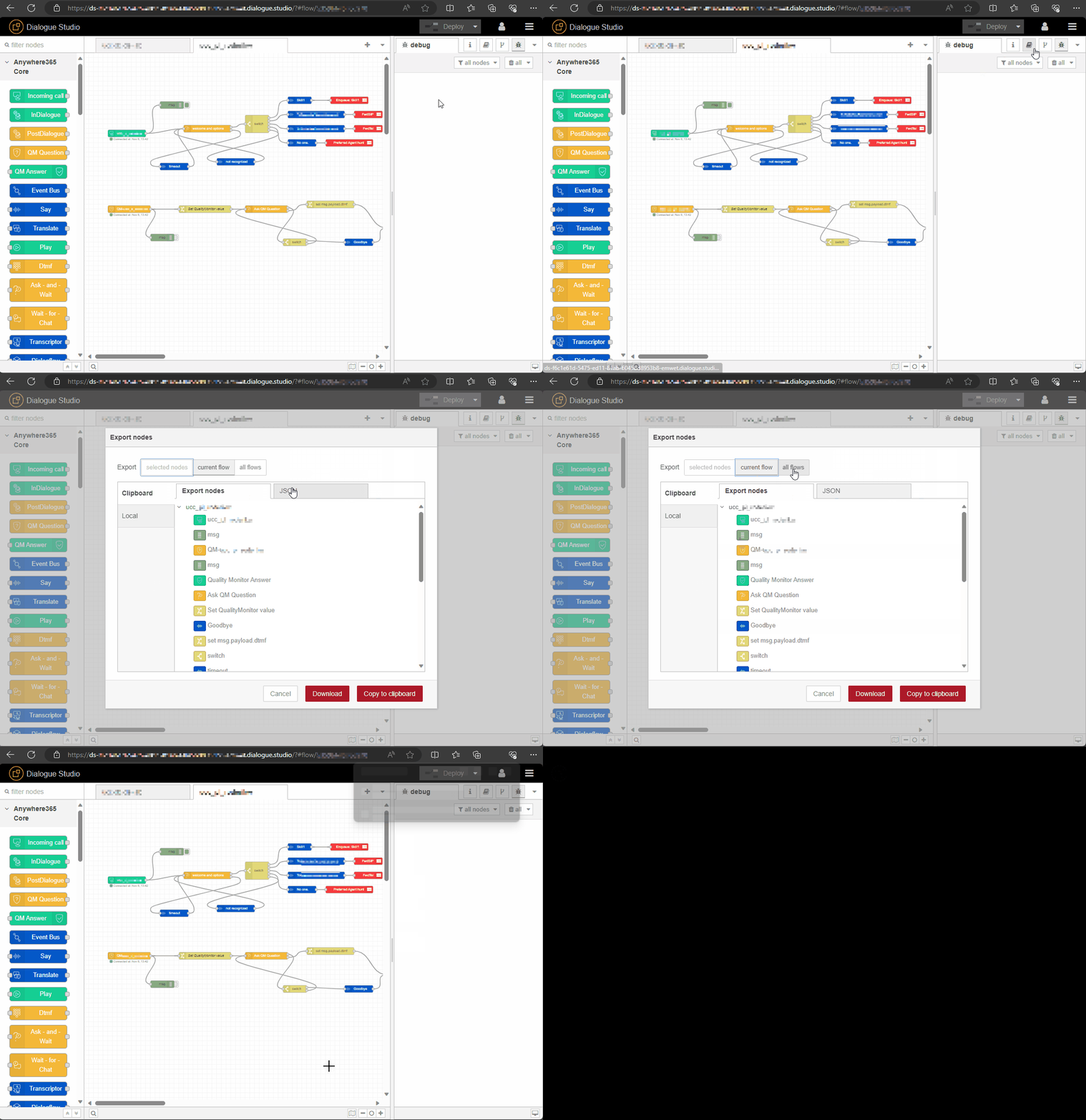
In Dialogue Studio click on the hamburger menu on the right top.
-
In the drop-down menu select Export.
-
In the Export nodes select whether you want to export the current flow or all flows to a file.
-
Click Download button and your browser download interface should appear.
-
Save the .json file with a name of your choice to a location of choice.
Note
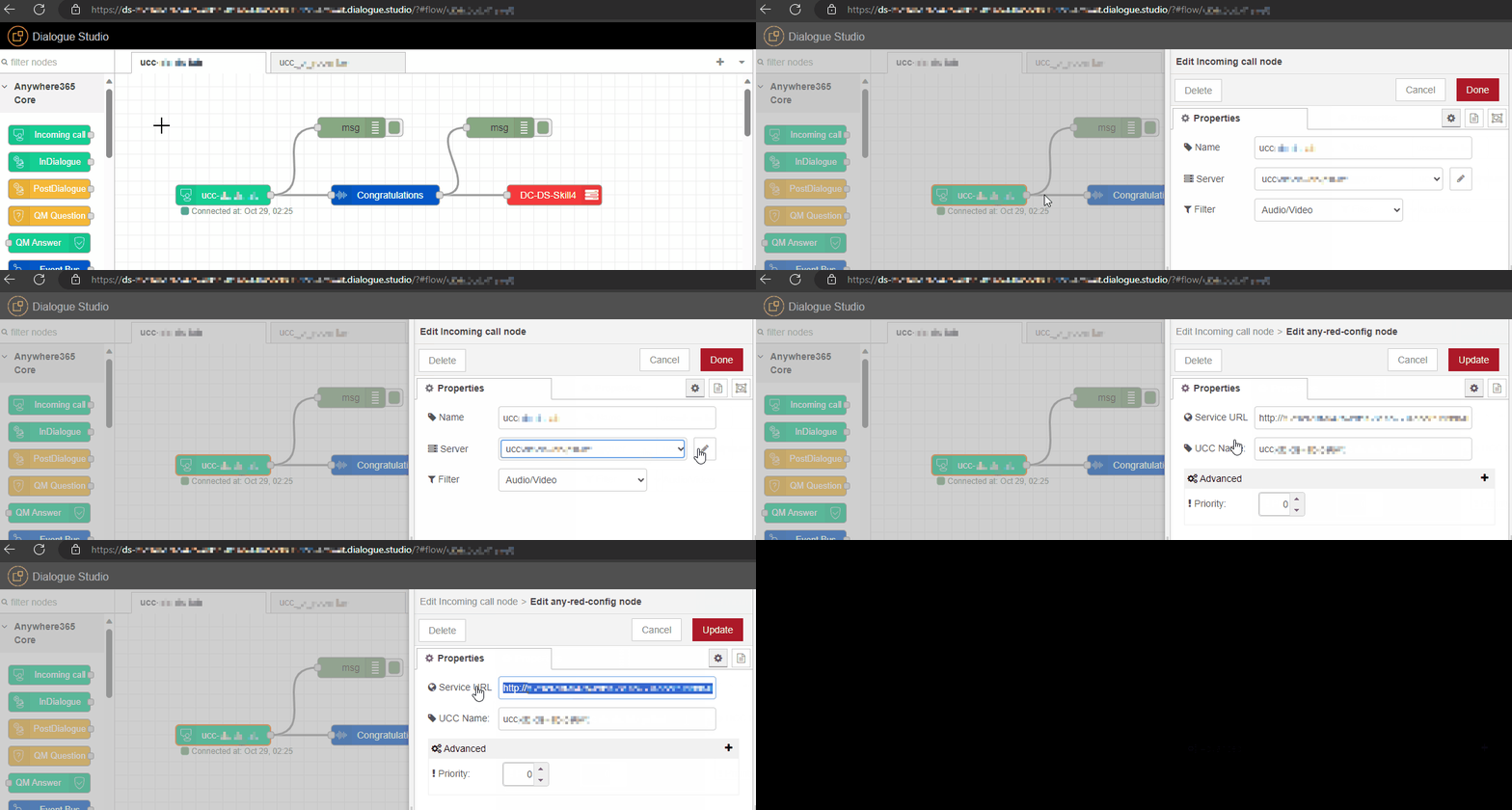
The Service URL (in the Dialogue Studio server sub-menu of the any-red-config node) does not get included in the Export. Make sure to copy this URL separately. This is typically just one URL for all your A Unified Contact Center, or UCC, is a queue of interactions (voice, email, IM, etc.) that are handled by Agents. Each UCC has its own settings, IVR menus and Agents. Agents can belong to one or several UCCs and can have multiple skills (competencies). A UCC can be visualized as a contact center “micro service”. Customers can utilize one UCC (e.g. a global helpdesk), a few UCC’s (e.g. for each department or regional office) or hundreds of UCC’s (e.g. for each bed at a hospital). They are interconnected and can all be managed from one central location.'s within a region. (format: http://<GUID stands for Globally Unique Identifier (format is always like 2ed153b4-f632-4766-b846-5b2a769b36d1) and is a pseudo random number used in software applications that is assumed to be unique. The total number of unique keys (2<sup>128</sup> of 3.4028×10<sup>38</sup>) is very large and the probability of the creating the same GUID twice is very small, though not 100% guaranteed. The term GUID is generally used by developers working with Microsoft technologies, while UUID is used everywhere else.>-01.<region>.dialoguecloud.local:<port>)
Before using an imported flow
Before deploying an imported flow, check the destination environment's Service URL in the any-red-config server configuration. The URL is not included in the export. For an example of configuring the connection and testing a call, see How to configure a Simple IVR in Dialogue Studio.