SharePoint Information Management Policies as retention policy for Lists or Libraries
Important
As per Microsoft 365 admin center announcement MC1211579, Microsoft is terminating support for this functionality starting April 2026. The announcement further states "the feature will continue to work", however the underlying recommendation is now "using Microsoft Purview Data Lifecycle Management".
Because the Message Center (MC) is available to Microsoft 365 Admin user accounts only, the following link is added for your convenience but is hosted on an archive site where all MC messages can be viewed and searched, but outside of Microsoft and AnywhereNow supervision. See:https://mc.merill.net/message/MC1211579
As a consequence AnywhereNow will stop advising and supporting this method immediately and remove this page by June 30th 2026. Also see: SharePoint Online Information Management Policies
Time to execute: approx. 15 min.
SharePoint Information Management Policies, a native feature of SharePoint Online, have become one of the replacements of AnywhereNow Retention Policies. SharePoint Information Management Policies (IMP) are capable to do the exact same thing, plus several more things from which you can benefit to make sure you meet all requirements around retaining and removing files when needed.
Warning
Learn More - Microsoft states: "Information management policies are compiled by an Information Management Policy Timer Job, managed by Microsoft, which runs weekly. Therefore, your policies may not take effect immediately. The frequency and date of the Information Management Policy Timer Job cannot be changed."
 Read more
AnywhereNow have found this to mean that the Retention Policy task will be executed intermittently every 6-10 days, and will then process all requests for the past period. So the retention policy does work for all files adhering to the rules.
If you expect the files to be deleted (or copied or moved to archive) on a per day basis, or whichever exact schema you desire (e.g. twice per day, or every Friday at exactly 8:00 PM), please consider using Microsoft Power Automate. We have provided an example automation on Learn More
Getting started
This section will help you to create an Information Management Policy for a UCC A Unified Contact Center, or UCC, is a queue of interactions (voice, email, IM, etc.) that are handled by Agents. Each UCC has its own settings, IVR menus and Agents. Agents can belong to one or several UCCs and can have multiple skills (competencies). A UCC can be visualized as a contact center “micro service”. Customers can utilize one UCC (e.g. a global helpdesk), a few UCC’s (e.g. for each department or regional office) or hundreds of UCC’s (e.g. for each bed at a hospital). They are interconnected and can all be managed from one central location. that will remove all Recordings that are older than 30 days.
Tip
While this example is for managing the Recordings library specifically, similar steps can be taken for other libraries like ScreenRecordings or Voicemails. Alternatively Lists (which are different from Libraries in SharePoint!) can also be enabled for IMP's in a very similar fashion. The CallSummary list is a frequent candidate for retention policy maintenance.
Note
This approach requires the site collection feature “Library and Folder Based Retention” to be enabled. See How to enable the feature “Library and Folder Based Retention” further down.
-
Navigate to your UCC Site
-
For example:
-
-
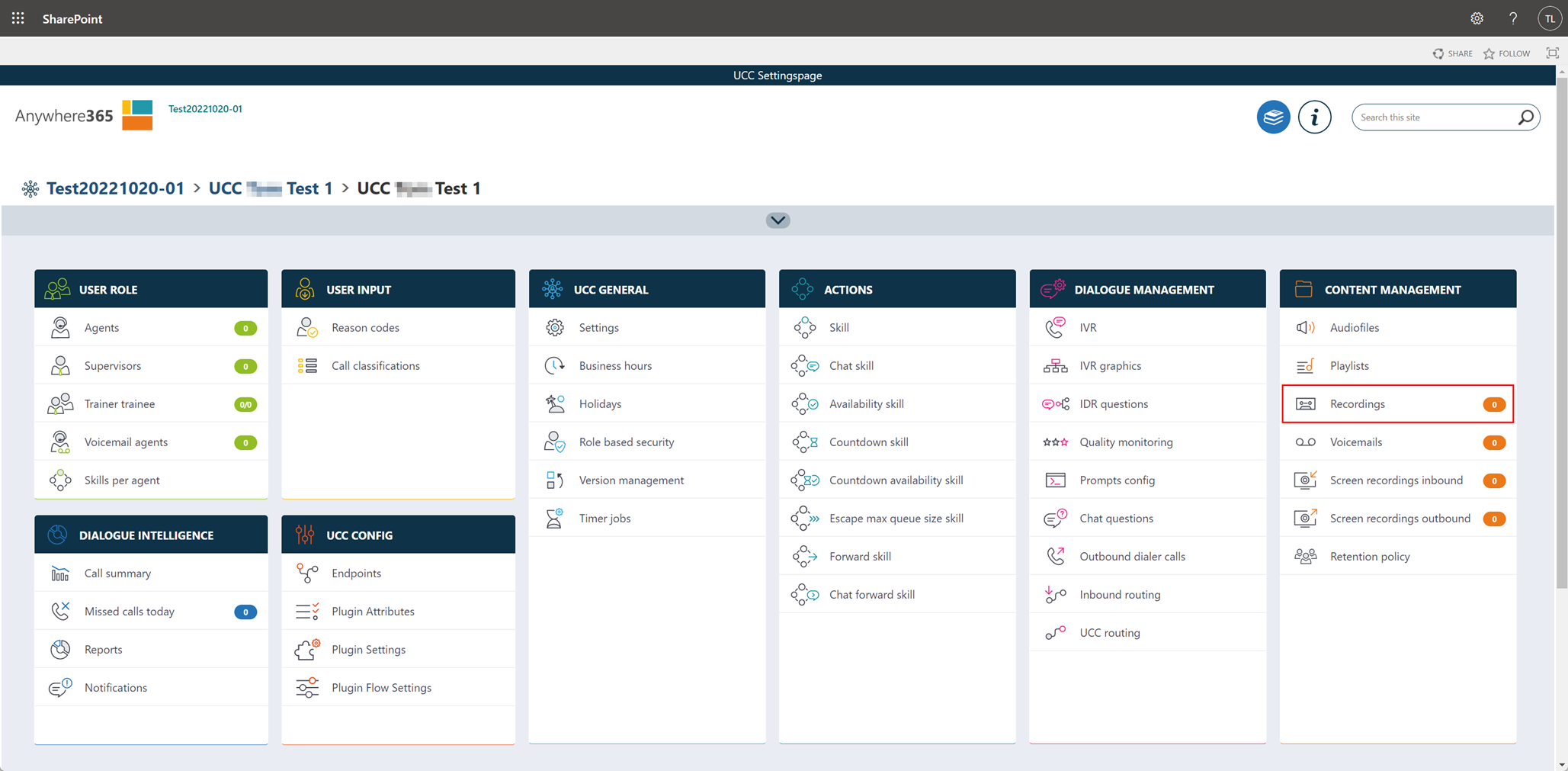
Open the recordings library by clicking “Recordings” from the main menu
-
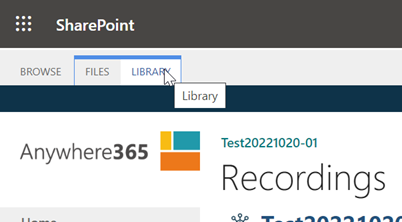
Select “Library”
-
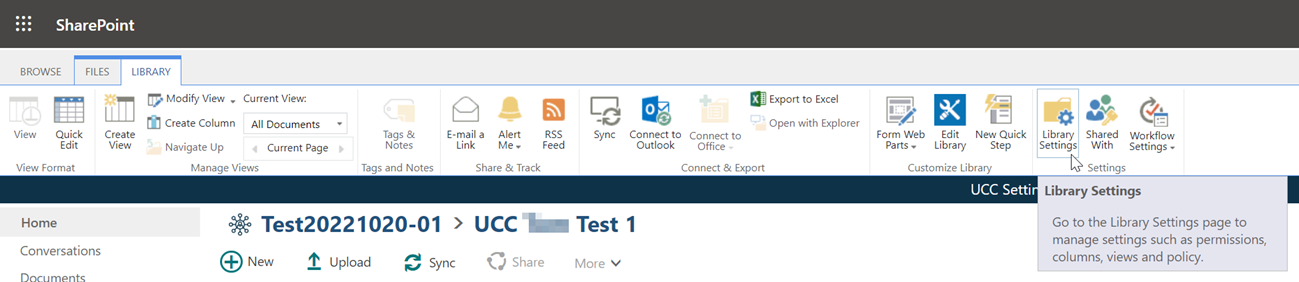
Next, click “Library Settings”
-
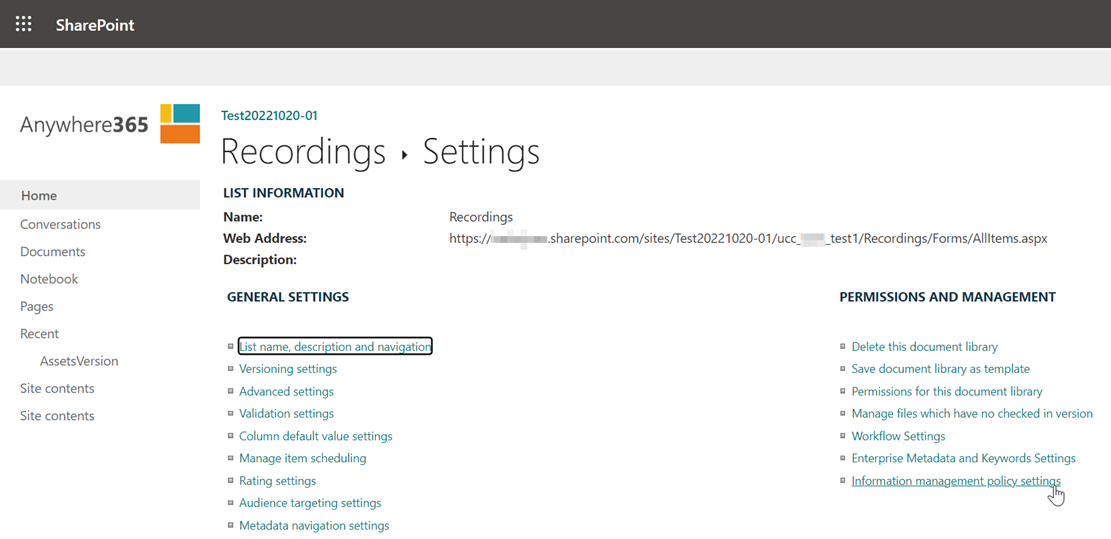
Click “Information management policy settings”
-
Select the “Document” content type to add a retention policy for the recordings
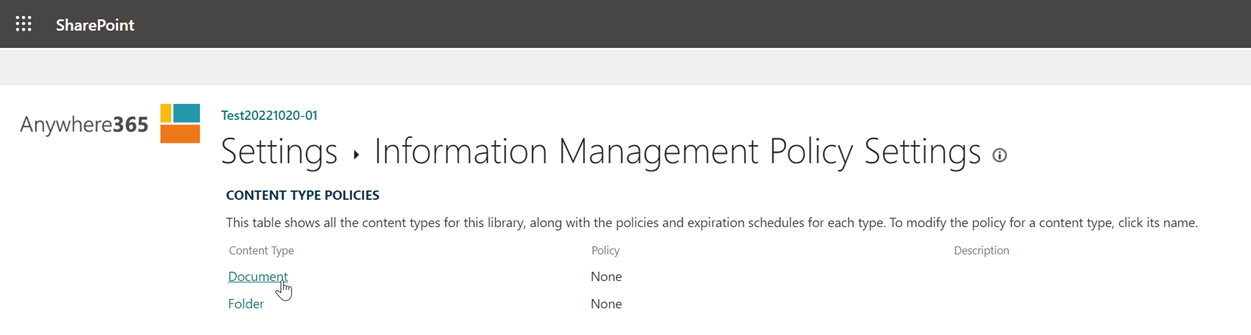
-
Check the option “Enable Retention” and next click “Add a retention stage…”
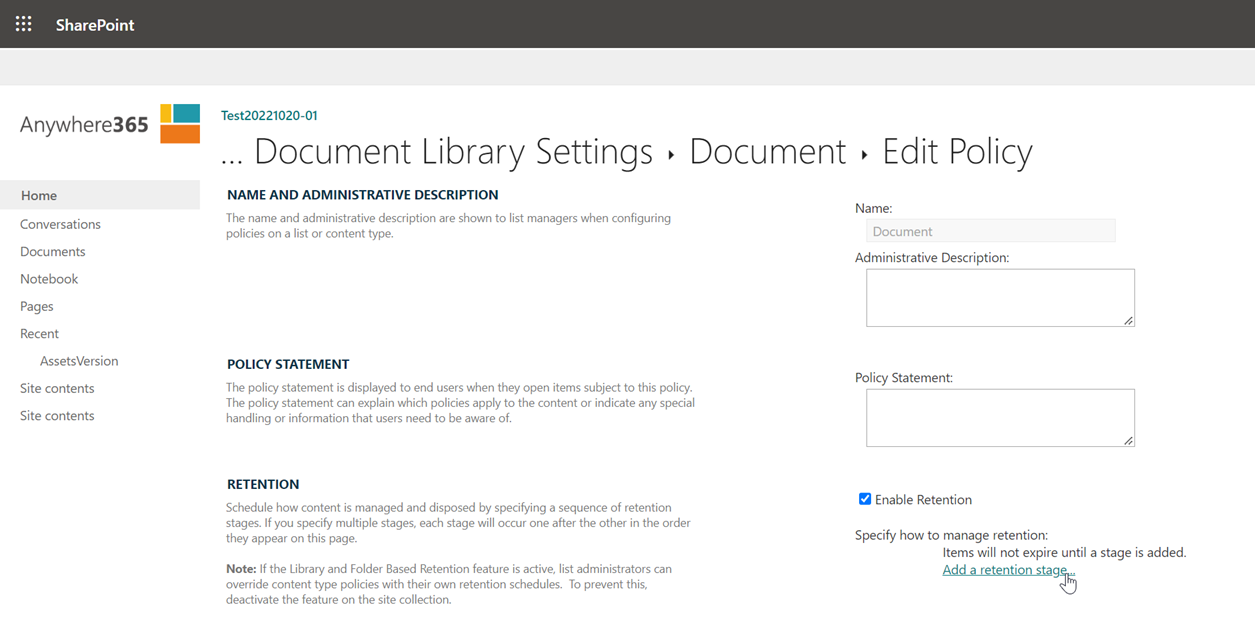
-
A new window opens to configure the event and the action.
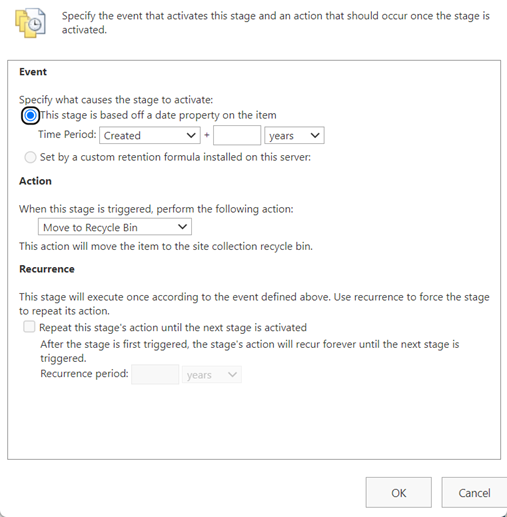
-
Configure the Event
-
Select the option “This stage is based off a date property on the item”
-
Fill in the “Time Period”
- Select the date property “Created”
- In the input type fill in “30”
- And from the dropdown select “Days”
-
-
Configure the Action
-
Select the action “Permanently delete” from the dropdown (feel free to explore the other options here)
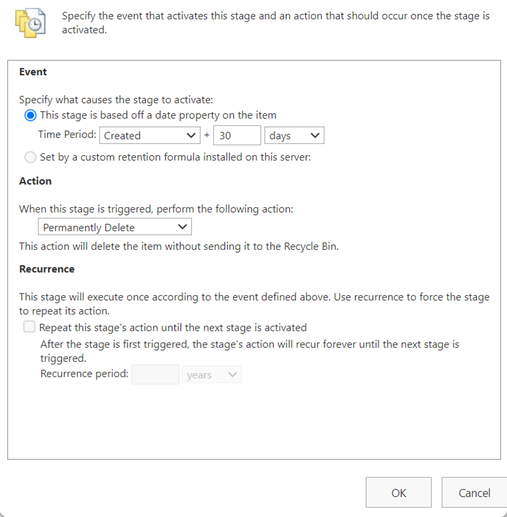
-
-
Click “OK”

-
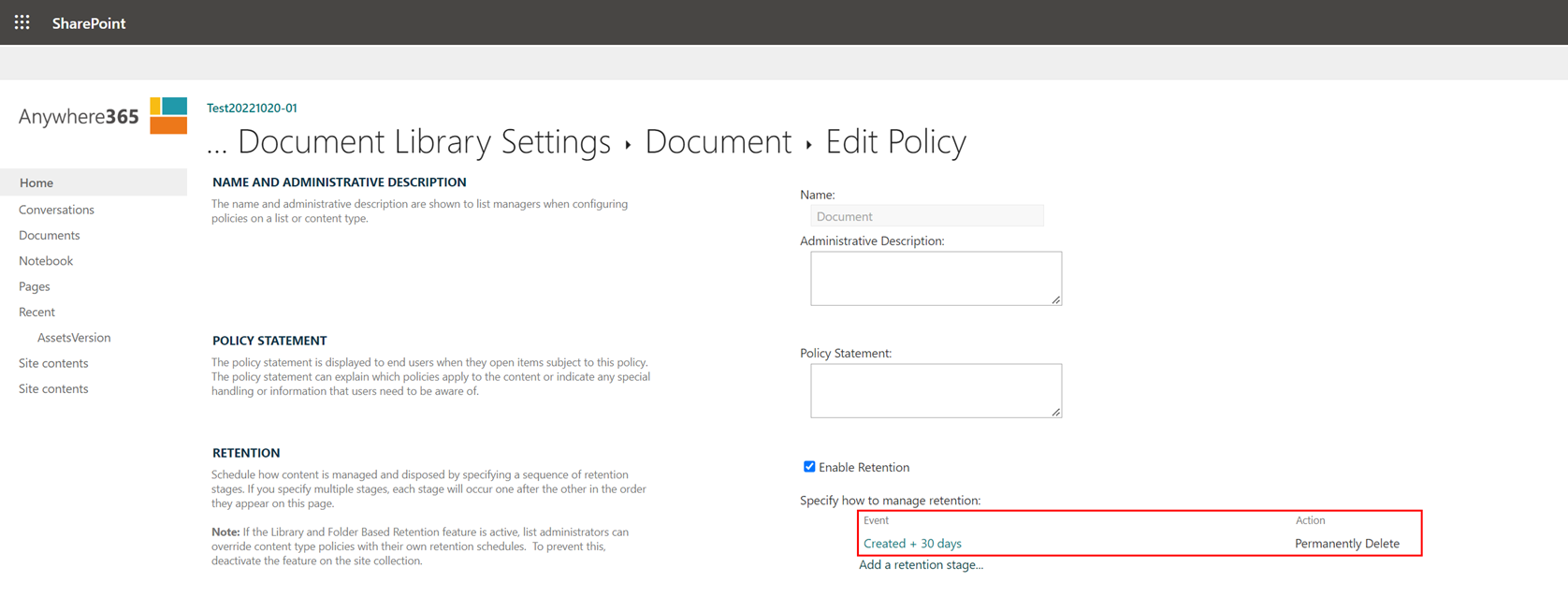
Notice the retention policy is added
-
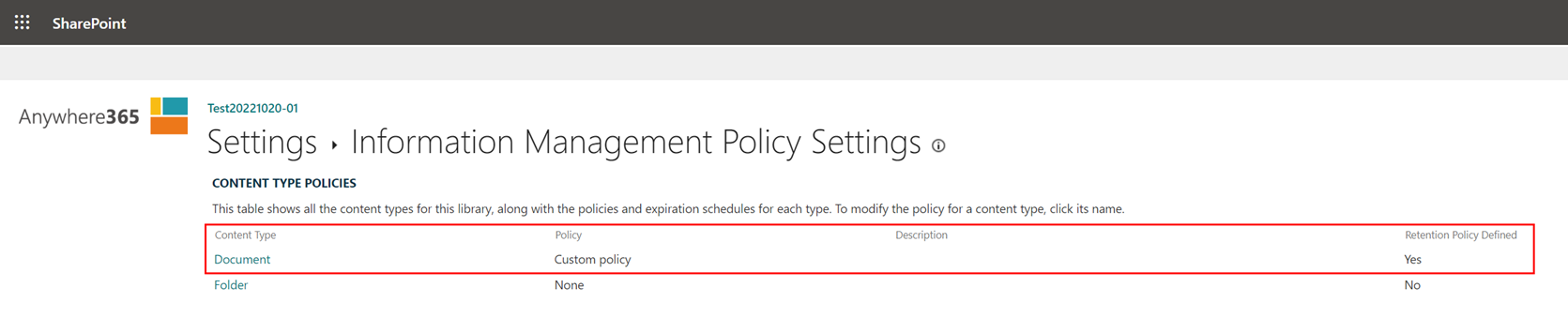
Finally, click “OK”, to return to the Information Management Policy Settings page.
-
Notice a custom policy is set for the content type “Document” with a retention defined.
How to enable the feature “Library and Folder Based Retention”
-
Navigate to your site collection
-
For example:
-
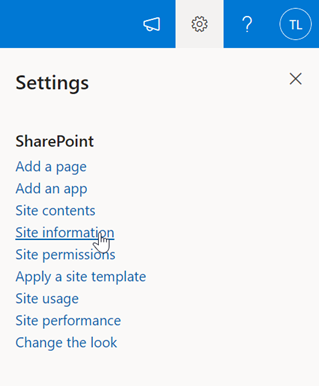
Open the Settings-icon in the top-right
-
Click “Site information”
-
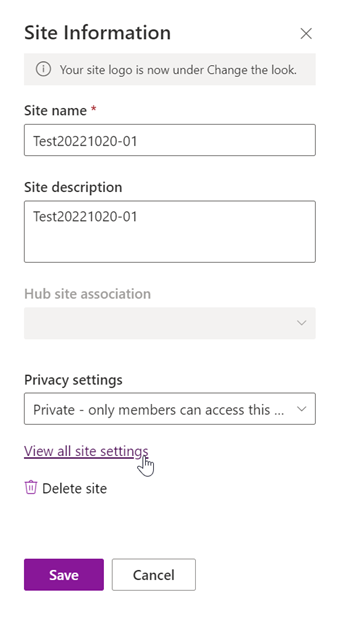
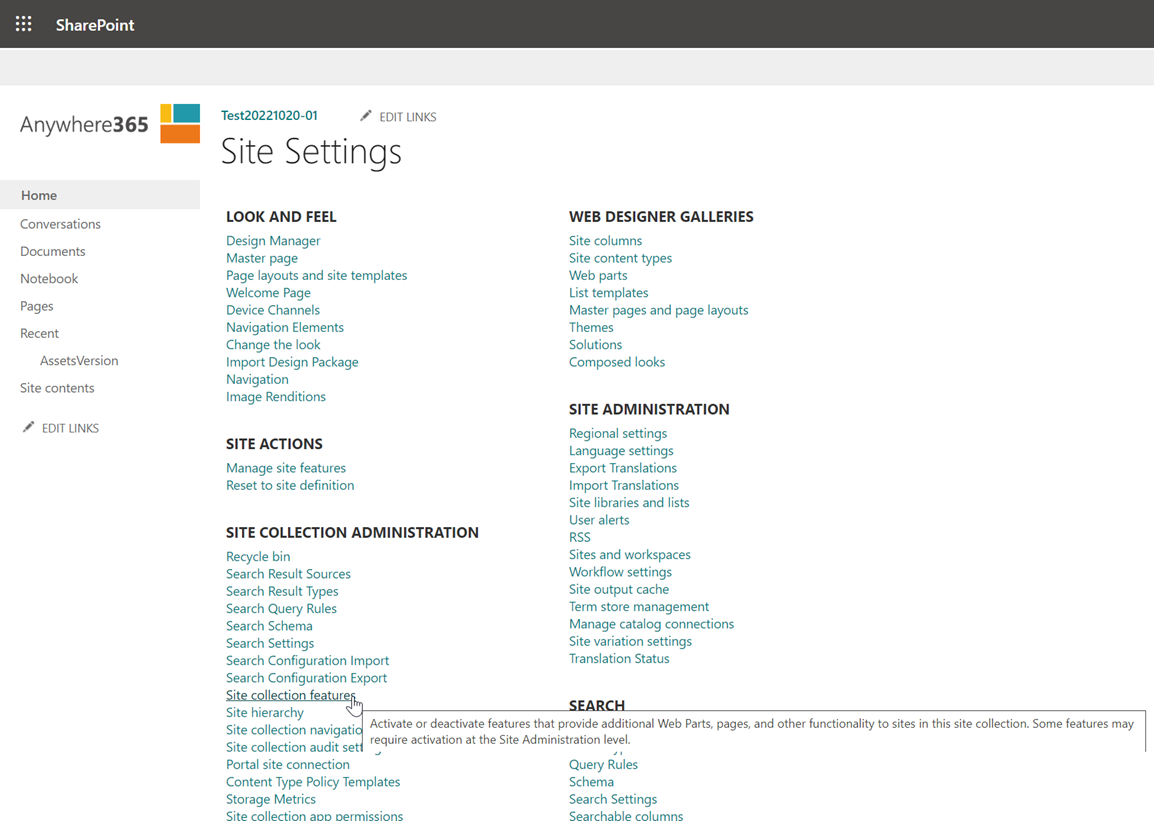
Click “View all site settings”
-
Click “Site collection features”
-
Or navigate to the Site Collection Features directly via:
-
-
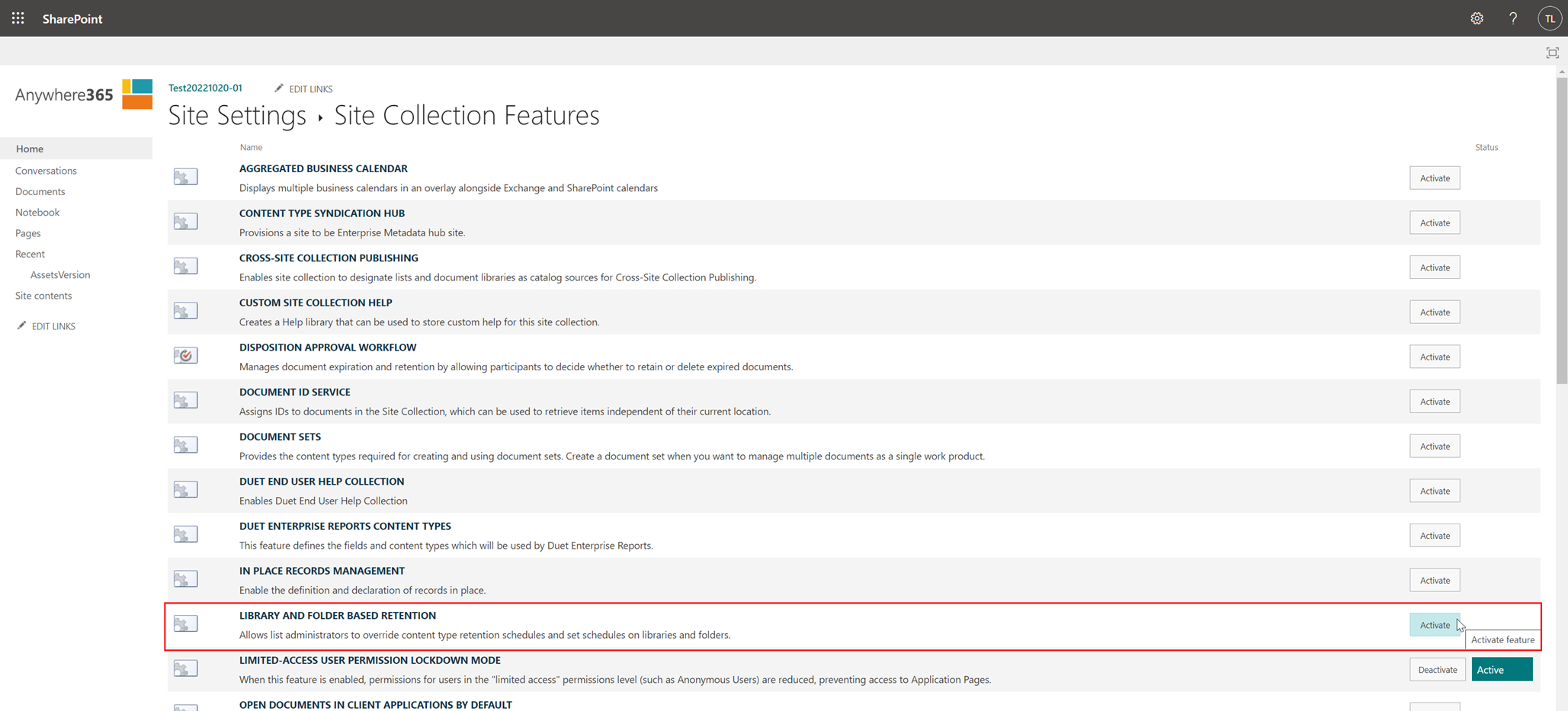
Click “Activate” behind the feature “Library and Folder Based Retention”
-
After the page is reloaded, check if the button changed from “Activate” to “Deactivate” and a green box with the text “Active” is visible for this specific feature.

Frequently Asked Questions
-
Q: Why are retention policies not working?
-
A: Library and Folder specific policies can be disabled per site collection to ensure that policies on content type level are not overridden. In order for these policies to work, please make sure the feature “Library and Folder Based Retention” feature is enabled for the site collection.
-
-
Q: Why does it take a few days before my retention policy starts working?
-
A: Information management policies are compiled by an Information Management Policy Timer Job, managed by Microsoft, which runs weekly. Therefore, your policies may not take effect immediately.
-