Installing Attendant Console for Microsoft Teams
End-of-Sale Timeline for Attendant Console for Microsoft Teams
(added 14-07-2025) - AnywhereNow is phasing out sale of the Attendant Console for Microsoft Teams by December 31, 2025 as we transition to the more advanced Tendfor solution. This change follows our acquisition of Tendfor and aims to provide partners and customers with a future-ready, feature-rich alternative. For more information see:
https://www.anywhere.now/product/tendfor, or reach out to your regular AnywhereNow contact or Partner.
Existing customers of Attendant Console for Teams can continue to use the product and receive support. License renewal remains available until December 2026.
Attendant Console for Microsoft Teams needs to be deployed in a Teams tenant to manage calls to and from the Attendant Console.
Summary
Installation is done in 4 steps:
-
Allow AnywhereNow Attendant Console to access organization resources such as contacts and presence
-
Allow AnywhereNow Calling Bot to manage calls for the organization’s receptionists
-
Configuration of Attendant Console queue(s)
-
(Optional) Installation of AnywhereNow Attendant Console App into Microsoft Teams. You can also access our Attendant Console in a standard Web Browser.
Note
Only a Microsoft 365 global administrator can perform the above steps.
Prerequisites
The AnywhereNow Attendant Console for Teams works with Microsoft Teams Operator Connect, Microsoft Calling Plan and Direct Routing.
With Microsoft Calling Plan for PSTN Calling
-
1 Microsoft Teams Phone Resource Account license per queue (Learn more - Microsoft)
Note
To enable outbound calling using Calling Plan the License “Microsoft 365 Domestic and International Calling Plan” needs to be assigned to the Resource account created for the Attendant Console queue. Learn more - Microsoft
-
1 Microsoft Call Queue type phone number per queue (toll/toll Free)
-
A user with administrative rights in the Microsoft 365 customer tenant (Learn more - Microsoft)
With Direct Routing for PSTN Calling
-
1 Microsoft Teams Phone Resource Account license per queue (Learn more - Microsoft)
-
1 phone number from your Dial Plan per queue
-
A user with administrative rights in the Microsoft 365 customer tenant (Learn more - Microsoft)
With Operator Connect for PSTN Calling
-
1 Microsoft Teams Phone Resource Account license per queue (Learn more - Microsoft)
-
1 Microsoft Call Queue type phone number per queue (toll/toll Free)
-
A user with administrative rights in the Microsoft 365 customer tenant (Learn more - Microsoft)
Azure Communication Services (ACS) Service Principal Requirement (temporary)
Note
This prerequisite is temporary and will be removed once the product team updates the ACfT consent flow.
During the admin consent process for Attendant Console for Teams (ACfT), the application requests a shared permission set that includes Azure Communication Services (ACS commonly known as the acronym for Azure Communication Services, Microsoft's multichannel communication API in Azure for voice, video, chat, text messaging/SMS, email, and more to applications. Not te be confused with Azure Access Control Services (AACS) a deprecating authentication service of Microsoft, also sometimes abbreviated to ACS.). Although ACfT does not use ACS, Azure AD still attempts to provision the ACS service principal:
AppId: 1fd5118e-2576-4263-8130-9503064c837a
If this service principal is not present (yet) in your tenant, the consent process fails before the consent screen is displayed and results in the following error:
AADSTS650052: The app is trying to access Azure Communication Services but your tenant lacks a service principal
This prevents completion of the ACfT admin consent step.
Why This Is Required
- ACfT currently shares its permission A bundle is a fixed combination of our software platform elements of very specific versions. These are designed and tested to optimally work together to assure their intended function and interoperability. with other AnywhereNow Attendant Console Apps.
- This bundle includes ACS-related permissions.
- Azure AD must create the ACS service principal before rendering the consent UI.
- If the service principal does not exist, the consent flow terminates with
invalid_clientredirects. - This is a known product limitation, not a customer configuration issue.
Workaround (Required to Continue Setup)
To proceed with ACfT initial setup, an Azure administrator must manually create the ACS service principal. This action:
- does not deploy ACS resources
- does not require an active Azure subscription
- does not introduce costs
- only registers the ACS identity needed for the consent flow
Steps (PowerShell 7)
Connect-MgGraph -Scopes "Application.ReadWrite.All", "Directory.ReadWrite.All"

New-MgServicePrincipal -AppId "1fd5118e-2576-4263-8130-9503064c837a"
Optional Verification
Get-MgServicePrincipal -Filter "AppId eq '1fd5118e-2576-4263-8130-9503064c837a'"
After the service principal has been created:
- Re-run the ACfT admin consent URL
- The consent screen should appear normally
- Continue with the standard ACfT setup steps
Notes
- The elevated permissions in
Connect-MgGraphare required to allow creation of service principals. - This is a temporary workaround until ACS is removed from the ACfT default permission scope.
- Documentation and product updates are planned to eliminate this prerequisite in the future.
Consent for the ACfT application
To have the application work in your tenant, consent must be given for all users to allow it to function within the organization.
It is mandatory to give consent to AnywhereNow Attendant Console App and AnywhereNow Calling Bot.
Step 1
This will allow users to use the application as a stand-alone web application with Microsoft Teams. Only a user with admin rights can give the required consent. (Learn more - Microsoft)
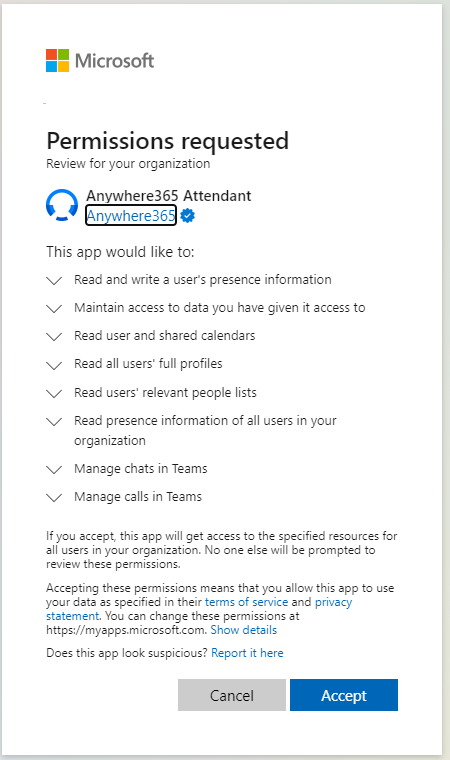
Preview Requested Permissions
-
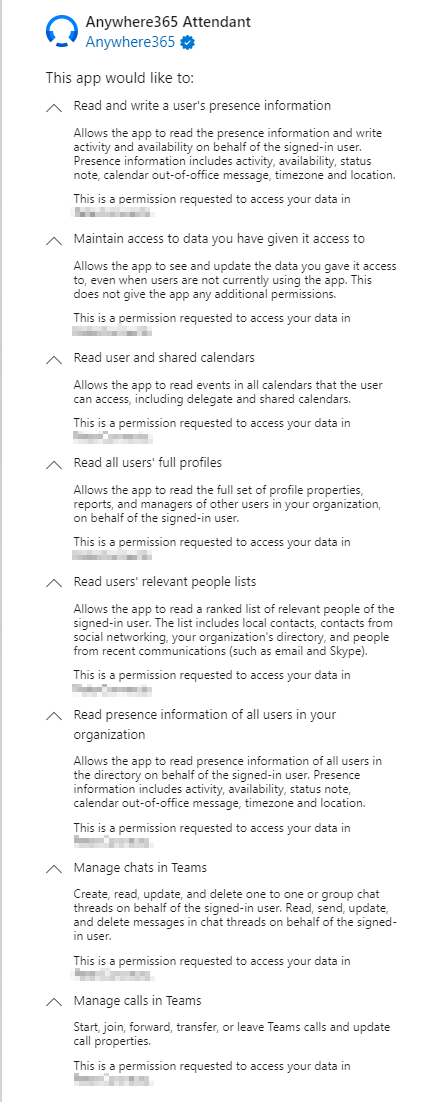
Preview collapsed and expanded consent list:
-
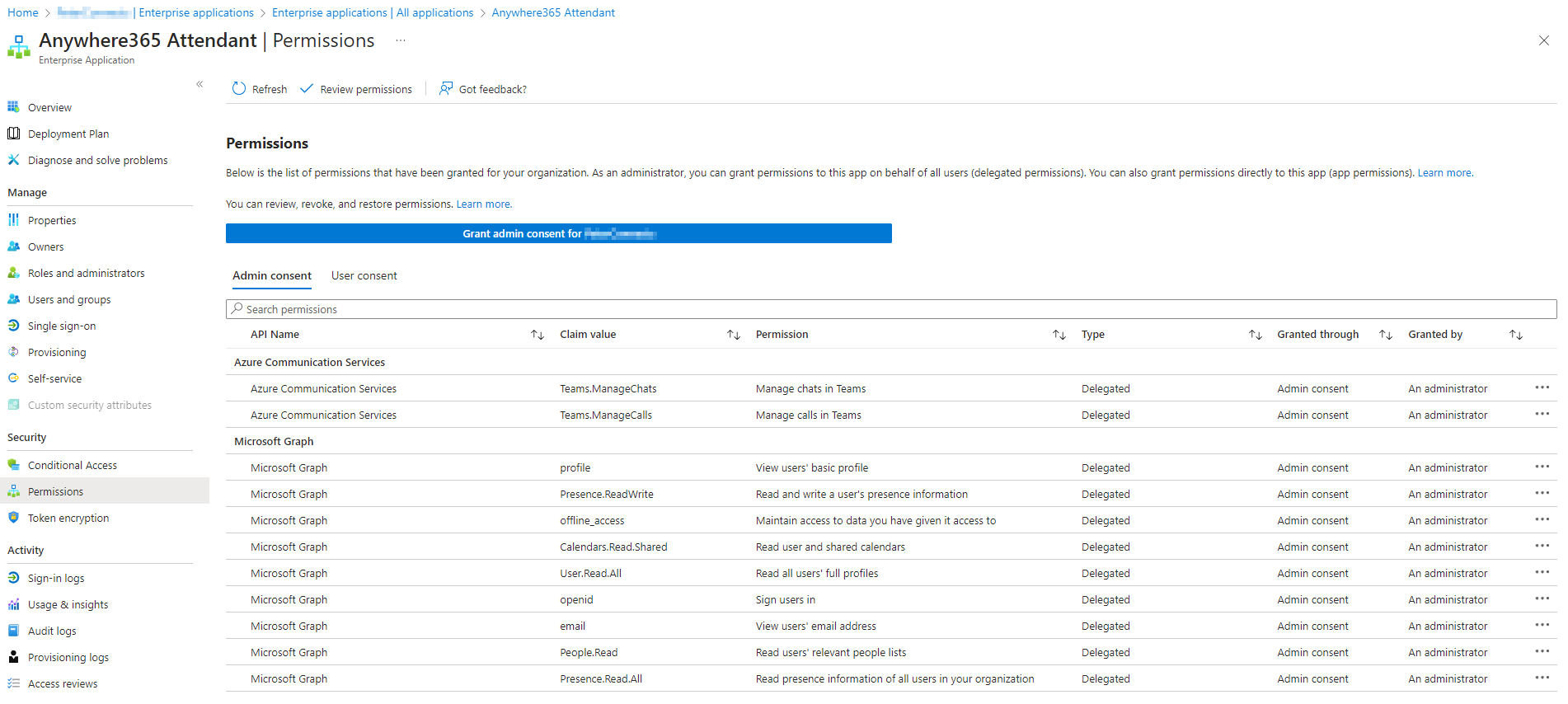
Preview Azure granted permissions list:
After completing each consent, you will be redirected to the Attendant Console page. It is not necessary to login to continue with next the configuration steps.
Step 2
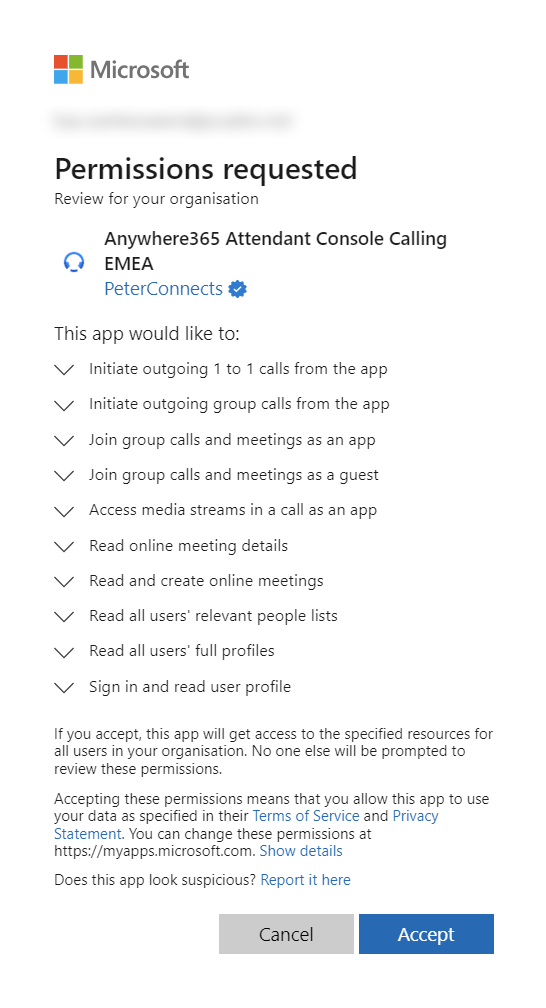
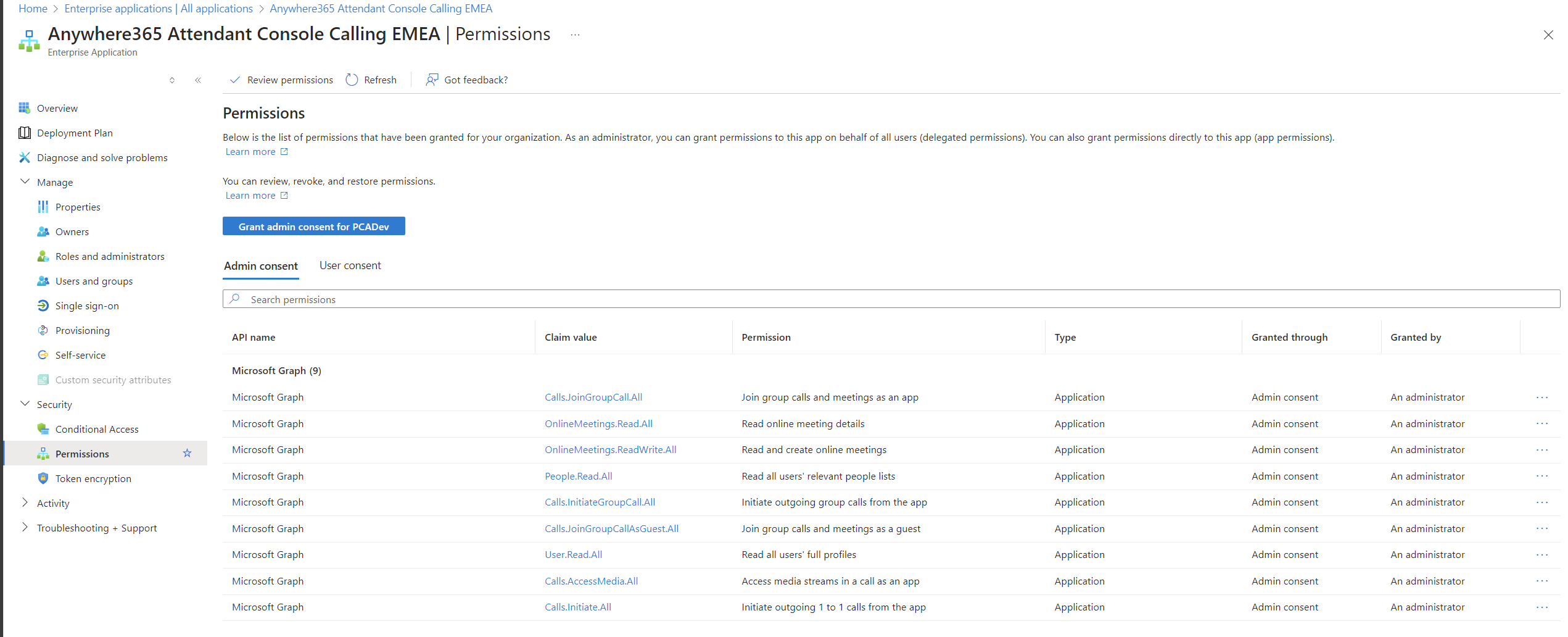
Also a consent must be given to the calling bot back-end of AnywhereNow to allow it to start and receive calls in the organization.
When you have a license for region EMEA (Europe, Middle-East and Africa):
Preview Requested Permissions
-
Preview collapsed and expanded consent list:
-
Preview Azure granted permissions list:
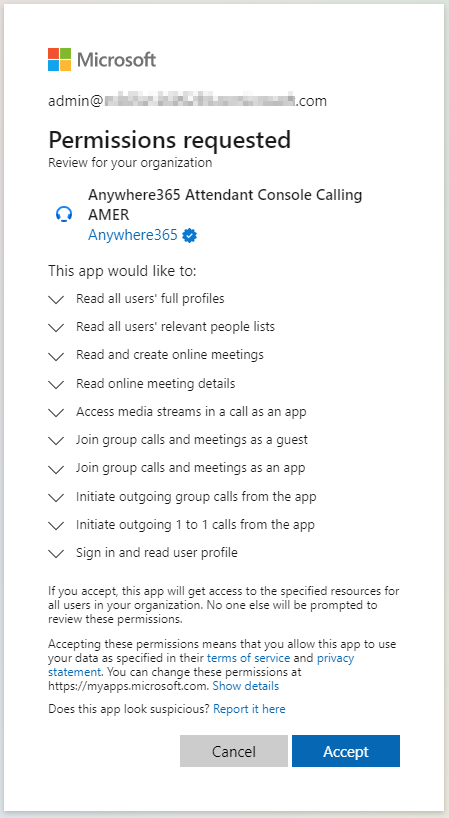
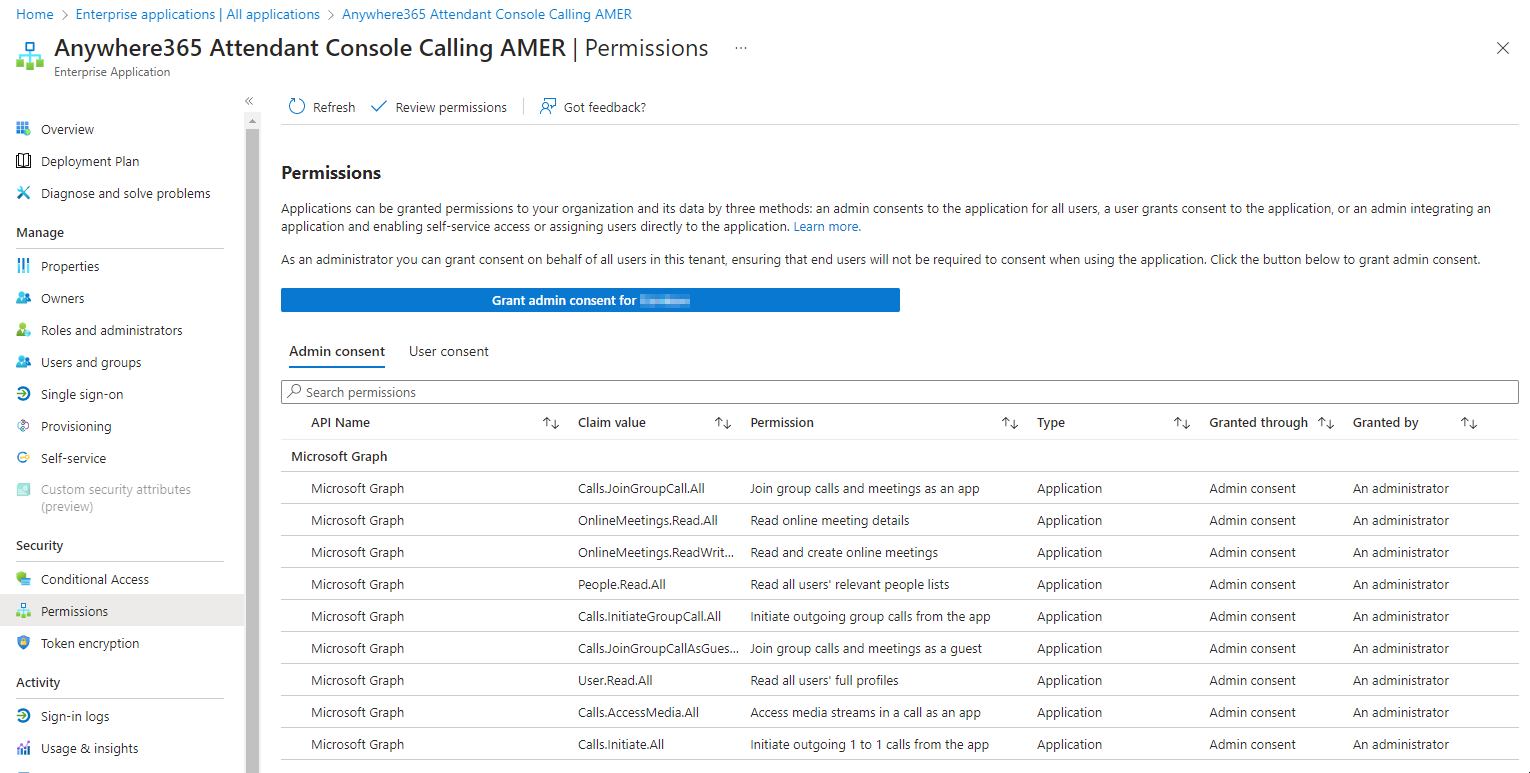
When you have a license for region AMER (North, Central and South America):
Preview Requested Permissions
-
Preview collapsed and expanded consent list:
-
Preview Azure granted permissions list:
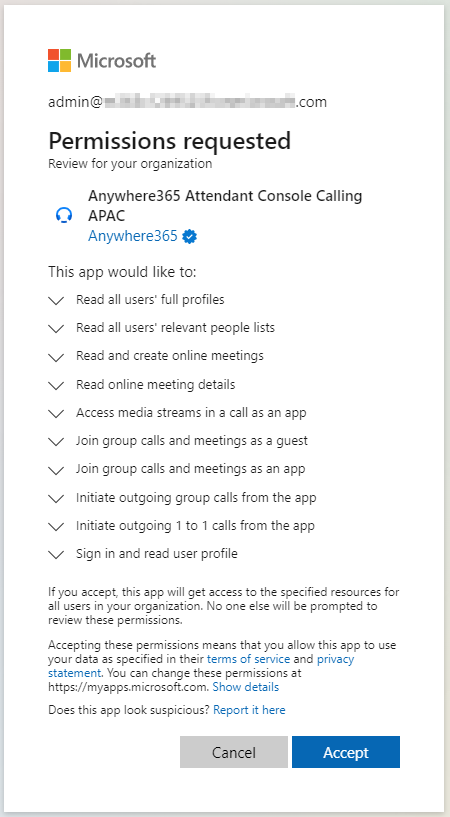
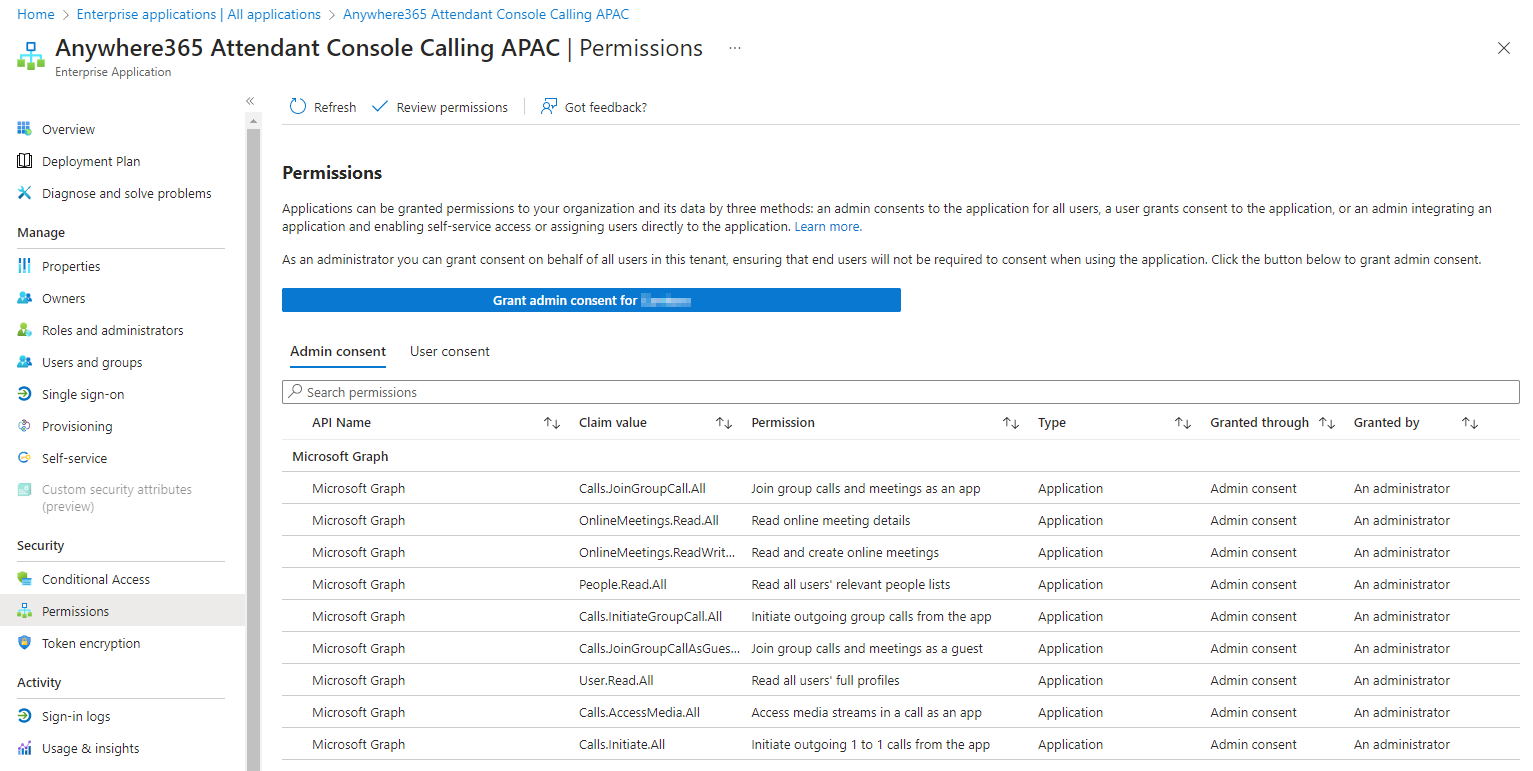
When you have a license for region APAC (Asia Pacific):
Preview Requested Permissions
-
Preview collapsed and expanded consent list:
-
Preview Azure granted permissions list:
Step 3
To create Attendant Console queue(s), please follow the Attendant Console for Microsoft Teams Queue Deployment Guide
Step 4
AnywhereNow Attendant Console App can be installed as a Teams App or used in a Web Browser.
Download Attendant Console Manifest
For more information, see: Manually deploy Attendant for Teams as a Microsoft Teams App
Teams Setup Policies
You can install Attendant Console by AnywhereNow in Teams via the Teams App Catalog.
When AnywhereNow Attendant Console App is not available for your location, please contact your Teams administrator to upload it in Teams Admin Center (Manage apps)
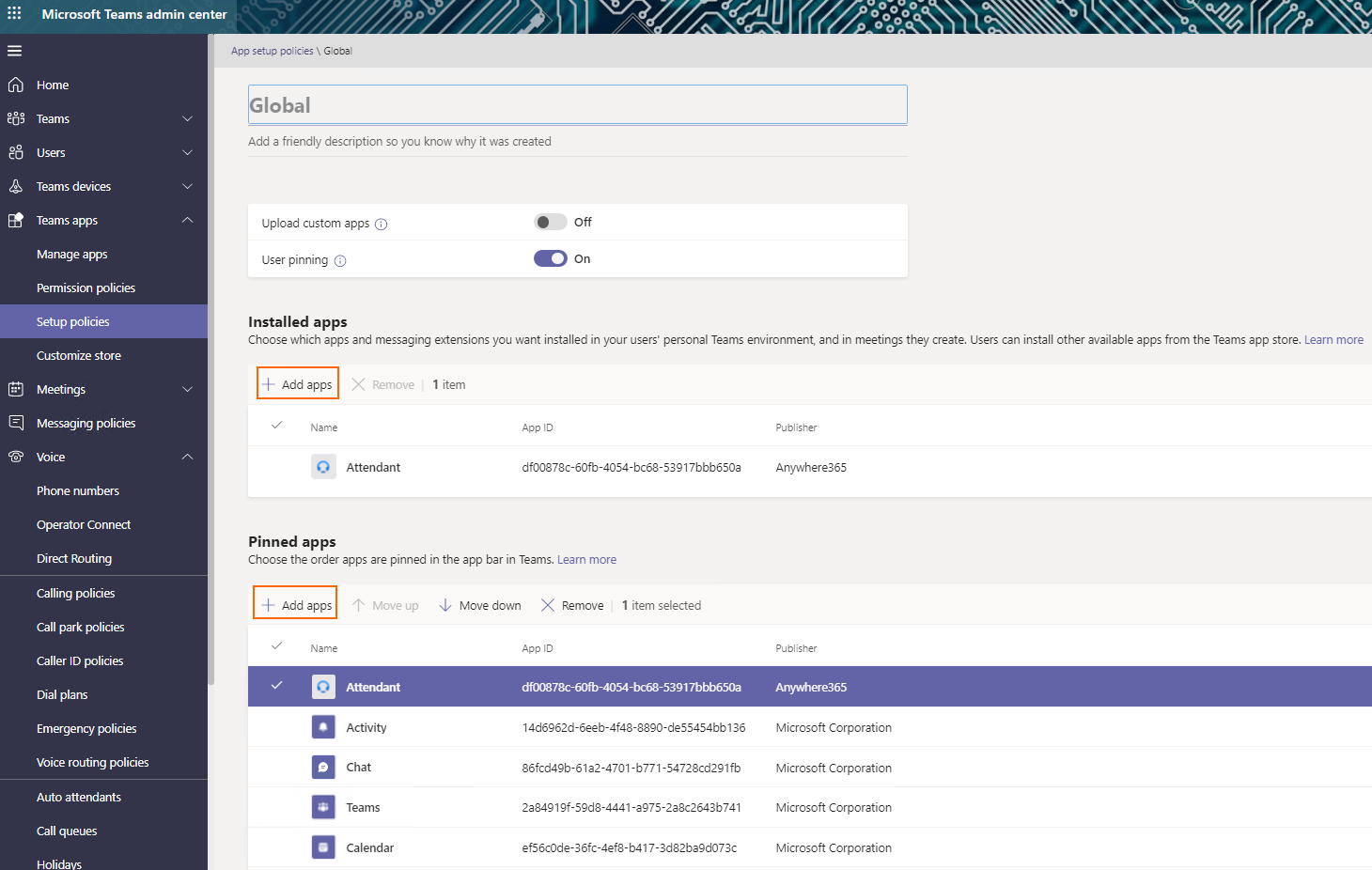
Microsoft Teams admin center is used to create an App setup policy (Setup Policies) to install and pin the Attendant Console App for the Teams operator users.