Managing Recordings
Introduction
A recording captures the conversation between a Customer and an Agent. To enable recording, various settings must be set. See below for various scenarios. These settings also enforce AnywhereNow to play the Welcome Recording audio message directly following the Welcome Message.
The recording will automatically start when an Agent accepts the call and will capture the audio legs where the customer is engaged with other participants, the exception being during the consult phase of a consult transfer, then the conversation between the Agent and the consultee will be recorded while the customer is on hold.
If the customer is simply talking to one Agent and is placed on hold, the recorder is paused and that part of the conversation will not be recorded until the conversation is resumed and the following audio will be appended to the pending audio file.
Agents can optionally be allowed to pause, restart or stop recordings, while the conversation is in progress. Specific settings have to be enabled. See scenario's below.
By default recordings (audiofiles) are saved to a SharePoint library. Various options exist the CopyRecordingToSharePoint parameter must be set to TRUE.
Tip
For an overview see: UCC Call Recording Scenarios
Inbound UCC Recording (Customer-to-UCC-to-Agent)
Recording configuration
For basic inbound recording of calls passing through a UCC, no The Interceptor is a service installed on AnywhereNow. It monitors all calls during set-up on endpoints of active Agents. By intercepting that call set-up and redirecting it to an UCC it lets you manage the direct inbound and outbound dialogues of the contact center agents. is needed. This is a built in functionality of the AnywhereNow application.
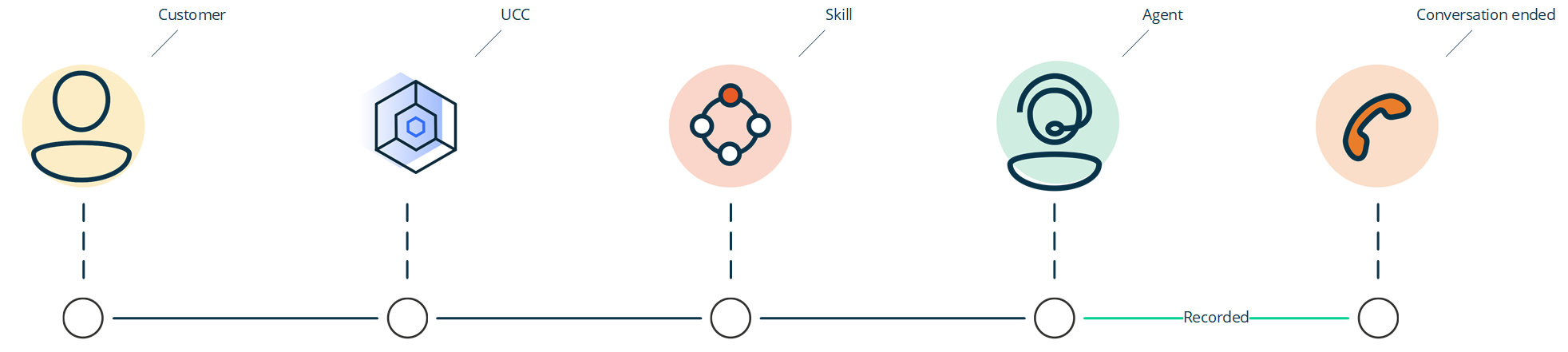
Required settings:
Optional Settings:
UseOriginalIdentityWithInbound
For a full list of recording related settings, see: Recording
Direct Inbound Recording (Customer-to-Agent)
Recording configuration
For Inbound calls directly to an Agent but intercepted by the UCC, the Interceptor must be enabled, see: Install Interceptor
All direct calls to an agents of that UCC will then be recorded (When you create an 'Informal Agent' in the agent list, then this agent will be part of the agent circle as soon as he signs in to his Skype for Business or Teams client. In contrast, by marking the checkbox 'Formal' upon creating a new agent, the agent first has to actively sign in to the UCC to be available for call distribution. or signed-in A Formal Agent is able to sign in and sign out of the UCC. This can be achieved when the Agent sends a start or stop command to the Skype for Business client of the UCC.).
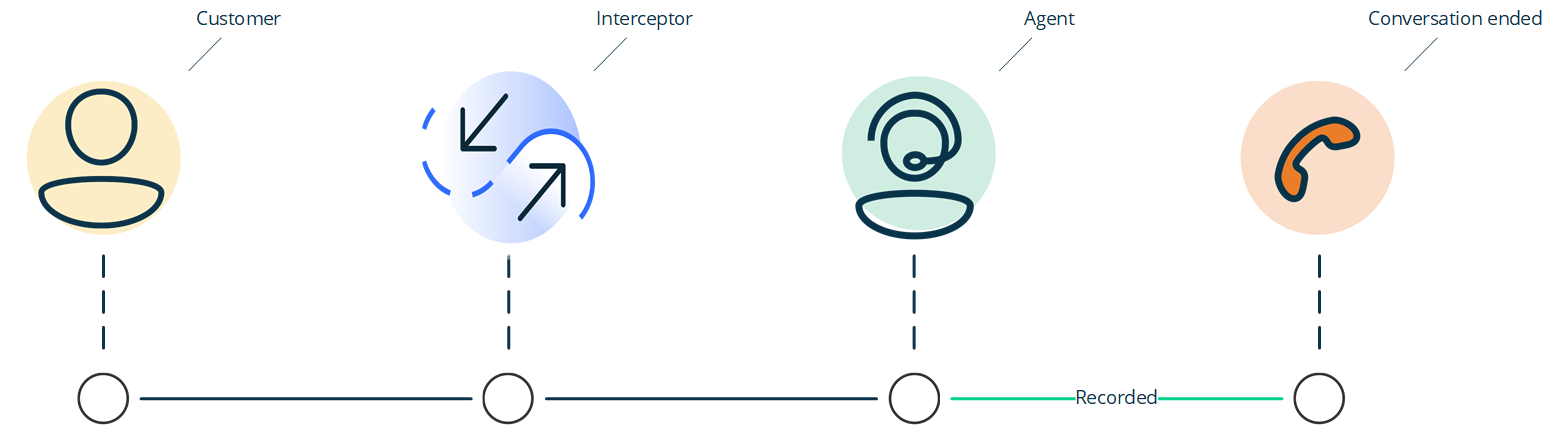
Required settings:
Optional Settings:
UseOriginalIdentityWithInbound
AutoStartDirectInboundAudioRecording
For a full list of recording related settings, see: Recording
Direct Outbound Recording (Agent-to-Customer)
Recording configuration
For Outbound calls directly from an Agent but intercepted by the UCC, the Interceptor must be enabled, see: Install Interceptor
All outbound calls from an agent of that UCC will then be recorded (informal agents or signed-in formal agents).
For Agents using a (Keypad or Campaign) Dialer in the following applications to initiate a call on behalf of a UCC some additional instructions may apply:
-
For Snapper Keypad Dialer, see: Configure Direct Call Interceptor (DCI) for Snapper
-
For WebAgent Keypad Dialer, see: Configure Direct Call Interceptor / Outbound Calling for WebAgent
-
For Campaign Dialer, see: User Guide Campaign Dialer
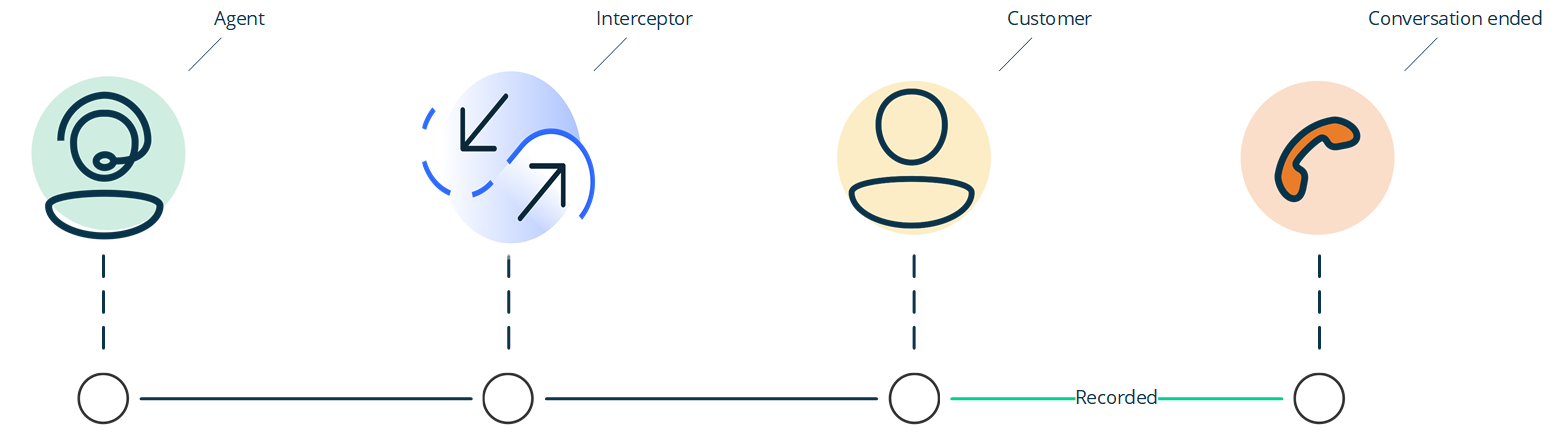
Required settings:
Optional Settings:
UseOriginalIdentityWithOutbound
AutoStartOutboundAudioRecording
For a full list of recording related settings, see: Recording
Agent Recording Management
If both settings AgentCanEditAudioRecording and UseAudioRecording (for inbound UCC calls), or UseInboundAudioRecording (for direct calls), or UseOutboundAudioRecording (for outbound calls) are TRUE, an Agent is able to manage the recoding of a conversation.
Stop recording
Note
Recording can’t be restarted when using this command.
In Snapper the recording control buttons can be used if enabled in the Snapper application settings
In WebAgent the Call recording buttons can be used

The Recording will be stopped and can’t be restarted anymore.
Pause recording
In Snapper the recording control buttons can be used if enabled in the Snapper application settings
In WebAgent the Call recording buttons can be used
The Recording is now paused and can be restarted.
Restart recording
Note
This function can only be used when the Recording is paused.
In Snapper the recording control buttons can be used if enabled in the Snapper application settings
In WebAgent the Call recording buttons can be used
The paused Recording will now start recording again.
Additional Recording Settings of Interest
Recordings per Agent
With the setting CopyRecordingToSharePointLibrarySubFolder on TRUE, the audio recordings will be stored in a sub-folder of the Recording folder. This enables giving the Agent access to only its own recordings, while a Supervisor could have access to the parent folder.
Note
You can use the setting CopyRecordingToSharePointLibrarySubFolderFirstLast to either use the first or the last agent, for those scenario's where calls might get transferred to other agents. The recording can only be saved under one agents name.
Stop Recording after Transfer
With the settings StopRecordingAfterTransfer you can stop the recording after a blind- or consultative transfer. By default AnywhereNow will keep recording after the conversation was transferred.
Note
A skill transfer, delight transfer, or leaving a group call is performed, the recording will continue regardless of this setting.
Active (default)

Disabled

Stop Recording after Forward
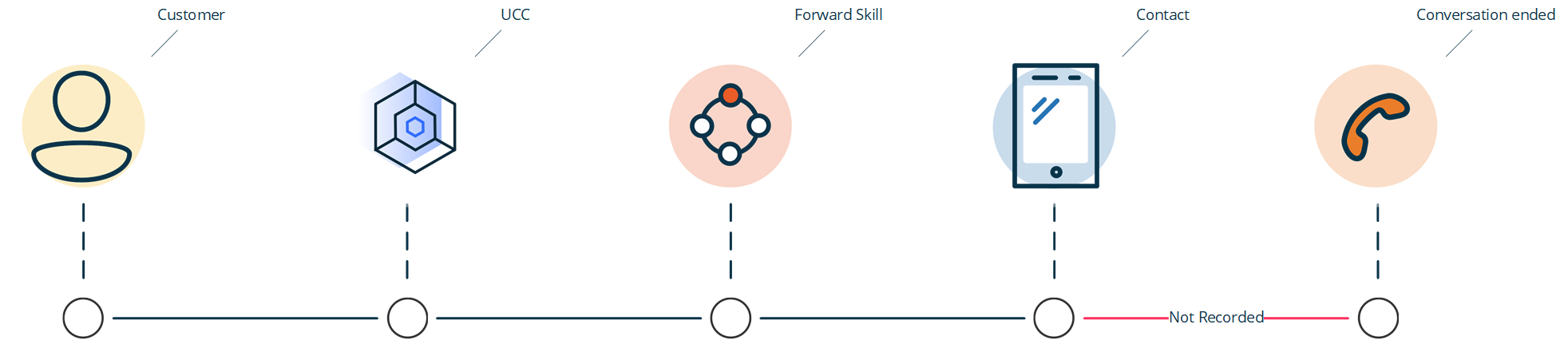
With the settings StopRecordingAfterForward you can stop the recording after a forward. By default AnywhereNow will keep recording after the conversation was forwarded.
Active (default)
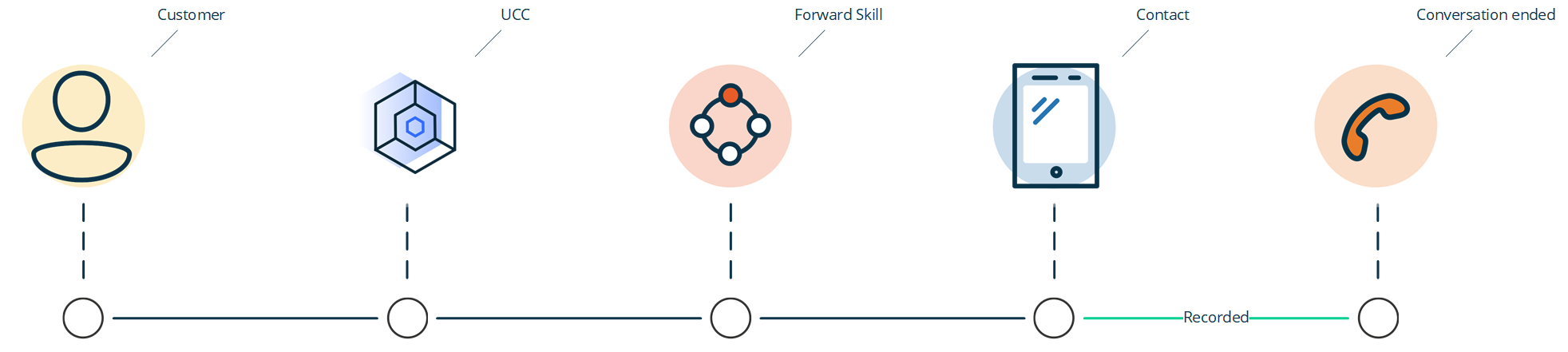
Disabled
SharePoint Library Fields Explained
Recordings will be stored in a SharePoint library automatically (if the setting CopyRecordingToSharePoint is TRUE) together with some meta data:
| Item | Description |
|---|---|
| Type | This is the file type. |
| Name | This is the CorrelationId (GUID stands for Globally Unique Identifier (format is always like 2ed153b4-f632-4766-b846-5b2a769b36d1) and is a pseudo random number used in software applications that is assumed to be unique. The total number of unique keys (2<sup>128</sup> of 3.4028×10<sup>38</sup>) is very large and the probability of the creating the same GUID twice is very small, though not 100% guaranteed. The term GUID is generally used by developers working with Microsoft technologies, while UUID is used everywhere else.), created by AnywhereNow. |
| Modified | This is the date the recording is added. |
| Modified By | This is the account that adds the recording. |
| Caller | Uri of the customer. |
Long-term Storage of Recordings
If recordings must be retained for a longer period, consider the limitations of storing all recordings in the UCC SharePoint recordings library. Large SharePoint lists and libraries can affect storage, list rendering, filtering, and cost. For more information, see: Overview of large lists and libraries - Microsoft Support
For long-term retention or compliance scenarios, consider moving recordings to an alternative long-term storage solution. This helps overcome SharePoint limitations and can also reduce storage cost. Use this in combination with a retention policy on the UCC SharePoint recordings list. See: Microsoft Power Automate as alternative for AnywhereNow Library Retention Policy
Note
Existing recording links in AnywhereNow Power BI reports can continue to work after moving recordings, provided the file name and extension remain unchanged.
Power BI report links
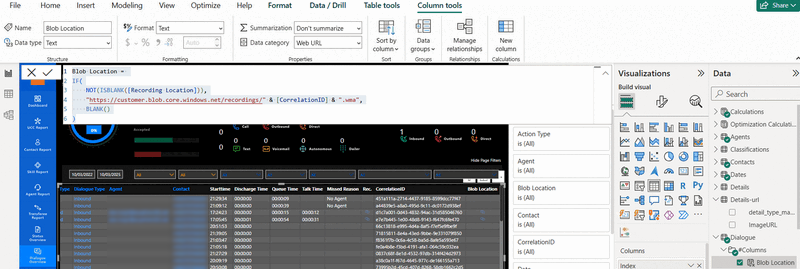
After moving the recordings to a new long-term storage location (for example, Azure Blob Storage), update the recording URL in Power BI to point to the new location. Keep the original file name and extension so the DAX continues to resolve the correct file.
Examples of the original recording location and a new Blob storage location in Power BI reports are shown below.
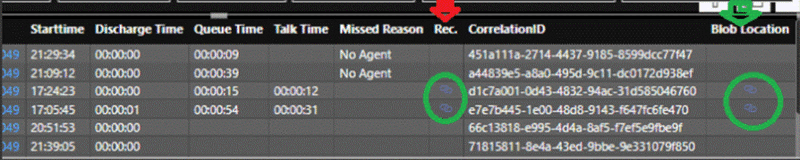
Microsoft documents several ways to move content from SharePoint to Blob Storage, for example by using Power Automate or Azure Data Factory.
Important
Make sure that the file name and extension do not change when the recording is moved to the long-term storage location. The Power BI DAX depends on the CorrelationId-based file name remaining the same.
Example: downloadable recording link
The following DAX example points the recording URL to Blob Storage:
Blob Location =
		IF(
		NOT(ISBLANK([Recording Location])),
		"https://customer.blob.core.windows.net/recordings/" & [CorrelationID] & ".wma",
		BLANK()
	)
Example: streaming-only link
To open the recording in the browser for streaming, append ?web=1 to the URL:
Stream the Rec =
		IF(
		NOT(ISBLANK([Recording Location])),
		"https://customer.blob.core.windows.net/recordings/" & [CorrelationID] & ".wma?web=1",
		BLANK()
	)

Tip
Depending on your storage platform and permissions model, you can allow supervisors to stream recordings without offering a direct download option.
What's New?
For a list of extensive changes and additional new settings (from DC2023.02 through DC2024.01 ) please see the article on: Changed and new Recording and Interception settings.