Dialogue Studio User Guide
Dialogue CloudDialogue Studio is a power tool for designing and running dialogue flows. This guide focuses on Core nodes and how to work with them.
Open Dialogue Studio
Open your browser and go to the Dialogue Studio editor URL provided by your AnywhereNow contact or available in Formerly known as Partner Portal. A redesigned web portal for managing Dialogue Cloud deployments..
The basics
You start on an empty canvas. The right sidebar lists available building blocks called nodes. Drag nodes from the sidebar onto the canvas to build your flow. The empty canvas you see is called a flow. The flow tabs appear in a bar under the page header. Select + to add a new flow or select the list button to view all flows.
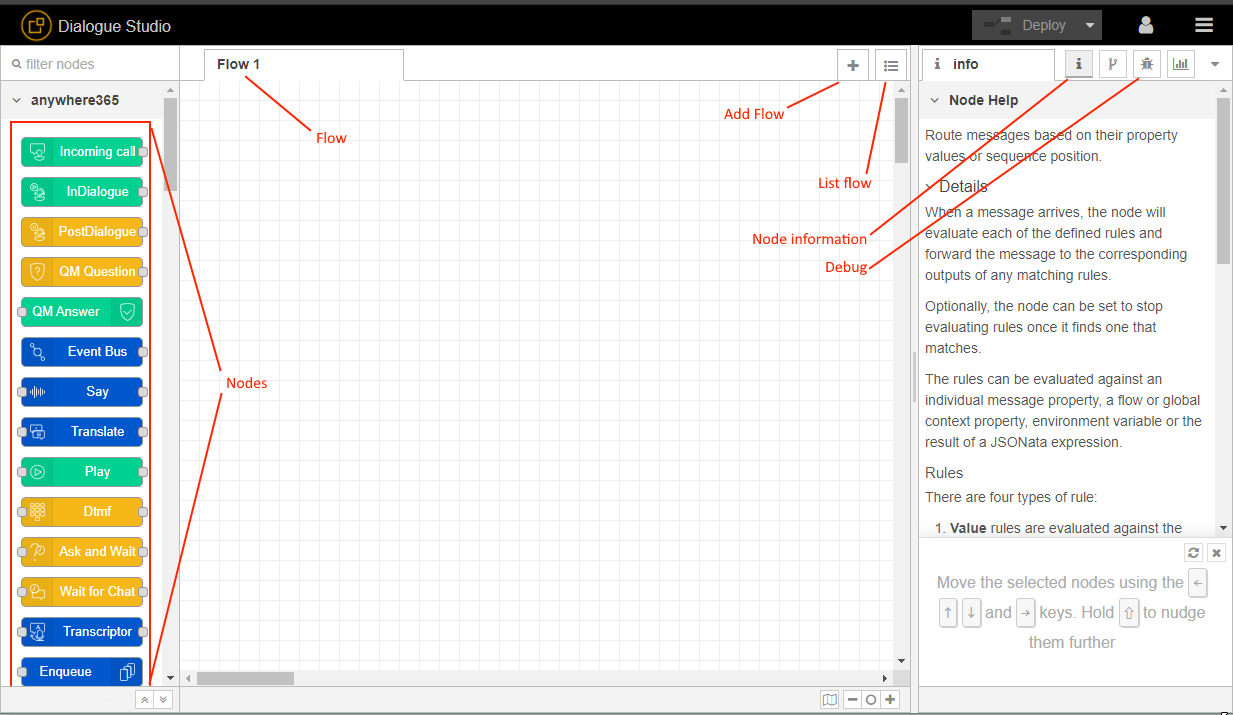
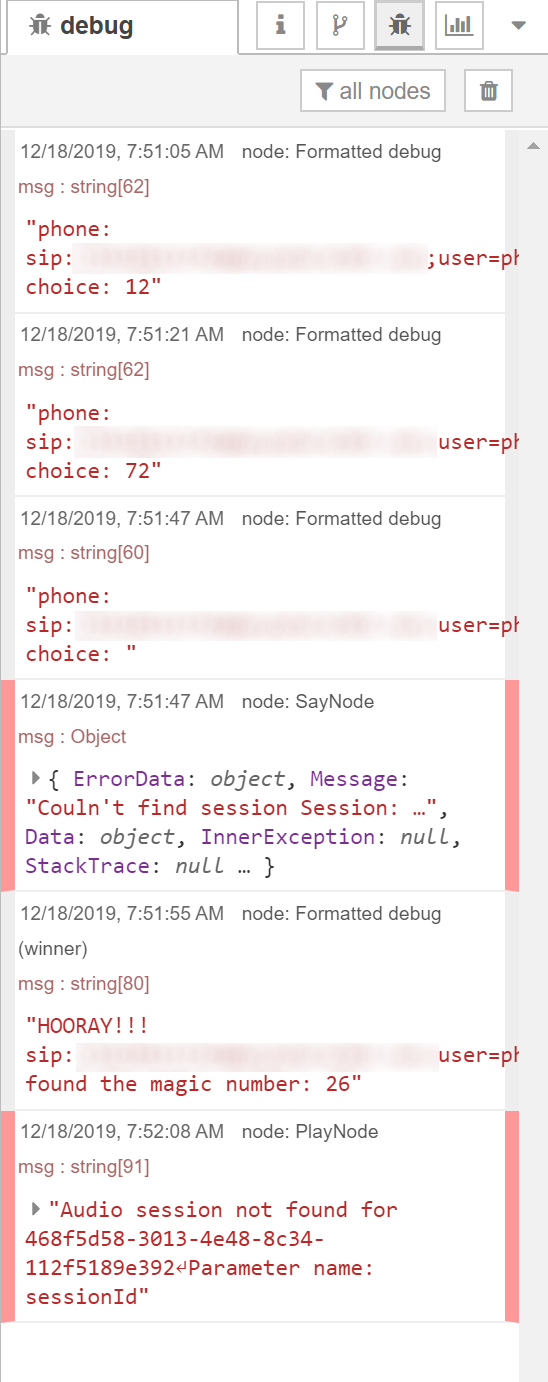
To learn what a node does, select it and open the Node information tab in the right sidebar. Use the Debug tab (bug icon) to view logs and errors while you test.
When you make a change, the Deploy button in the upper-right turns red. Select Deploy to apply changes.
Warning
Avoid Restart Flows while customers are active. Deploys are usually non-disruptive if your flows remain valid. Restarts can strand active sessions and interrupt timers and transcription. Learn more in Production safety: Deploy vs Restart Flows.
AnywhereNow Core nodes
Tip
This user guide is focused on the Dialogue Cloud Core node, if you are looking for the Dialogue Cloud Dialogue Manager nodes, see: Dialogue Manager Nodes for Dialogue Studio
These nodes control when your flow starts and how it reacts to contact-center events.
| Icon | Description |
|---|---|

|
Incoming call
For text conversations, see: Incoming message |
|
Waiting queue Triggers when an audio conversation is enqueued. Use this as the starting point for queue messages. |

|
InDialogue
Triggers after a audio conversation connects to an agent. Use it for automations during the live session, such as whisper prompts, transcription, or translation. |

|
PostDialogue
Triggers when one participant disconnects in a audio conversation. Use it for after-call actions like post-conversation messages or updates. End the PostDialogue phase with a No action node. |

|
QM Question
Triggers once PostDialogue ends—one event per configured Quality Monitor question. Use QM Answer to send responses and proceed. |

|
Event Bus
Triggers on generic events received from the Core service event bus. These events are not scoped to the connection's UCC name. |
Event Bus scope
For Core nodes using the HTTP/SignalR plugin connection, the UCC name in Server scopes normal callflow events and actions, but not generic Event Bus events. The bus can include events from other UCCs on the underlying Core service, not only UCCs connected to this Dialogue Studio instance. A dedicated plugin port does not provide per-UCC isolation for generic events.
The Event Bus Filter selects event types, not UCCs. Before acting on an event, filter events using the relevant UCC metadata when it is available. Event metadata varies by event type; do not assume every event contains the same UCC field or structure.
Create your first flow
This example uses Core nodes connected through the HTTP/SignalR plugin. Confirm that this is the provisioned connection path for your UCC. The steps do not specify connection settings for other transports.
Build a simple flow that plays a message and then disconnects.
-
Drag an Incoming call node to the canvas.
-
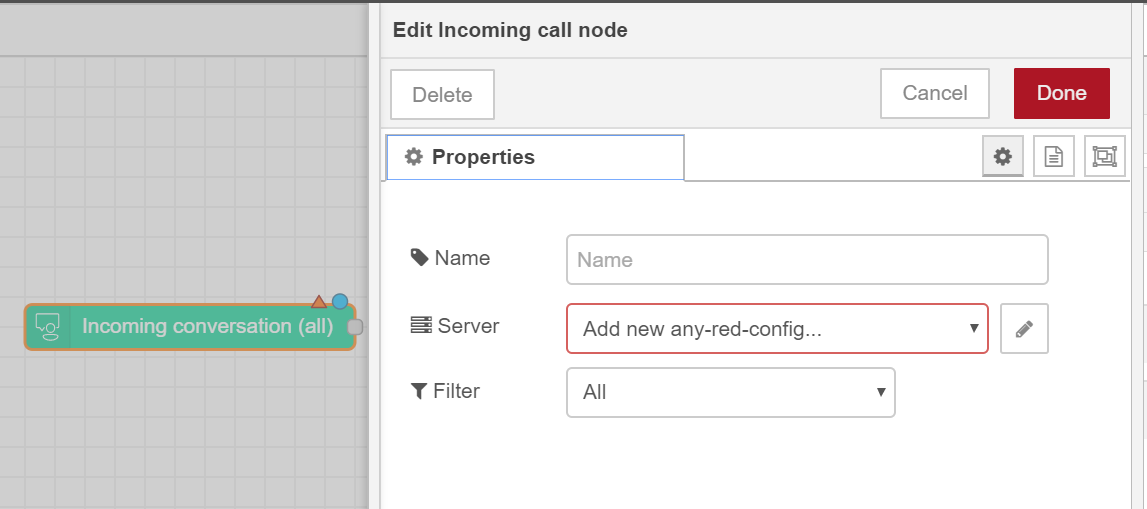
Double-click the node to open settings. Select Audio/Video in Filter, not IvrQuestion (Audio/Video).
-
Under Server, select an existing connection.
If your administrator already configured the server connection, select it here and skip the sub-steps.
If no connection is available, select Add new any-red-config, then select the edit (pencil) icon.
Before configuring a flow, confirm the selected node's transport and the active configuration source for your environment. Use the connection details provided during provisioning. Applicability depends on that transport and configuration source, not the connect model alone.
For Core nodes using the HTTP/SignalR plugin connection, configure Server with the Core service URL, including the plugin listener port, and the UCC name. Use the HTTP or HTTPS scheme configured for that listener. The editor URL you open in your browser is not this service endpoint. For another transport, use its provisioned connection details rather than assuming these listener settings apply.
For the HTTP/SignalR plugin path, OnePortal assigns a separate Dialogue Studio plugin port to each UCC during provisioning. Use the assigned port with the service URL and UCC name. Sharing a listener port is also supported for this plugin path, but is not standard OnePortal provisioning. Do not change an assigned port without coordinating with AnywhereNow. Align all affected connections and dependent network configuration when changing it.
Configure the connection:
-
Enter the provided service URL, for example
http://<internalServiceUrl>:<assignedPort>. Use the internal service host, assigned plugin port, and HTTP or HTTPS scheme provisioned for this plugin connection. If your active configuration source is the Ucc.Creator SharePoint template, the port is also visible in the UCC's Plugin Settings. -
Enter the UCC name provided for this connection. It scopes normal callflow events and actions, but not generic Event Bus events.
-
Select Done.
-
-
Drag a Say node to the canvas. Double-click the node to open settings. Set Message to “Welcome, we will disconnect you in a moment.” Select Done.
-
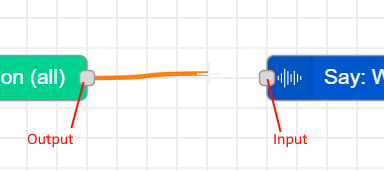
Connect the output port of Incoming call to the input port of Say.
-
Drag a Action node to the canvas. Double-click the node to open settings. Set Action to Disconnect. Select Done.
-
Connect Say to Disconnect.
-
Select Deploy to apply changes.
Your canvas should look like this example:

Call your UCC. You hear the message, then the call disconnects.
Note
Configurations in Dialogue Studio are customer-managed. Document your flows and use Export to save a .json backup. For source control, connect Dialogue Studio to Git. See Additional configuration articles for Dialogue Studio.
Keep learning
Explore end-to-end examples in Dialogue Studio Scenarios.
Browse community samples in the DialogueStudioFlows GitHub repository.
Import sample flows to explore common patterns.
- Select the menu in the upper-right and choose Import.
- Open the Examples tab and select the Anywherenow-red samples for UCC scenarios. Each sample indicates whether it targets chat or audio.
- Follow the comment nodes in the sample for required setup steps. Make sure the UCC connection is configured before testing.
Advanced information
The right sidebar contains several tabs. If the sidebar is collapsed, use the arrow to expand it.
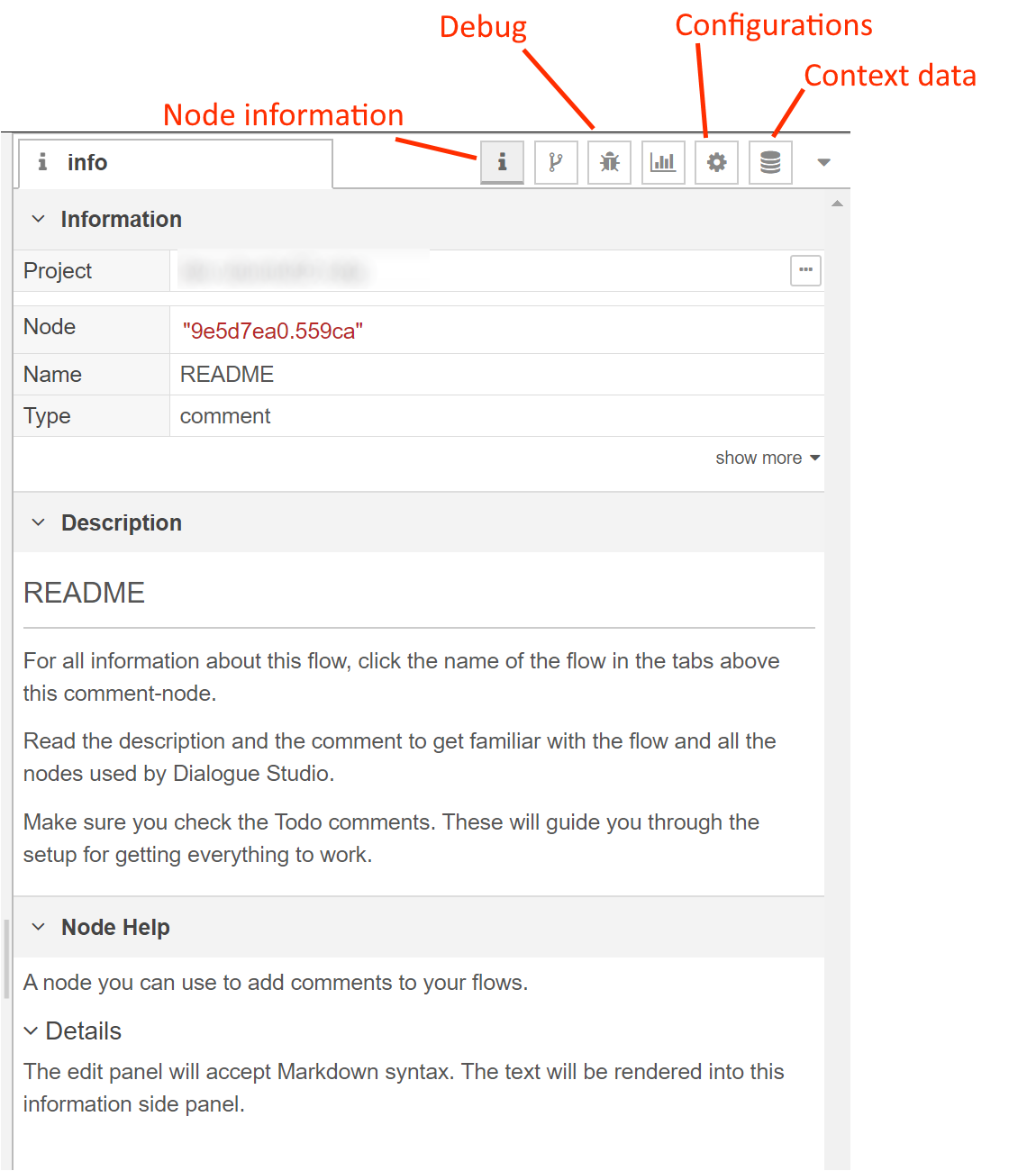
Node information
The Node information tab shows metadata for the selected node or flow: identifier, name, type, and description. To edit the description, open the node and use the Description tab. Developers can also provide Node help that explains usage and options.
Debug
Use the Debug tab to view errors and log messages. To test quickly, connect an Inject node to a Debug node and deploy. Select the Inject button to send a test message and observe output in the panel.
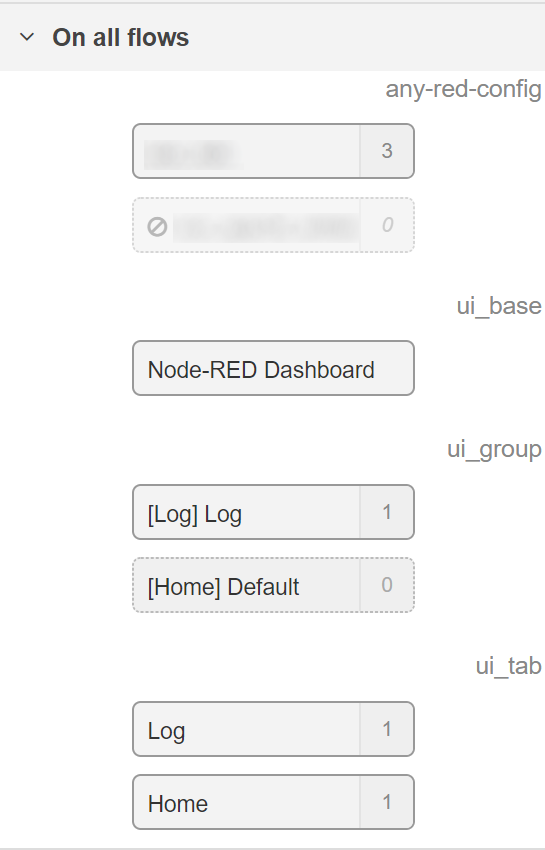
Configuration nodes
Find and manage saved connection settings in the Configuration nodes tab. Use this view if a node loses a reference or if you need to update credentials.
Context data
Use the Context data tab to inspect values stored at the node, flow, or global level. Nodes such as Function and Change can read and write this context.
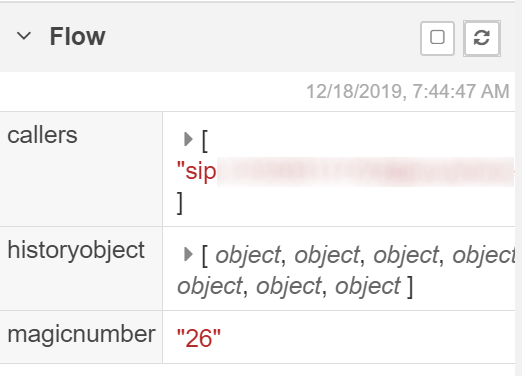
Select the refresh icon to reload values. You can also delete context entries from this view.
Production safety: Deploy vs Restart Flows
Choose the safest operation for live environments. In short: Deploy applies edits with minimal disruption if the flow remains valid. Restart Flows reloads all flows and interrupts active sessions. Updating or removing palettes (node modules) requires restarting the Dialogue Studio instance via OnePortal.
Differences
Use this chooser to decide which action to take.
| Operation | What it does | Impact on active calls | Use when | Key risks |
|---|---|---|---|---|
| Deploy | Applies flow changes without stopping unaffected flows (only changed parts reload). | Calls continue if paths stay valid; updated prompts or logic apply when reached. | Routine edits such as text updates or small logic tweaks. | Broken wires or invalid outputs can dead-end callers. |
| Restart Flows | Stops and restarts all flows. | Current prompt finishes; then no new nodes execute for active calls. Timers and transcripts can stop. | Only when you must fully reload running flows. | Callers can be stranded in IVR, queues, or surveys until they hang up or the call transitions. |
| Restart instance (OnePortal) | Restarts the Dialogue Studio runtime. | Similar to Restart Flows but with longer downtime while modules load. | Required after updating or removing palettes (node modules). | All in-flight logic, timers, and events are lost; brief event gaps are possible. |
Behavior by call phase
How each action behaves during IVR, queueing, live conversations, and after-call processing.
| Phase | Deploy (expected behavior) | Restart Flows (risk/behavior) |
|---|---|---|
| Incoming call (IVR) | Active calls continue; edits apply when nodes are reached. Ensure all outputs remain connected. | Current Say/Play finishes; then no further nodes run. Caller cannot progress and may need to hang up. |
| Enqueue | Music and prompts continue. Changes apply on the next cycle. | After the current prompt, silence until an agent answers. |
| InDialogue | Session stays connected. Automations apply as the flow reaches them. | No Dialogue Studio nodes run until the call ends. PostDialogue still runs on disconnect if configured. |
| PostDialogue | Follow-ups run normally. Edits apply on the next run. | No action and transitions may not execute. QM Question will not start. |
| QM Question / Answer | Survey proceeds; edits apply when reached. | Survey can stall and not advance to the next question. |
| Transcription | Continues as normal. | Output stops for active sessions until retriggered. |
| Event Bus | Continues as normal. | Some events can be missed during the brief reload window. |