Insights - Real-time Dashboard
Introduced in DC2025.02a - Arnhem (Dialogue Cloud Neo)
The Real-time Dashboard gives you a live view of today’s contact center performance.
The dashboard refreshes automatically whenever a new event is detected.
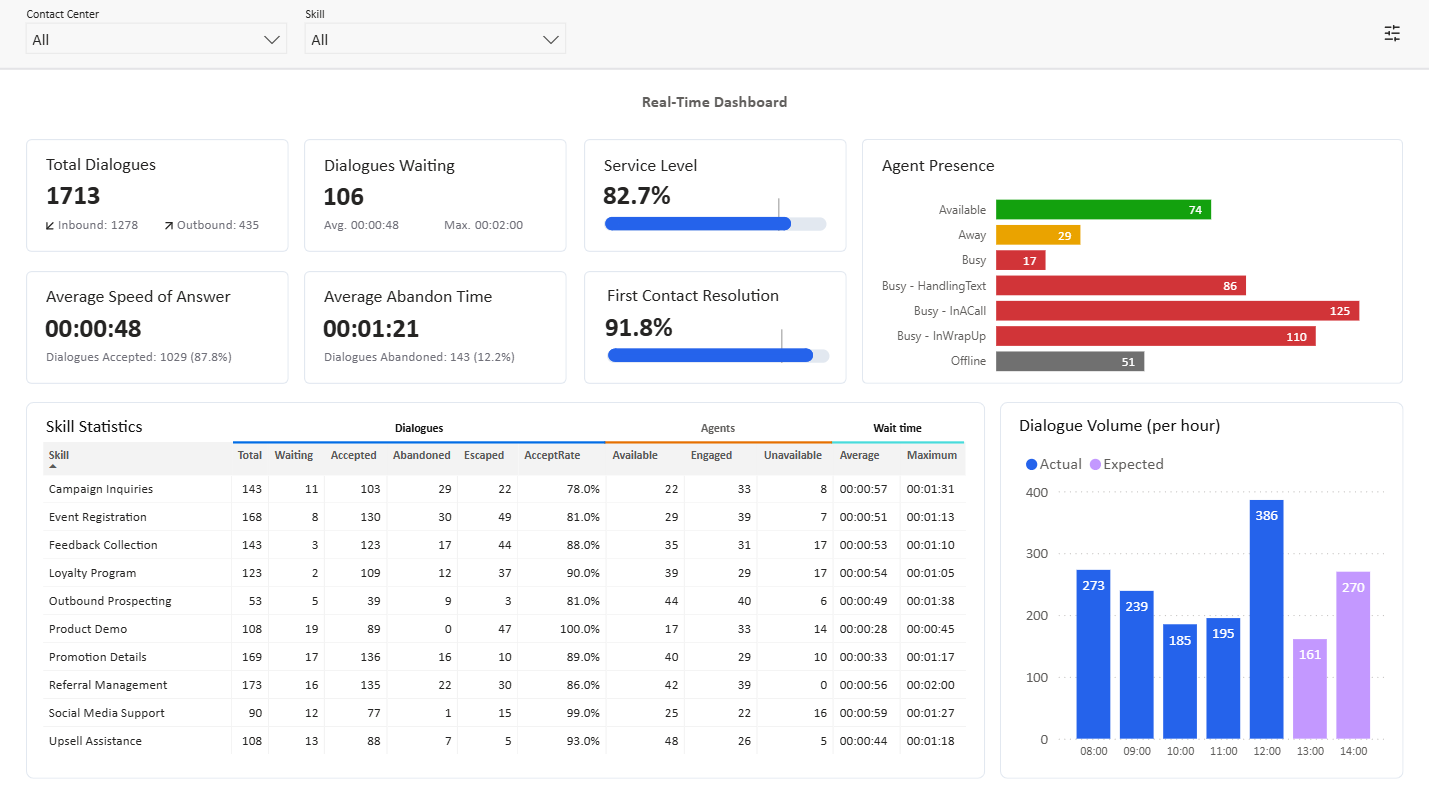
This report includes:
Filters
Filters allow you to refine the data displayed on the dashboard by selecting specific contact centers and/or skills.

Contact Center
The Contact Center filter enables you to filter data for one or more specific contact centers, or for all contact centers. When you click the filter, a dropdown menu opens with a search bar to help you quickly locate the desired contact center. From this menu, you can:
-
Select a specific contact center by clicking the corresponding item in the dropdown.
-
Select multiple contact centers by holding the Ctrl (Windows/Linux) or Cmd (macOS) while clicking each item.
-
Select all contact centers by choosing the "Select all" option.
Any changes you make are applied immediately, and the dashboard updates accordingly.
Skill
The Skill filter operates in the same way as the Contact Center filter. It provides a more granular level of control, allowing you to filter and visualize data at the skill level within the real-time dashboard.
Search criteria
Please note: due to the real-time nature of this dashboard the search criteria will only match whole words and is case-sensitive.
Cards
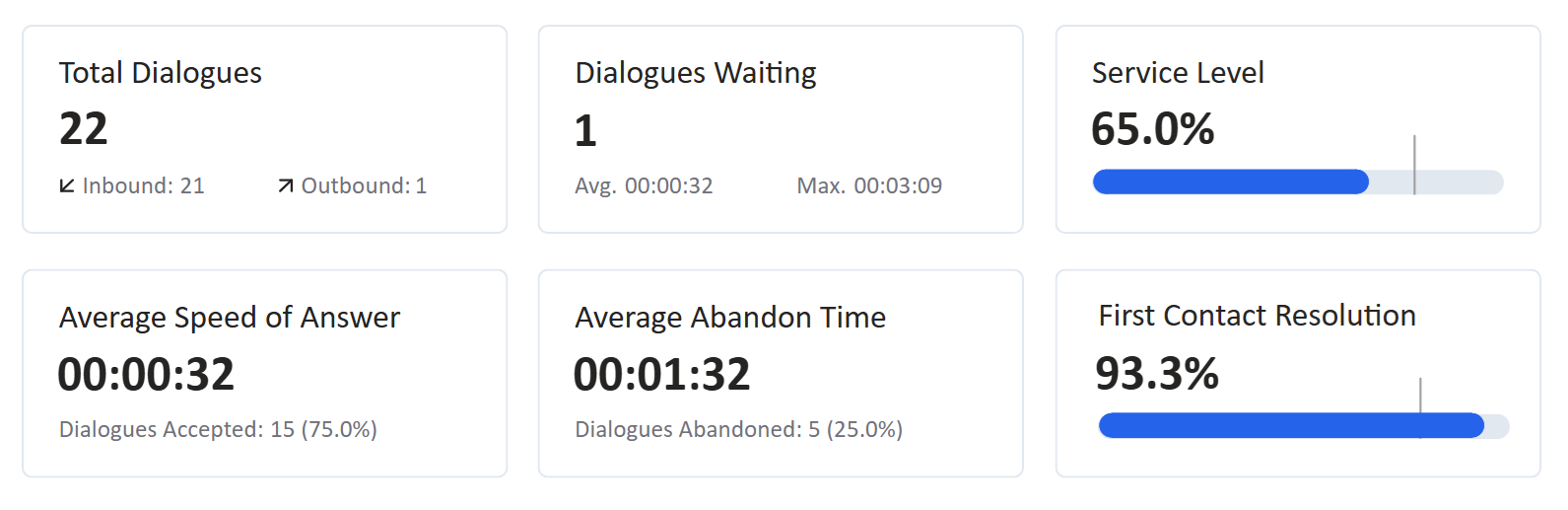
Cards display useful information about your contact center in the form of numbers.
Total Dialogues
The Total Dialogues card shows the total number of dialogues for the selected contact centers and skills. It only counts outbound dialogues and inbound dialogues that were queued. Inbound dialogues that were dropped while in the IVR Interactive Voice Response, or IVR, is a telephone application to take orders via telephone keypad or voice through a computer. By choosing menu options the caller receives information, without the intervention of a human operator, or will be forwarded to the appropriate Agent. are excluded. This card also breaks down the total into the number of inbound dialogues (that were queued) and the number of outbound dialogues.
Dialogues Waiting
The Dialogues Waiting card displays the total number of inbound dialogues currently queued (waiting for an agent to handle the dialogue) for the selected contact centers and skills. It also shows the average waiting time and the maximum waiting time for today's dialogues.
Service Level
The Service Level card shows the service level for the selected contact centers and skills. The service level is calculated by dividing the number of inbound dialogues that were queued and answered within 20 seconds by the number of inbound dialogues that were queued. Furthermore it shows a target (represented by a vertical line) to quickly assess how far the metric is from its target value.
Currently, the threshold of 20 seconds is fixed, but in the future it will be possible to configure or inherit this threshold from the UCC A Unified Contact Center, or UCC, is a queue of interactions (voice, email, IM, etc.) that are handled by Agents. Each UCC has its own settings, IVR menus and Agents. Agents can belong to one or several UCCs and can have multiple skills (competencies). A UCC can be visualized as a contact center “micro service”. Customers can utilize one UCC (e.g. a global helpdesk), a few UCC’s (e.g. for each department or regional office) or hundreds of UCC’s (e.g. for each bed at a hospital). They are interconnected and can all be managed from one central location. settings.
The default value for the target is 80% and can be updated via the Settings.
Average Speed of Answer
The Average Speed of Answer card shows the average time it takes agents from the selected contact centers and skills to answer inbound dialogues that were queued. It also displays the total number of inbound dialogues that were accepted, along with the accept rate. The accept rate is calculated by dividing the number of inbound dialogues answered by the number of inbound dialogues that were queued.
Average Abandon Time
The Average Abandon Time card shows the average time customers are willing to wait for an agent to answer their inbound dialogue before they disconnect. It also displays the total number of inbound dialogues that were abandoned, along with the abandon rate. The abandon rate is calculated by dividing the number of inbound dialogues that were queued and not answered by the number of inbound dialogues that were queued.
First Contact Resolution
The First Contact Resolution card shows the percentage of inbound audio dialogues which were queued, answered, and handled by the initial agent (i.e. the answered inbound audio dialogues which were not transferred) compared to the total number of inbound audio dialogues which were answered. Furthermore it shows a target (represented by a vertical line) to quickly assess how far the metric is from its target value.
The default value for the target is 80% and can be updated via the Settings.
Notes
If you sum the values for Dialogues Waiting, Dialogues Accepted, and Dialogues Abandoned, this will match the total number of Inbound Dialogues.
Graphs
The real-time dashboard also displays graphs that provide insights into your contact center’s operations.
Agent Presence
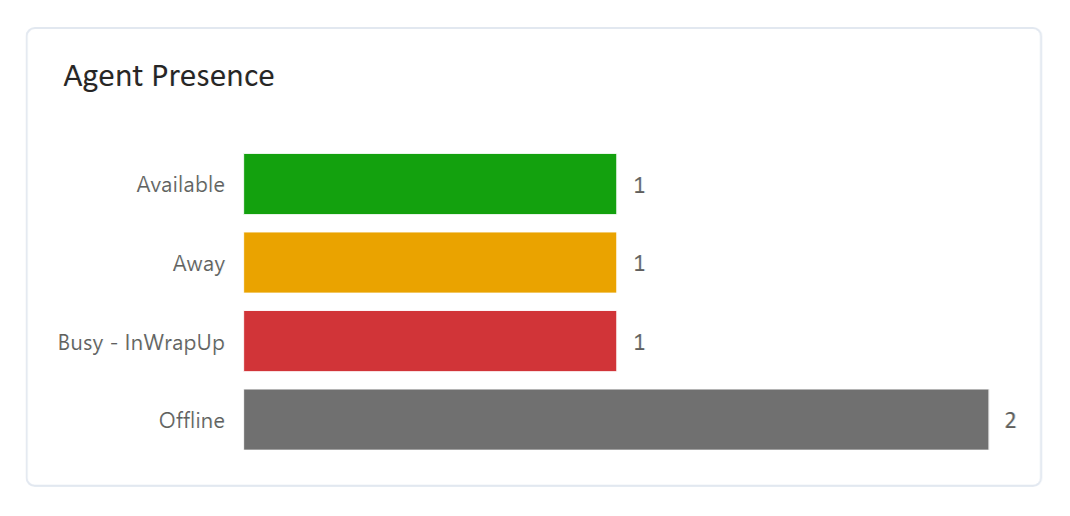
The Agent Presence graph visualizes the number of agents per presence status for the selected contact centers and skills. In addition to the default Microsoft Teams presence statuses, it includes specific AnywhereNow contact center statuses:
-
Busy – InACall: Agents currently handling a call.
-
Busy – InWrapUp: Agents in wrap-up, completing after-call work.
-
Reason Codes: Custom statuses indicating specific agent unavailability reasons.
Skill Statistics
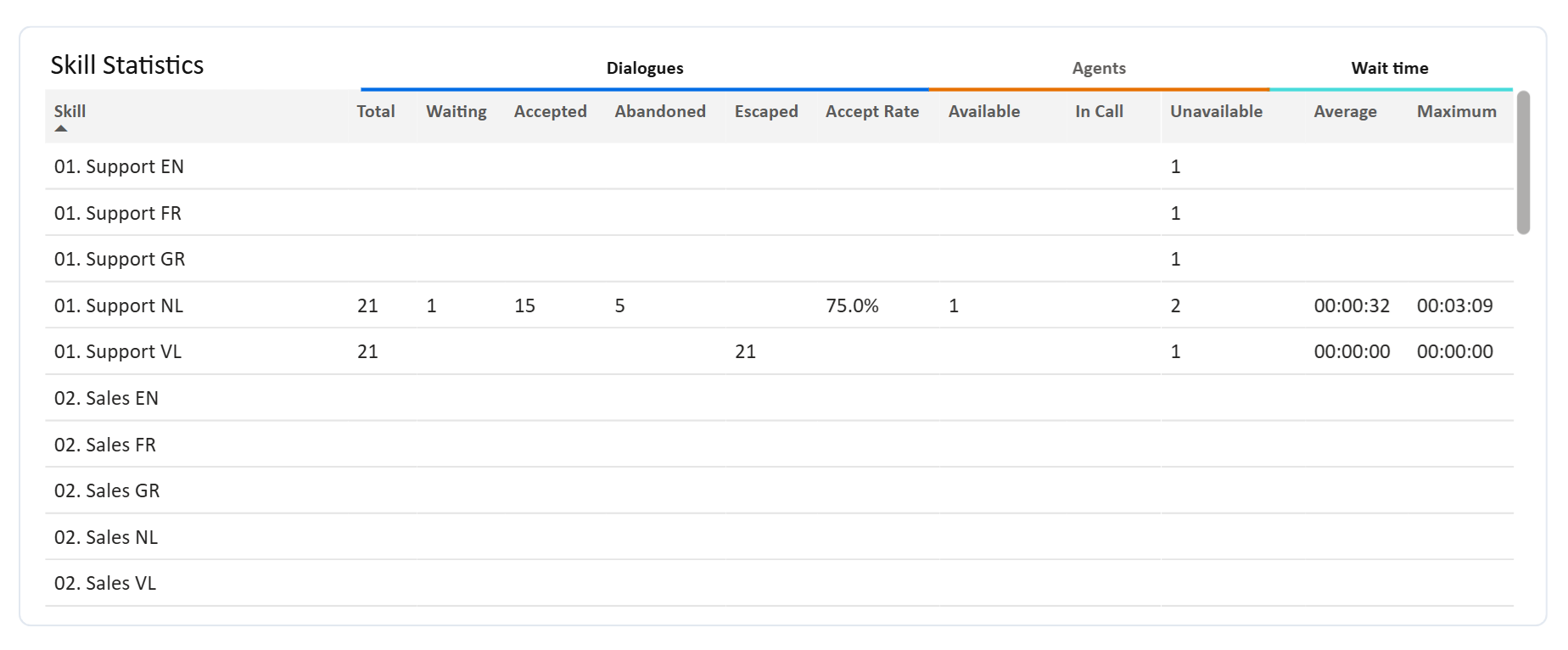
The Skill Statistics graph presents detailed statistics for each skill within the selected contact centers and skills. For each skill, the following metrics are displayed:
-
Skill Name: The name of the skill.
-
Total Dialogues: The total number of dialogues queued in this skill.
-
Dialogues Waiting: The number of dialogues currently waiting for an agent in this skill.
-
Dialogues Accepted: The number of dialogues answered by an agent in this skill.
-
Dialogues Abandoned: The number of dialogues disconnected while waiting to get connected to an agent in this skill.
-
Dialogues Escaped: The number of dialogues that escaped from this skill to another (e.g. due to a countdown, availability, or other escape action).
-
Dialogue Accept Rate: % of dialogues accepted (only considering accepted and abandoned dialogues).
-
Agents Available: The number of agents available to handle a new dialogue in this skill.
-
Agents In Call: The number of agents currently handling a dialogue in this skill.
-
Agents Unavailable: The number of agents assigned to the skill with a presence status that indicates that they are currently unable to handle a new dialogue (e.g. their presence status is not "Available" and they are not engaged in a dialogue).
-
Wait Time Average: The average wait time for dialogues queued in this skill.
-
Wait Time Maximum: The maximum wait time for dialogues queued in this skill.
Dialogue Volume (per hour)
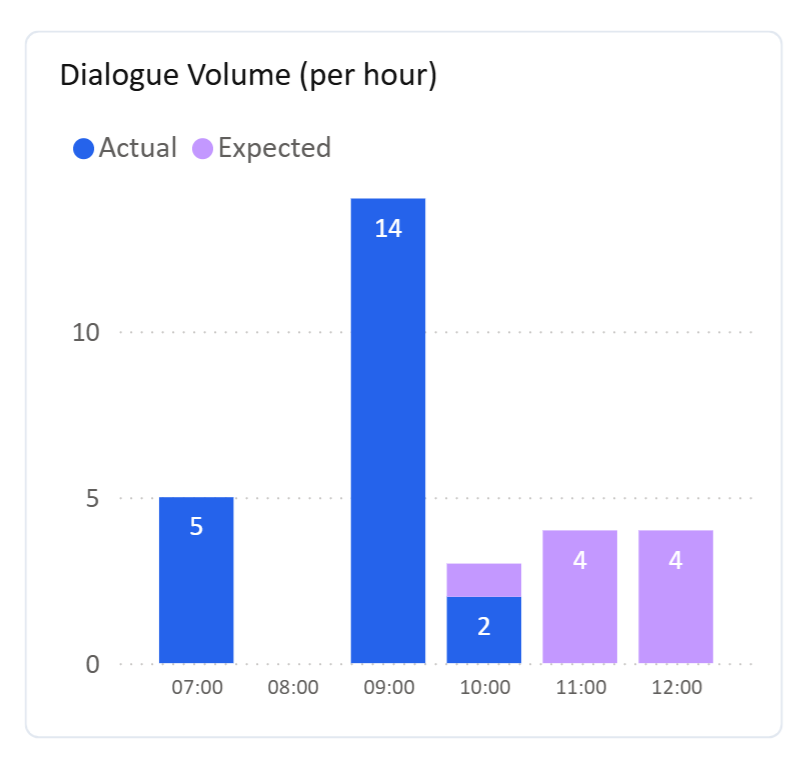
The Dialogue Volume graph shows the number of inbound dialogues queued in the selected contact centers and skills, aggregated by hour. The graph also predicts the expected dialogue volume for the next two hours, using historical data from the past 28 days and accounting for seasonal trends. Predictions are made at 15-minute intervals, so a single hour may display both the actual and expected dialogue volumes.
Settings
The real-time dashboard includes several settings that can be managed via the settings menu.
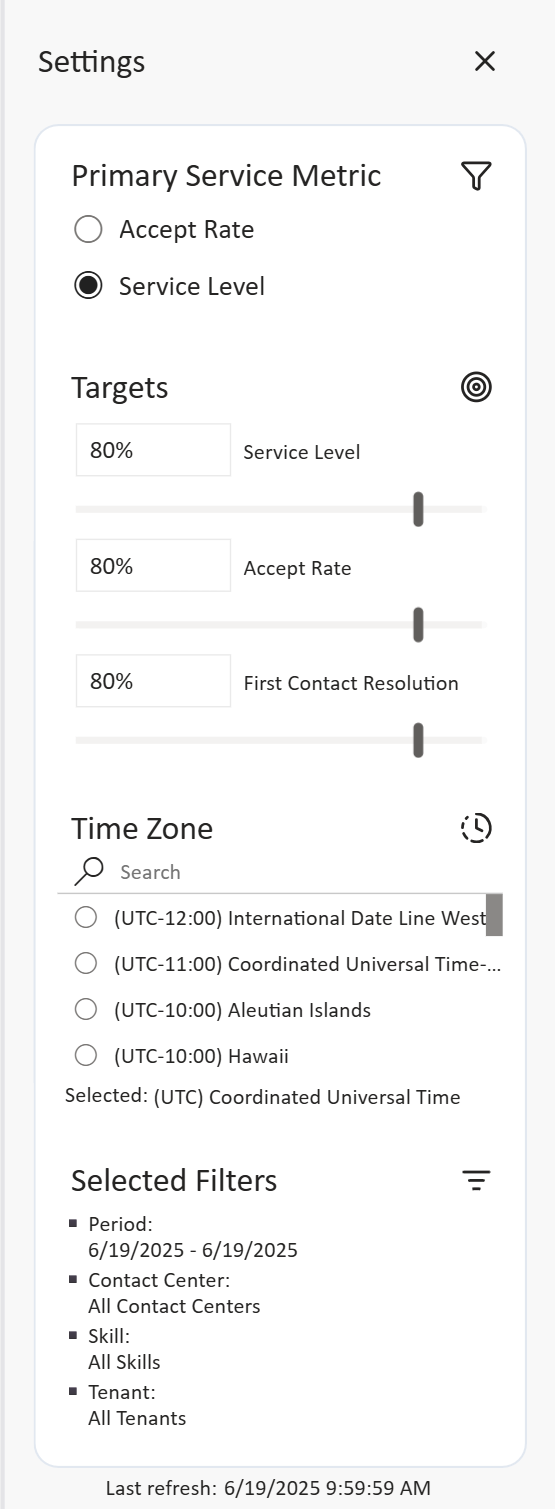
To open the settings menu, click the settings icon.

Primary Service Metric
The Primary Service Metric setting allows you to toggle between displaying the Service Level and the Accept Rate as the primary metric. When "Accept Rate" is selected, the Service Level card will display the Accept Rate instead, and vice versa. This feature was introduced in response to a growing trend where more customers prioritize the Accept Rate over the Service Level.
Targets
The Targets setting enables you to adjust the target bar for the Service Level, Accept Rate, and First Contact Resolution cards. This helps you quickly assess how far each metric is from its target value.
Time Zone
The Time Zone setting lets you change the time zone in which data is displayed on the real-time dashboard. This setting is used to determine the start of the day and updates all metrics accordingly, furthermore this setting is used for the "Dialogue Volume (per hour)" graph, ensuring that the data is displayed on the correct hour of the local time zone. The currently selected time zone is displayed below the setting.
Selected Filters
The Selected Filters section shows the filters currently applied to the real-time dashboard. It displays the selected period (default: today), as well as the contact centers, skills, and tenants for which the data is being filtered.