Dialogue Workspace - Agents
Introduced in DC2025.02a - Arnhem (Dialogue Cloud Neo)
The Agents page provides a real-time view of agent availability and current activity. Use it to confirm staffing levels, identify who is available, and see which skills agents can handle.
Use the Contact centers selector (top-right) to switch between a single contact center or All contact centers.
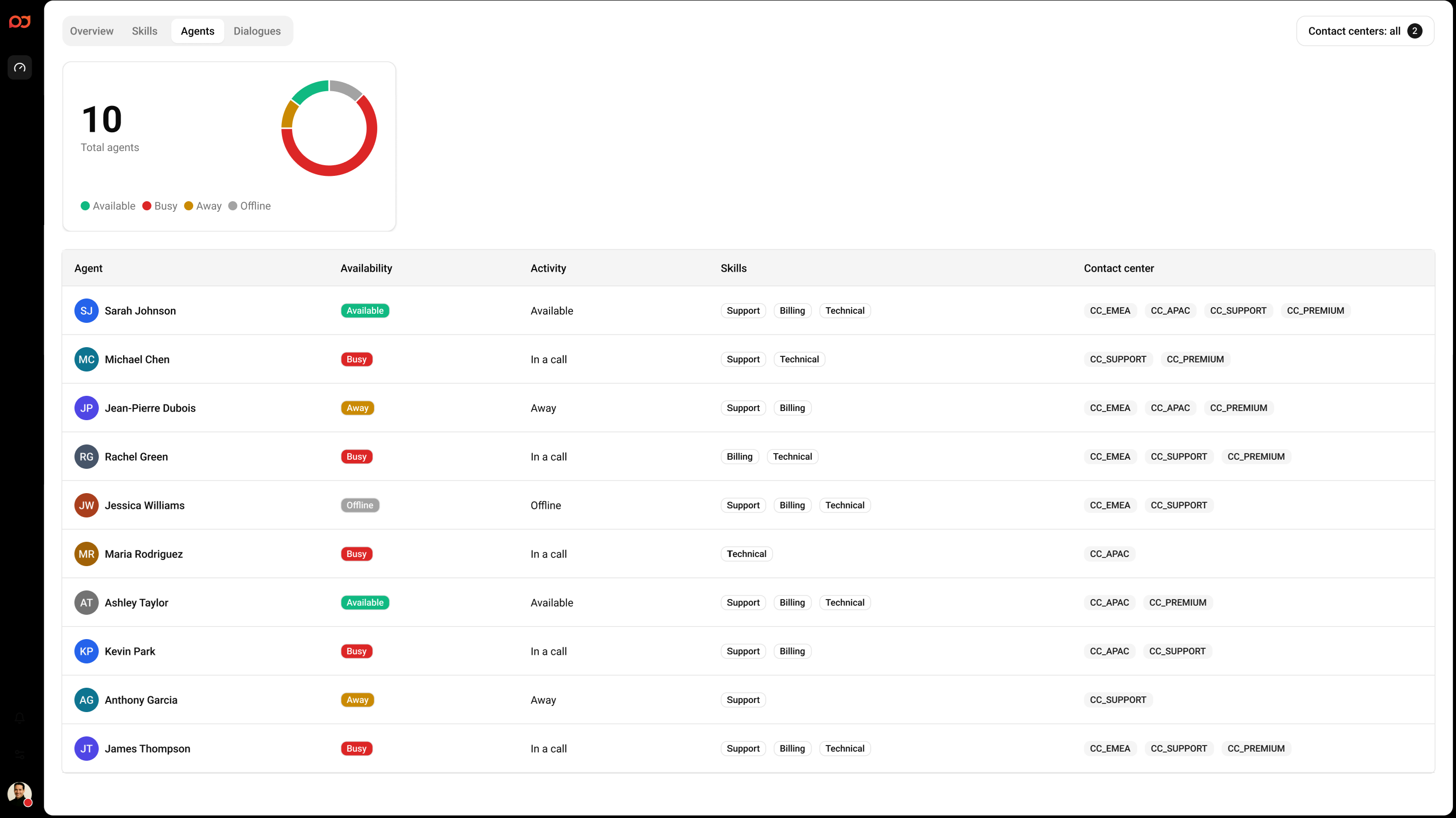
Agent presence metrics
The summary widget shows:
-
Total agents – Number of agents included in the current view.
-
Distribution of agents by presence state (for example, Available, Busy, Away, Offline, and Unknown).
Agent table
Use the Filter field above the table to search for an agent by name. Select Customize columns to show or hide columns based on your operational needs.
Columns
-
Agent – Agent name.
-
Availability – Presence status (for example, Available, Busy, Offline).
-
Activity – What the agent is currently doing (for example, Available, In a call, Offline).
-
Skills – Skills the agent can handle (shown as tags/pills).
-
Contact center – Contact center(s) associated with the agent (shown as tags/pills).
Agent details panel
To view more details for an agent, click the agent’s row in the table. A details panel opens on the right side of the screen.
To close the panel, select the X in the top-right corner of the panel.
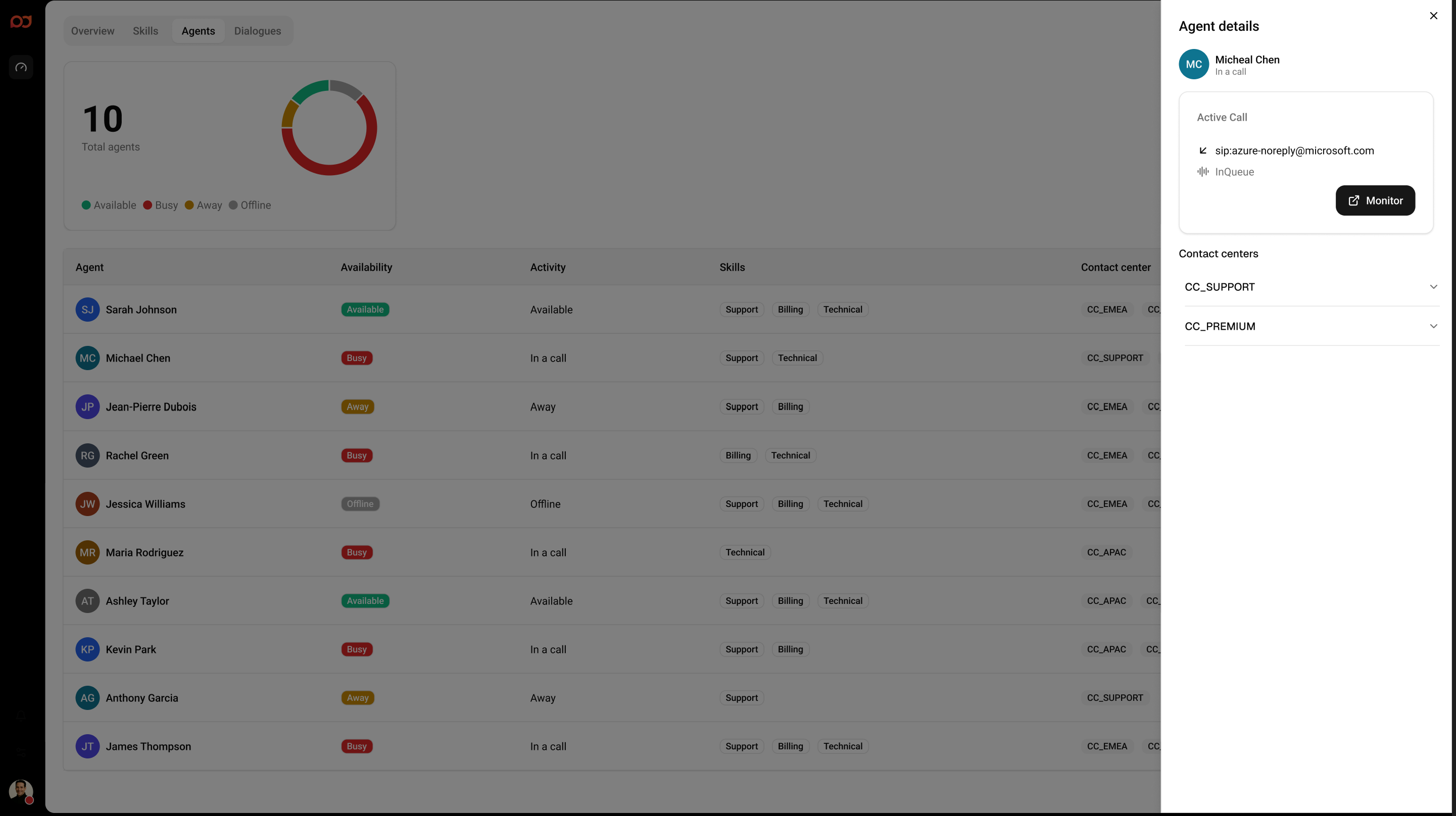
What the panel shows
-
Agent header – Displays the agent name and current availability status (for example, Available or Busy).
-
Active call – When the agent is in an active call, the panel shows call details such as the customer identifier and the current state (for example, Connected).
-
Monitor – If the agent has an active call, a Monitor button is available. Use it to start monitoring the active call (availability depends on your permissions and configuration).
-
Contact centers – A list of contact centers associated with the agent.
-
Skills per contact center – Expand a contact center to see the skills relevant for that agent in that contact center.
Using the contact center list
-
Select the expand/collapse control next to a contact center to show or hide its skills.
-
Use the contact center toggle to focus the panel on specific contact centers for that agent.