Dialogue Workspace - Dialogues
Introduced in DC2025.02a - Arnhem (Dialogue Cloud Neo)
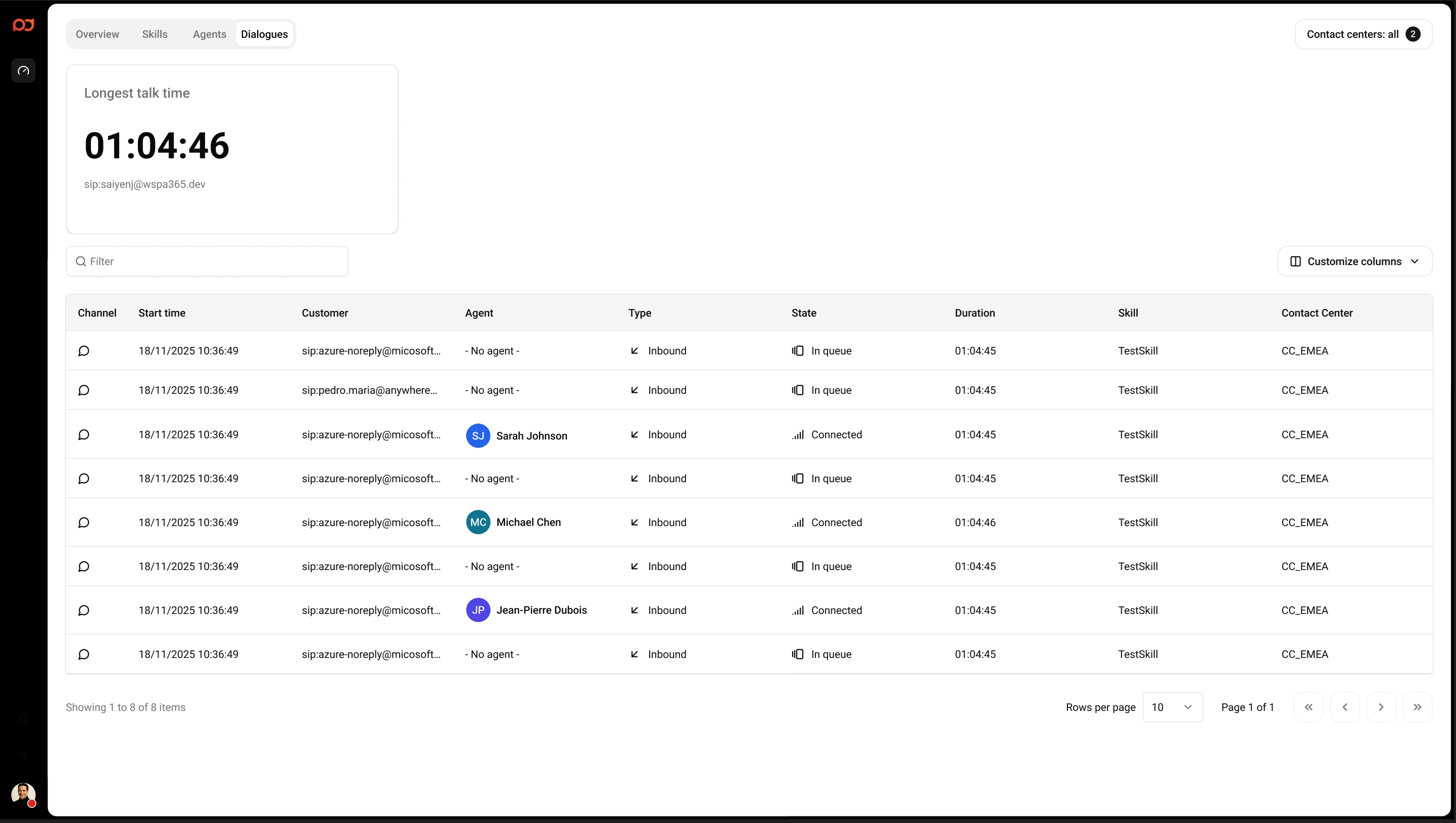
The Dialogues page lists live (and recently handled) dialogues so supervisors can monitor what is happening right now, including duration, state, assigned agent, and contact center context.
Use the Contact centers selector (top-right) to switch between a single contact center or All contact centers.
Summary card
Longest talk time highlights the longest active talk duration in the current view, including the customer identifier associated with that dialogue.
Dialogue table
Use the Filter field above the table to search for a dialogue (for example, by customer, agent, or other visible fields). Select Customize columns to show or hide columns.
Columns
-
Channel – Channel icon for the dialogue (for example, voice).
-
Start time – Timestamp when the dialogue started.
-
Customer – Customer identifier (for example, a phone number).
-
Agent – Agent handling the dialogue (if assigned/connected).
-
Type – Direction of the dialogue (Inbound or Outbound).
-
State – Current state of the dialogue.
 States
-
IVR Interactive Voice Response, or IVR, is a telephone application to take orders via telephone keypad or voice through a computer. By choosing menu options the caller receives information, without the intervention of a human operator, or will be forwarded to the appropriate Agent.: Customer is in the IVR menu
-
In Queue: Customer is queued for a Skill.
-
Connecting: The dialogue is being offered to an agent.
-
Connected: Customer is connected to an agent.
-
On Hold: Connected customer has been put on hold by the agent.
-
-
Duration – Elapsed time of the complete dialogue.
-
Skill – Skill associated with the dialogue (when available).
-
Contact center – Contact center where the dialogue is handled.
Dialogue details panel
To view more information for a specific dialogue, click the dialogue row in the table. A details panel opens on the right side of the screen.
To close the panel, select the X in the top-right corner of the panel.

Active call
If the selected dialogue is currently active, the panel shows an Active call card with the customer identifier and current state (for example, Connected).
When available, select Monitor to start monitoring the active call (availability depends on your permissions and configuration).
Conversation details
The Conversation details section summarizes the key fields for the selected dialogue:
-
Start time – When the dialogue started.
-
Customer – Customer identifier.
-
Agent – Agent handling the dialogue.
-
Type – Inbound or Outbound.
-
State – Current state of the dialogue.
States
-
IVR: Customer is in the IVR menu
-
In Queue: Customer is queued for a Skill.
-
Connecting: The dialogue is being offered to an agent.
-
Connected: Customer is connected to an agent.
-
On Hold: Connected customer has been put on hold by the agent.
-
-
Duration – Elapsed time of the complete dialogue.
-
Skill – Skill associated with the dialogue.
-
Contact center – Contact center where the dialogue is handled.
Tips
-
Sort by Duration to find unusually long dialogues.
-
Use this page together with Agents to understand workload and active engagement.
-
If Monitor is not available, confirm the dialogue is active and that you have monitoring permissions.