Dialogue Insights - Historic Reporting Dialogue Details
Introduced in DC2025.02a - Arnhem (Dialogue Cloud Neo)
The Dialogue Details report shows detailed information for a single dialogue, including timing, transcript, and classifications.
Note
The report and its dataset gets refreshed every day at 00:30 of the timezone where your Fabric workspace resides.
(Any report open in your browser while the underlying dataset has refreshed, must be manually refreshed in the app for the new dataset to become visible).
 Timezones and Fabric Regions vs. UCC Service Regions
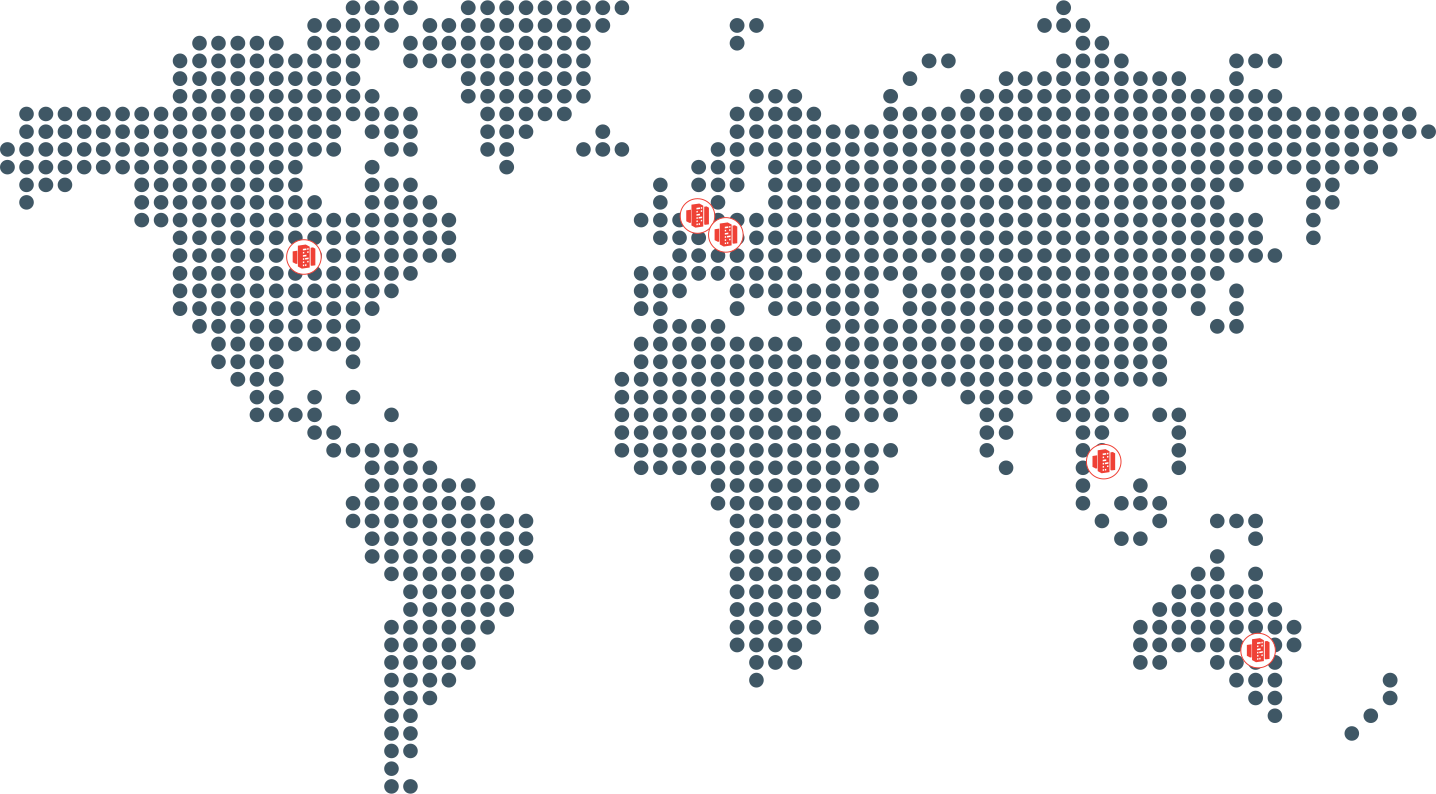
The three possible regions where Fabric workspaces reside (defined by UCC A Unified Contact Center, or UCC, is a queue of interactions (voice, email, IM, etc.) that are handled by Agents. Each UCC has its own settings, IVR menus and Agents. Agents can belong to one or several UCCs and can have multiple skills (competencies). A UCC can be visualized as a contact center “micro service”. Customers can utilize one UCC (e.g. a global helpdesk), a few UCC’s (e.g. for each department or regional office) or hundreds of UCC’s (e.g. for each bed at a hospital). They are interconnected and can all be managed from one central location. Service deployment in Dialogue Cloud Neo) are:
-
EMEA-GWC: W. Europe Standard Time
-
APAC-SEA: Singapore Standard Time
-
NORA-CUS: Central America Standard Time
The mapping of which Fabric workspace region is used by which UCC Service region is provided in table below
| If UCC Service region is: | Then Fabric workspace region is: |
|---|---|
| EMEA-WEU (West Europe) | EMEA-GWC - Germany West Central |
| EMEA-GWC (Germany West Central) | EMEA-GWC - Germany West Central |
| EMEA-SZN (Switzerland North) | EMEA-GWC - Germany West Central |
| NORA-CUS (Central US) | NORA-CUS - Central US |
| APAC-SEA (South East Asia) | APAC-SEA - South East Asia |
| APAC-AUE (Australia East) | APAC-SEA - South East Asia |
For more information, see Dialogue Insights data residency and processing regions.
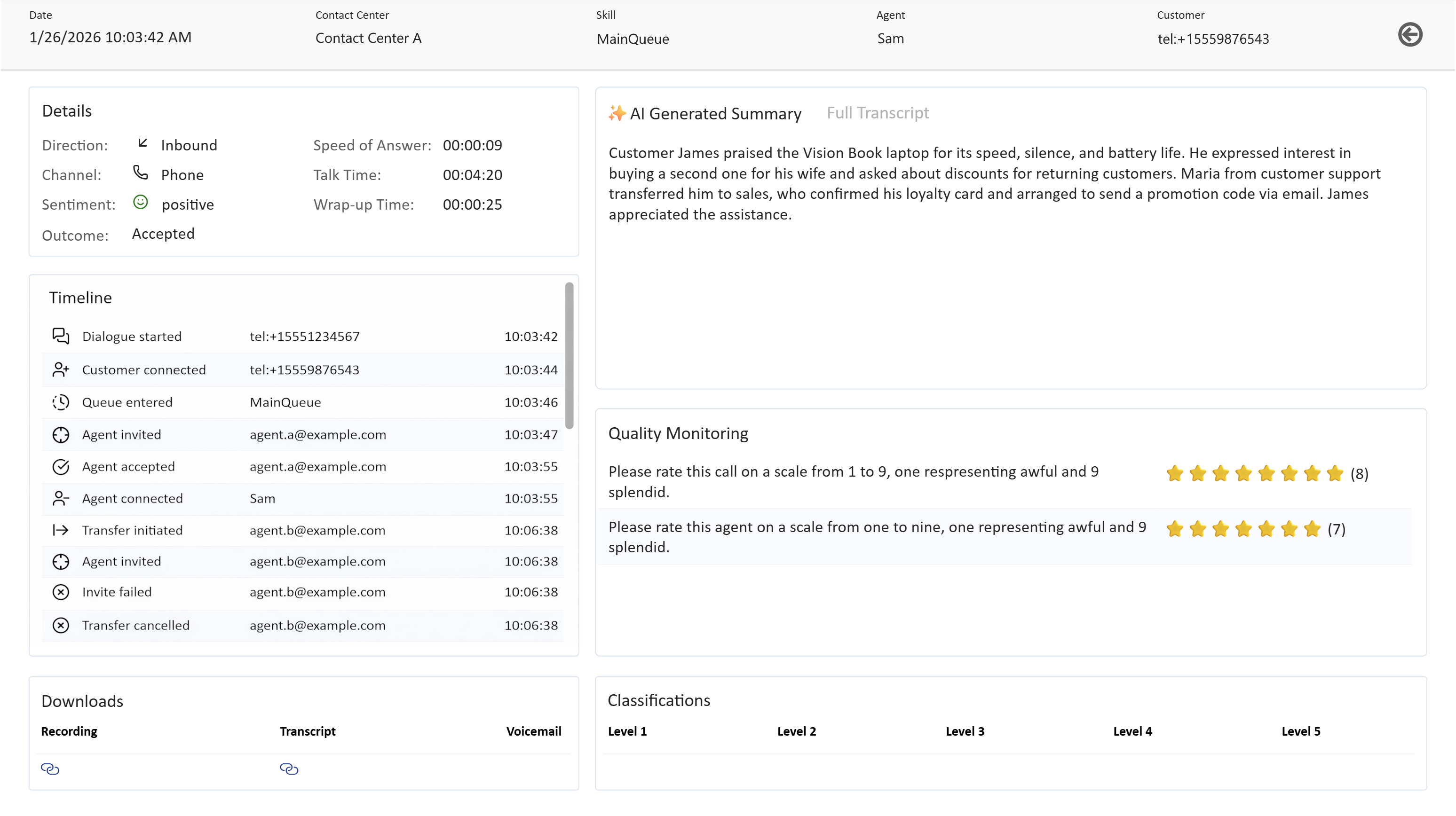
This report includes:
-
Basic information
-
Additional details
-
Timeline
-
Downloads
-
AI Generated Summary / Full Transcript
-
Quality Monitoring
-
Classifications
Basic information
The basic information of the selected dialogue is displayed in the top bar.

Here you find:
-
Date: the timestamp when the dialogue was initiated (by the customer for inbound dialogues, or by the agent for outbound dialogues).
-
Contact Center: the name of the contact center on which the dialogue was received/initiated.
-
Skill: the name of the skill associated with the dialogue.
-
Agent: the agent who answered/initiated the dialogue
-
Customer: the customer who initiated/received the dialogue
-
⬅: a button to navigate back to the Dialogue Overview report
Additional details
An overview of other relevant details of the selected dialogue.
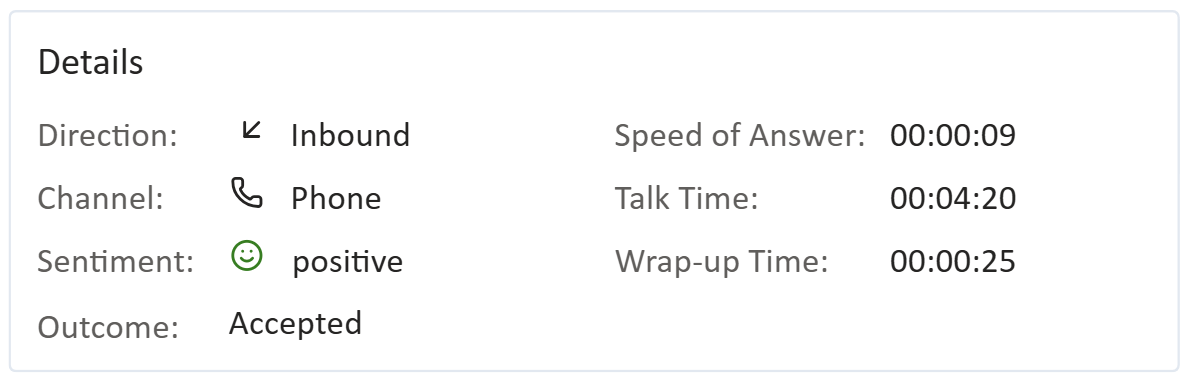
Here you find:
-
Direction: the direction of the dialogue (↙️ inbound or ↗️ outbound)
-
Channel: the channel of the dialogue. The following channels are available:
- Chat
- Phone
- SMS
- If it is none of the above an icon with a question mark is shown.
-
Sentiment: a smiley indicating the sentiment of the Dialogue.
If the feature is enabled, the sentiment is determined only for audio dialogues that have transcripts available. Please note, sentiment is generated post call on 15 minute intervals. It could take a bit longer for sentiment to show up in the report.
- positive
- neutral (or not/applicable)
- negative
-
Outcome: the outcome of the dialogue. Today the following outcomes are distinguished:
- Abandoned: the customer ended the dialogue while it was waiting in the queue for an Agent to answer the dialogue.
- Accepted: an Agent answered the dialogue.
- Forwarded: the dialogue is forwarded to an alternative destination before an Agent answered and the customer has not ended the dialogue.
- IVR Interactive Voice Response, or IVR, is a telephone application to take orders via telephone keypad or voice through a computer. By choosing menu options the caller receives information, without the intervention of a human operator, or will be forwarded to the appropriate Agent. Drop: the customer ended the dialogue before a skill was assigned to the dialogue (e.g. while being in the IVR or while the Welcome Message is played).
-
Speed of Answer: the time between the moment the dialogue was queued and the moment the dialogue is answered.
-
Talk Time: the time between the moment the agent/customer answered the dialogue and the moment the dialogue is disconnected by all participants.
-
Wrap-Up Time: the time between the moment the Agent left the dialogue and the moment the wrap-up is ended (automatically because the timer ended, or manually when the agent ends the wrap-up).
Sentiment is generated using built-in functionality in MS Fabric; for more details see: Transform and Enrich Data with AI Functions - Microsoft Fabric
Timeline
An overview of all important events during a dialogue.
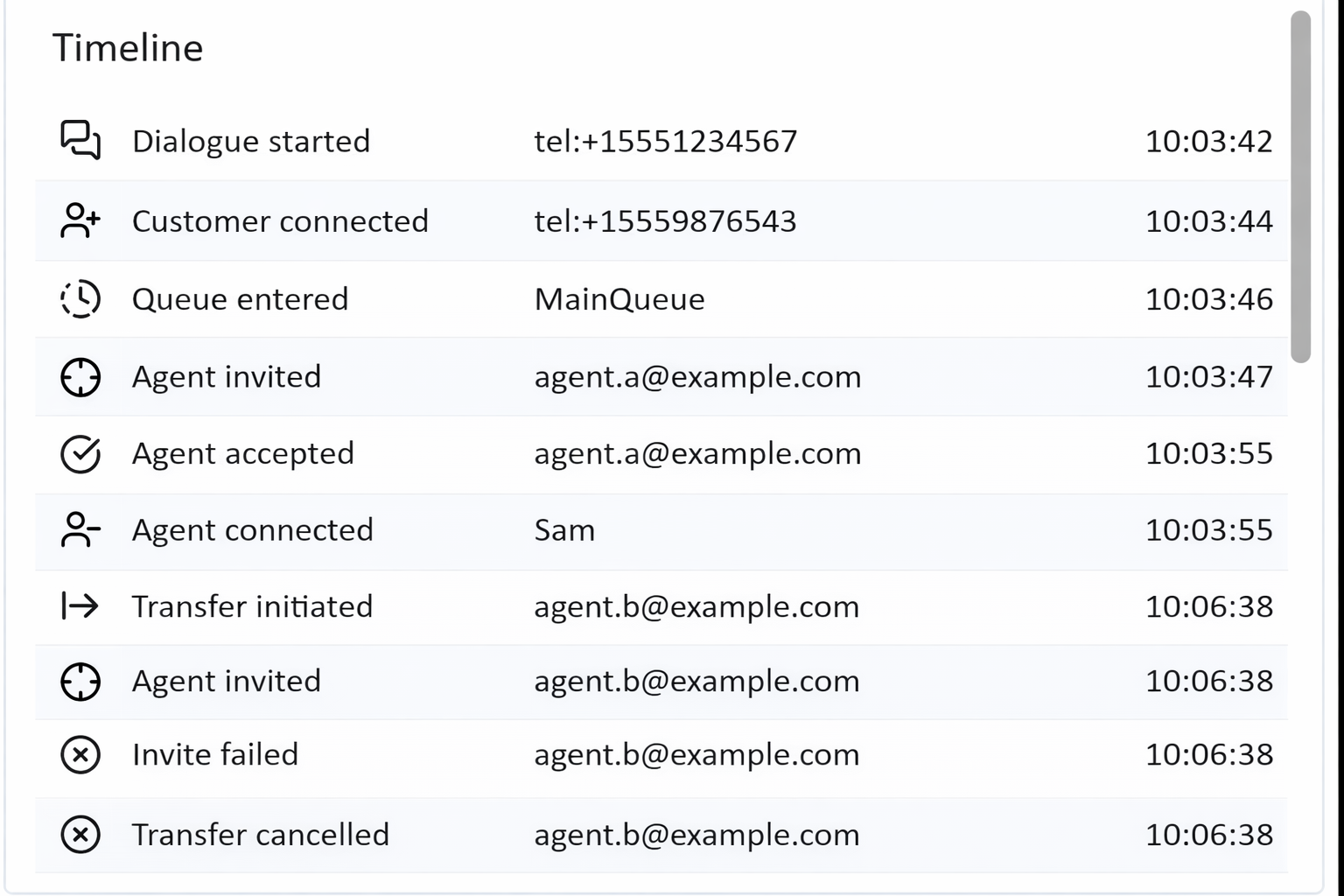
For each event the following is listed:
-
Name of the event (along with an icon)
-
Additional details (e.g. the name/address of the entity involved)
-
Time of the event
Today, the following events are included in the timeline:
-
Dialogue started, along with the phone number or address used to receive/initiate the dialogue
-
Customer connected, along with the display name/address of the customer joining the dialogue
-
Virtual Agent joined, along with the identifier of the virtual agent that joined
-
Virtual Agent left, along with the reason why the virtual agent left
-
Task Completed: the virtual agent completed its task successfully
-
Customer Disconnected: the customer disconnected while interacting with the virtual agent
-
Connection Failed: the virtual agent could not be added to the dialogue
-
Queue entered, along with the name of the skill in which the dialogue is queued
-
Agent invited, along with the display name/address of the agent being invited/consulted
-
Agent accepted, along with the display name/address of the agent who accepted the invite/consult
-
Agent connected, along with the display name/address of the agent joining the dialogue
-
Agent declined, along with the display name/address of the agent who declined the invite/consult
-
Agent missed, along with the display name/address of the agent who was too late to accept the invite/consult
-
Invite canceled, along with the display name/address of the agent for which the invite was canceled (e.g. customer disconnected)
-
Hold Music started, without additional details
-
Hold Music stopped, without additional details
-
Consult initiated, along with the phone number/address of the Agent being consulted
-
Transfer initiated, along with the phone number/address of the Agent receiving the transfer
-
Transfer canceled, along with the phone number/address of the agent not getting connected after initiating a transfer
-
Agent disconnected, along with the phone number/address of the agent ending the consult without transferring the dialogue to this agent
-
Supervisor listening, along with the display name/address of the supervisor joining the dialogue in listen mode
-
Supervisor whispering, along with the address of the supervisor whispering
-
Supervisor talking, along with the address of the supervisor talking
-
Supervisor taking over, along with the address of the supervisor taking over
-
Supervisor disconnected, along with the display name/address of the supervisor leaving the dialogue
-
Customer disconnected, along with the display name/address of the customer leaving the dialogue
-
Agent disconnected, along with the display name/address of the agent leaving the dialogue
-
Dialogue classified, along with the classification specified by the agent
-
Voicemail saved, indicating that the voicemail file has been saved to SharePoint
-
Transcript saved, indicating that the transcript file has been saved to SharePoint
-
Recording saved, indicating that the recording file has been saved to SharePoint
-
Dialogue rated, along with the quality monitor score provided
-
Wrap-up started, along with the display name/address of the agent for which wrap-up started
-
Wrap-up ended, along with the display name/address of the agent for which wrap-up ended
-
Dialogue ended, without additional details
Downloads
There can be three types of downloads (for audio dialogues only).
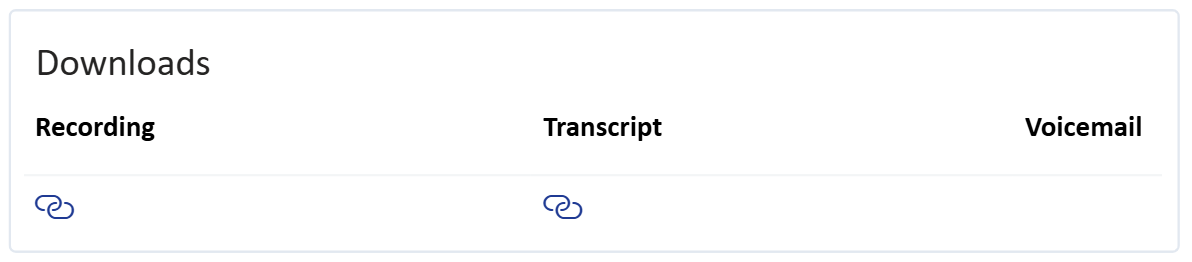
-
Recording: a link to the audio recording file when it has been saved to SharePoint
-
Transcript: a link to the transcript file when transcript recording to SharePoint is enabled
-
Voicemail: a link to the voicemail file when it has been saved to SharePoint
AI Generated Summary/Full Transcript (Dialogue Insights vs. SharePoint)
By default, this box displays the AI Generated Summary of the audio dialogue. You can click Full Transcript to read the full transcript of the conversation.
The transcription displayed in Dialogue Insights, for both Connect and Unify, always captures and stores the transcript in Dialogue Insights. The transcript and summary shown in the Dialogue Details report is therefore read straight from Dialogue Insights.
If the UCC setting UseTranscriptRecording is set to TRUE, the UCC also writes the transcript as a JSON text file to SharePoint. The Transcript saved event in the timeline is defined when the UCC has that saved to SharePoint.
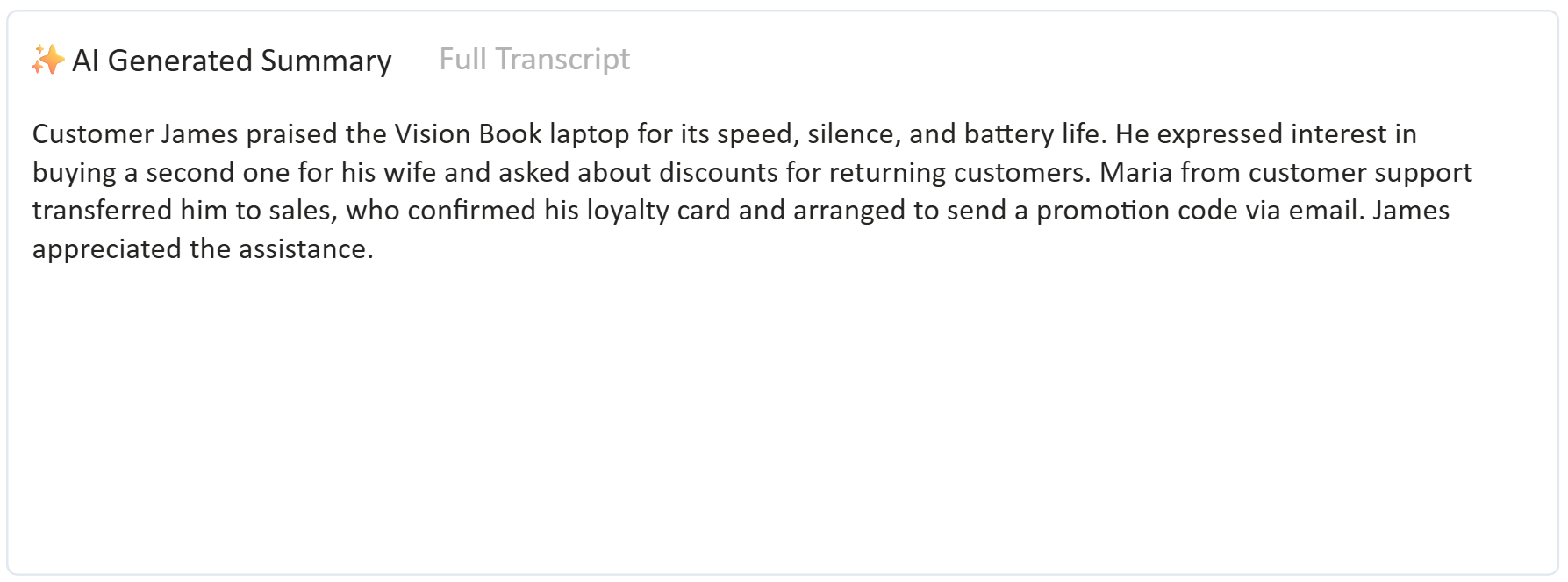
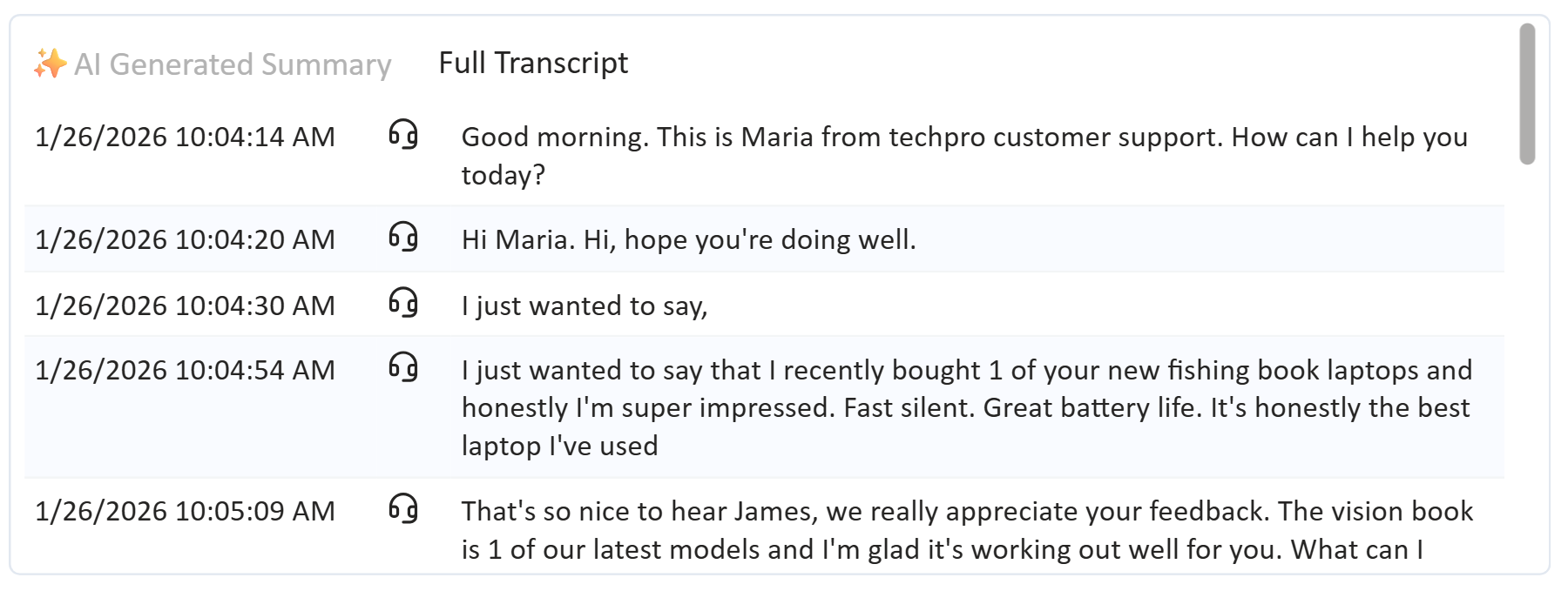
If the feature is enabled, the AI Generated summary is determined only for audio dialogues that have transcripts available. Please note, summaries are generated post call on 15 minute intervals. It could take a bit longer for the summary to show up in the report.
Summaries are generated using built-in functionality in MS Fabric; for more details see: Transform and Enrich Data with AI Functions - Microsoft Fabric
Quality Monitoring
If a customer left feedback using the Quality Monitoring feature, you can find the questions and corresponding scores in this section.
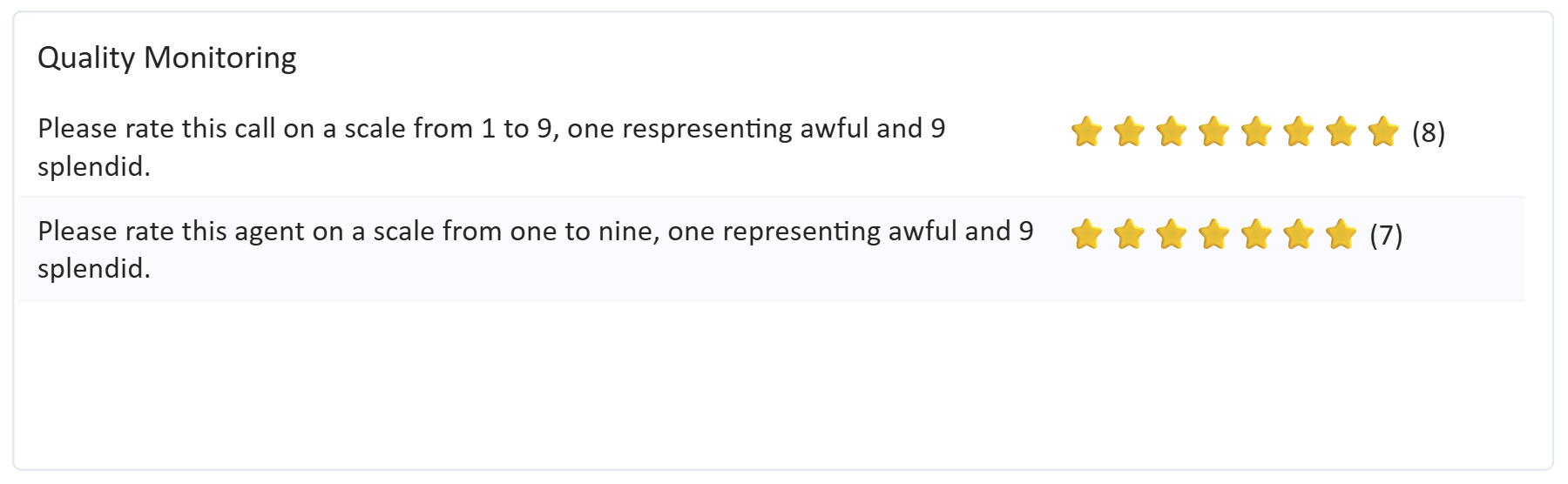
As you can see, the scores are expressed in a star rating. The number of stars matches the number keyed in by the customer.
Classifications
If the agent classified the dialogue, here you can find the details.

Today, up to 5 levels are displayed.